


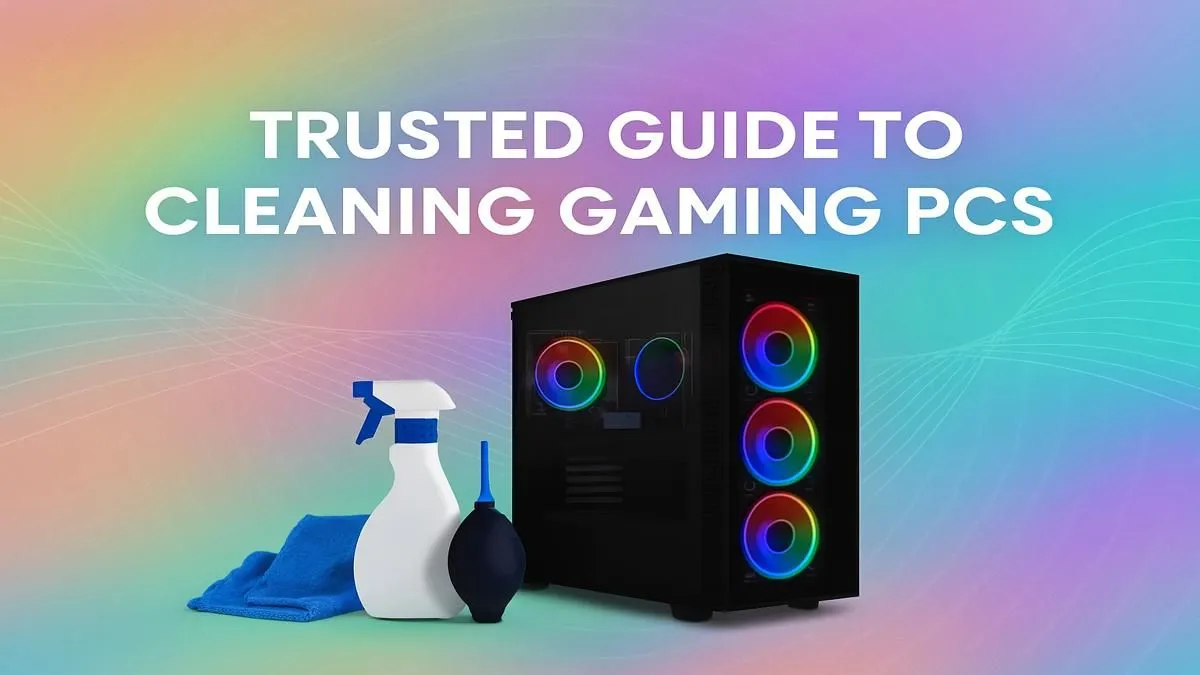
Is your gaming rig running hotter than a Durban summer? Before you blame lag or your ISP, take a peek inside your case. That sneaky build-up of dust and grime is a notorious performance killer, choking your components and shortening their lifespan. Learning how to clean a gaming PC isn't just a chore; it's essential maintenance to keep your machine running at peak power. Let's get your beast breathing freely again. 💨
Why Cleaning Your Gaming PC is Non-Negotiable
Ignoring dust is like forcing your PC to run a marathon while wearing a winter coat. Dust insulates crucial components like your CPU and GPU, trapping heat and forcing your fans to work overtime. This leads to:
- Thermal Throttling: Your PC intentionally slows itself down to avoid overheating, causing stuttering and frame drops in the middle of a crucial match.
- Increased Noise: Your fans spin at max RPM to fight the heat, turning your quiet rig into a jet engine.
- Component Failure: Prolonged exposure to high temperatures can permanently damage your hardware, leading to costly replacements.
Properly cleaning your gaming PC is the best way to protect your investment, whether you're running one of our affordable budget gaming PCs or a high-end monster.
Your PC Cleaning Toolkit 🔧
You don't need a high-tech lab to get the job done. Here’s a simple, effective toolkit for a thorough PC cleaning session:
- Compressed Air: The number one tool for blasting dust from hard-to-reach places.
- Microfibre Cloths: Perfect for wiping down surfaces without leaving lint behind.
- Isopropyl Alcohol (90%+): Excellent for cleaning thermal paste or stubborn grime on components. Use sparingly.
- Cotton Swabs & Soft Brushes: Ideal for detailed work on fan blades and heatsink fins.
- A Phillips-head Screwdriver: To open your case.
This basic setup is all you need to maintain everything from entry-level builds to the most powerful high-end rigs over R20k.
The Ultimate Step-by-Step Guide to Clean a Gaming PC
Ready to get hands-on? Follow these steps for a safe and effective clean. The entire process should take about 30-60 minutes.
Step 1: Power Down and Prep Your Workspace
Safety first! Completely shut down your computer. Switch off the power supply unit (PSU) at the back and unplug it from the wall. Move your PC to a well-ventilated area, preferably outdoors or on a balcony, to avoid blowing dust all over your room.
Step 2: Open the Case and Assess the Situation
Unscrew and remove the side panel (usually the left one when viewed from the front). Take a moment to see where the dust has settled the most. Key culprits are usually the intake fans, the CPU cooler heatsink, the GPU fans, and the PSU dust filter.
Pro Tip: Compressed Air Safety ⚡
When using compressed air, always spray in short, controlled bursts. Never tilt the can upside down, as this can release freezing liquid propellant that can damage your components. Keep the nozzle about 15-20cm away from the surface you're cleaning.
Step 3: The Great De-Dusting
This is the main event. Grab your can of compressed air.
- Fans: Gently hold the fan blades with one finger to prevent them from spinning too fast (which can damage the bearings) and blast the dust off the blades and out of the housing. Do this for all case fans, your CPU cooler fan, and your GPU fans.
- Heatsinks: Aim the compressed air deep into the fins of your CPU and GPU heatsinks to clear out the trapped dust. You'll be amazed at what comes out.
- General Interior: Blow dust out of the nooks and crannies, starting from the top of the case and working your way down. This ensures you're not just moving dust onto already cleaned areas.
- Dust Filters: Most modern cases have removable dust filters on the front, top, and bottom. Slide them out, give them a good wipe or rinse with water (make sure they are 100% dry before reinstalling), and pop them back in. This simple step makes a massive difference for both great value PCs under R20k and custom-built machines.
Step 4: Final Wipe-Down and Reassembly
Use a microfibre cloth to wipe down any remaining dust on flat surfaces like the bottom of the case or the PSU shroud. Once you're satisfied, re-attach the side panel, plug everything back in, and fire it up. Enjoy the cooler, quieter performance! ✨ This is a core part of maintaining any of our powerful pre-built PC deals.
How Often Should You Perform a PC Cleaning?
For most South African homes, a good deep clean every 3 to 6 months is perfect. However, you might need to clean it more frequently if:
- You have pets that shed.
- Your PC is on the floor (especially on a carpet).
- You live in a particularly dusty area.
A quick check every month can help you decide if it's time for another clean, ensuring you always get the most out of your machine and can keep an eye on our best gaming PC deals for your next big upgrade.
Is Your PC Still Lagging After a Deep Clean? Sometimes, even the cleanest rig can't keep up with the latest titles. If your PC is showing its age, it might be time for an upgrade. Explore our massive range of custom gaming PCs and unleash next-level performance.










