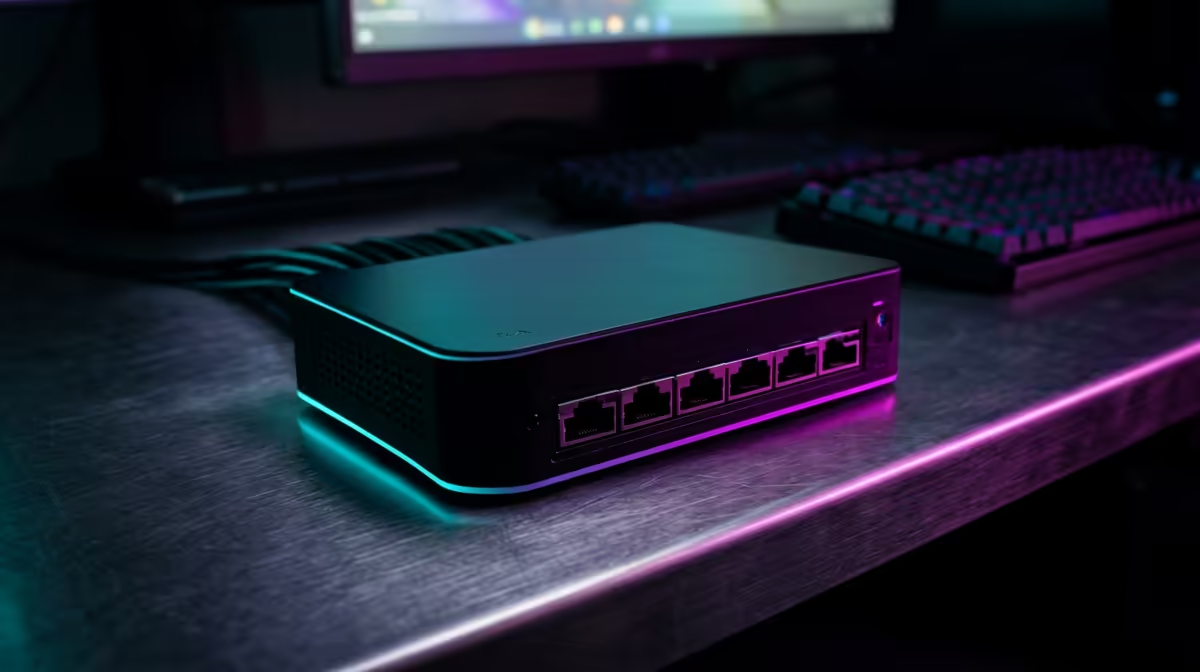
Running a work desktop and a gaming rig at the same desk usually means two keyboards, two mice, and a monitor input you are forever switching by hand. A KVM switch collapses that mess into one set of peripherals: it sits between both machines and routes your keyboard, video, and mouse to whichever computer you want, on a button press or a hotkey.
Quick Answer
Connect each computer's video output and a USB cable to the KVM, plug your monitor, keyboard, and mouse into the switch's outputs, then switch between machines with the front button or a keyboard hotkey. The one thing to get right before you buy is matching the switch's video standard and resolution ceiling to both PCs.
Match the ports before you buy anything
The fastest way to waste money on a KVM is to order one that cannot carry your monitor's resolution and refresh rate. Check three things on each computer first.
Video output: many desktops with a dedicated graphics card expose a single HDMI port and several DisplayPorts, so if your KVM is HDMI-only you may need a DisplayPort-to-HDMI adapter on one machine. Decide whether you want an HDMI switch, a DisplayPort switch, or a mixed one.
Resolution and refresh: for 4K at 60Hz, look for a KVM rated HDMI 2.0 or DisplayPort 1.4. For high-refresh gaming at 1440p 144Hz or 4K at high refresh, you need a premium HDMI 2.1 or DisplayPort 2.1 model. A cheap switch will silently cap you at 60Hz.
USB: a basic KVM shares USB 2.0, which is fine for keyboard and mouse. If you want to share a webcam, fast external drive, or audio interface, get a switch with USB 3.x pass-through.
Wiring it up step by step
- Power everything down. Place the KVM where its cables can reach both PCs and your monitor comfortably, ideally at the back of the desk.
- Connect computer one to the KVM: run a video cable from its graphics output to the switch's input one, then a USB type-A to type-B cable from a free USB port to the switch's USB input one.
- Connect computer two the same way to input two. Use the adapter here if its video output does not match the switch.
- Plug your monitor into the KVM's video output. If the switch supports dual monitors, connect both displays to the two outputs.
- Plug your keyboard and mouse into the KVM's peripheral ports. Many switches mark a specific port for the keyboard, which is the one that listens for hotkey commands, so use it.
- Power on the KVM first, then both computers. Each machine should detect the monitor and peripherals as if they were directly attached.
Switching between the two machines
Most KVMs give you three ways to switch: the physical button on the front, a keyboard hotkey such as a double-tap of Scroll Lock or Ctrl, and sometimes a wired remote. The hotkey is the one you will use daily, so learn the sequence from the manual. When you switch, the monitor, keyboard, mouse, and any shared USB devices all move to the other computer together.
If your hotkey does nothing, the usual culprit is the keyboard plugged into the wrong port. Move it to the port marked for keyboard or, on some switches, a USB 2.0 port rather than a USB 3.x one, because hotkey detection lives on the slower controller.
The feature that prevents window chaos
The single most useful spec on a KVM is EDID emulation. Without it, switching away from a computer makes Windows think the monitor was unplugged, so it shuffles all your open windows onto one display and you spend the morning dragging them back. EDID emulation keeps a persistent fake connection alive to both machines, so windows stay exactly where you left them. Treat it as non-negotiable on a dual-monitor setup.
While you have the desk pulled apart, it is a sensible moment to sort out the workspace as a whole. A long day of switching between work and play benefits from a proper desk setup, and the best-selling desk accessories at Evetech covers most KVM and dual-PC builds without overspending.
Frequently Asked Questions
Do both computers need the same type of video output?
No, but the KVM has to accept whatever each one provides. If one PC outputs HDMI and the other only DisplayPort, either buy a mixed-input switch or use a DisplayPort-to-HDMI adapter so both feed the same port type. Always confirm the switch supports your highest resolution and refresh rate.
Will a KVM switch reduce my gaming performance?
A quality KVM rated for your resolution and refresh adds no meaningful input lag and does not affect frame rates, because it passes the video signal through rather than processing it. The risk is buying an underspecified switch that caps refresh rate, so match the HDMI or DisplayPort version to your monitor.
Can one KVM handle two monitors?
Yes, dual-monitor KVMs exist and switch both displays plus all peripherals at once. They cost more than single-monitor models and you connect each display to its own output on the switch. Make sure the unit lists dual 4K or your target resolution explicitly.
Why does my hotkey switch not work?
Almost always the keyboard is in the wrong USB port. The hotkey listener usually lives on a specific port marked for the keyboard, or on a USB 2.0 rather than a USB 3.x port. Move the keyboard there and confirm the hotkey sequence in the manual.
Is a KVM better than just using two monitor inputs?
A KVM moves your keyboard, mouse, and USB devices as well as video, all in one action. Switching monitor inputs alone still leaves you juggling two keyboards and mice. If you only ever swap the display and already have separate peripherals, the monitor's own input button may be enough.
Sorting your dual-PC desk this weekend? Round out the setup with the right surface from the ergonomic desk range at Evetech and keep both machines at your fingertips in comfort.