


Clean Gaming Keyboard: Guide for Dusty & Humid Conditions
Clean gaming keyboard quickly and safely in dusty or humid conditions with step-by-step tips, tool checklist, and maintenance routines to prevent corrosion and switch failure. 🧼💨
Read moreLearn how to set up a home network with our easy, step-by-step guide tailored for South African residents. We'll walk you through choosing the right gear from your ISP, connecting devices, and securing your Wi-Fi for seamless streaming, gaming, and browsing. Get connected today! 🌐💻
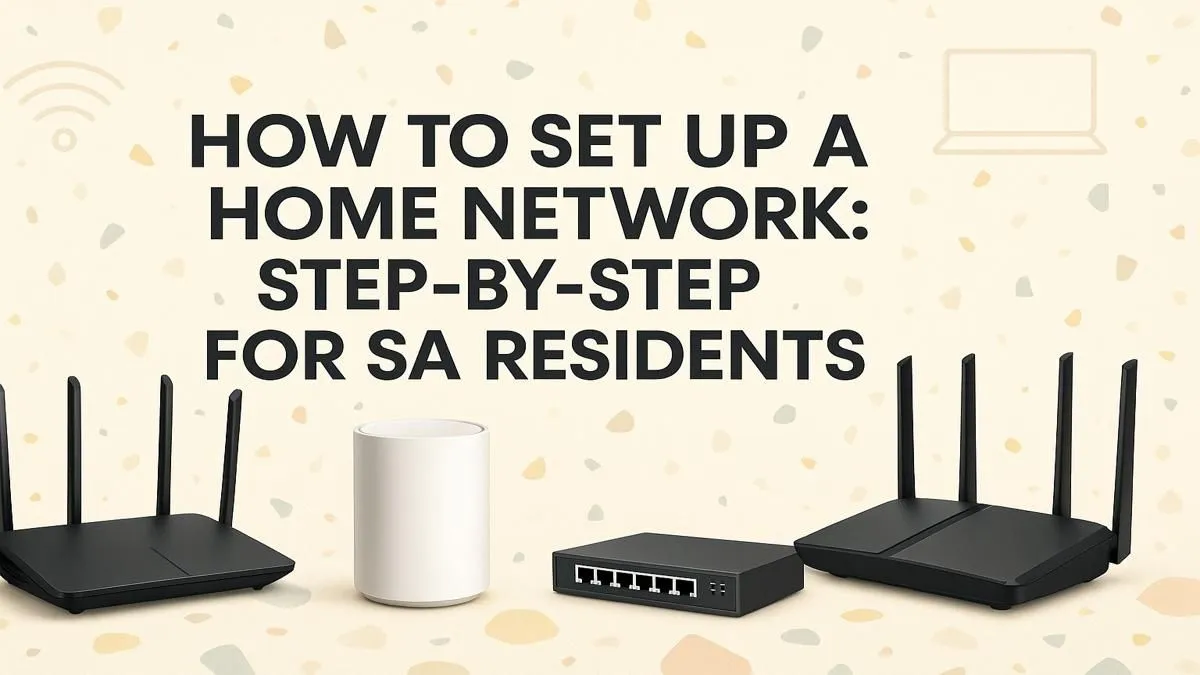
Is your fibre connection feeling more like dial-up the moment you leave the room? You’re not alone. In South Africa, getting a stable, fast connection throughout your home can be a real mission. But don’t blame your ISP just yet! Knowing how to set up a home network correctly can turn laggy gaming sessions and buffering streams into a thing of the past. This step-by-step guide will show you how to get it done right. 🔧
Before you plug anything in, you need the right tools. Your Internet Service Provider (ISP) likely gave you a modem/router combo. For basic browsing, it’s fine. But for a busy home with multiple devices, streaming 4K content, and intense online gaming, it might be the bottleneck.
A dedicated, powerful router is the heart of a great home network setup. Look for models with Wi-Fi 6 (802.11ax) technology, which is designed for handling many connections at once without slowing down. Investing in one of our top-tier wireless routers can make a night-and-day difference to your speed and stability.
Where you place your router is more important than you think. Don't hide it in a cupboard or at the far end of the house! For the best signal, follow these simple rules:
Connect the Ethernet cable from your fibre box or modem to the router's "WAN" or "Internet" port (it's often a different colour). Then, use another Ethernet cable to connect your computer to one of the "LAN" ports for the initial setup.
Now it's time to tweak the software. Open a web browser on your connected computer and type in your router's IP address (usually 192.168.0.1 or 192.168.1.1 – check the sticker on the router). Log in with the default username and password.
Once you're in, here are the three essential changes to make:
Use a free app like "WiFi Analyzer" on your phone to see which Wi-Fi channels your neighbours are using. Most routers default to channels 1, 6, or 11. By manually setting your router to a less crowded channel in its admin settings, you can significantly reduce interference and boost your signal stability. It's a quick fix for mysterious connection drops!
Even with perfect placement, you might have Wi-Fi "dead zones" in your home. If your signal is weak in the bedroom or braai area, don't despair.
For those stubborn spots, a simple Wi-Fi range extender can be a lifesaver. It picks up your existing signal and rebroadcasts it, extending its reach. And for older desktops or devices without built-in Wi-Fi, a plug-and-play USB wireless adapter is the easiest way to get them connected without running long cables.
With your home network setup complete, it's time for the final touches. Connect your devices to the new Wi-Fi network and run a speed test to check performance. It's also a great idea to set up a "Guest Network" if your router supports it. This lets visitors get online without giving them access to your main network and all your devices. ✨
Mastering your network is an ongoing process, and having the right hardware is key to a smooth online experience. For a complete overview of what's possible, browse our full wireless networking category.
Ready to Banish Buffering for Good? A rock-solid home network is the backbone of modern gaming and entertainment. With the right gear and a few simple tweaks, you can enjoy the full speed you're paying for. Explore our massive range of networking gear and build the powerful, reliable home network you deserve.
You'll need a modem (often supplied by your ISP like Vumatel or Openserve), a Wi-Fi router to create your wireless network, and Ethernet cables for any wired connections to PCs or consoles.
Consider your internet speed, home size, and the number of devices. For a typical fibre connection, a Wi-Fi 6 router is ideal for handling faster speeds and multiple simultaneous connections.
The first step is to connect your modem to the internet source (e.g., your fibre box or phone line). Then, use an Ethernet cable to connect the router to the modem. This establishes your gateway.
To secure your home Wi-Fi network, immediately change the default admin password, use strong WPA3 encryption, hide your network name (SSID), and keep your router's firmware updated.
Absolutely! Modern networking gear is designed for user-friendly installation. Our step-by-step guide makes it easy for anyone to get a basic home network running in under an hour.
A modem connects your home to the internet from your service provider. A router takes that single connection and creates a local network, allowing multiple devices to share the internet wirelessly.
For large homes, a mesh Wi-Fi system is the best solution. It uses multiple nodes placed around your house to create a single, seamless network that eliminates dead zones and provides strong signal everywhere.
Clean gaming keyboard quickly and safely in dusty or humid conditions with step-by-step tips, tool checklist, and maintenance routines to prevent corrosion and switch failure. 🧼💨
Read more
Best gaming keyboard features to prioritize when building a high-end setup: mechanical switches, low latency, hot-swap, RGB, macros, durability and ergonomics 🎮⌨️
Read more
Custom actuation point keyboard setup guide: learn to set per-key actuation on your analog gaming keyboard for faster, precise inputs and better control 🎮⚙️
Read more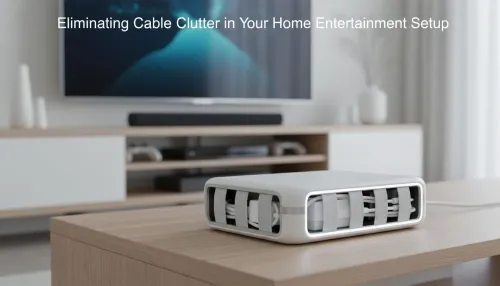
Cable management for home entertainment helps you eliminate cable clutter quickly and safely. Learn routing, concealment, and product picks to tidy your setup fast 📺🔌
Read more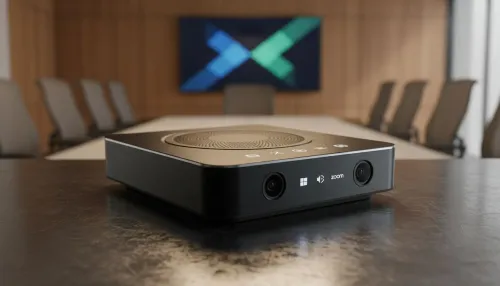
conference room setup Microsoft Teams Zoom: Upgrade AV, camera, mic, and network to ensure seamless meetings, clear audio, and crisp video 🎯🔧
Read more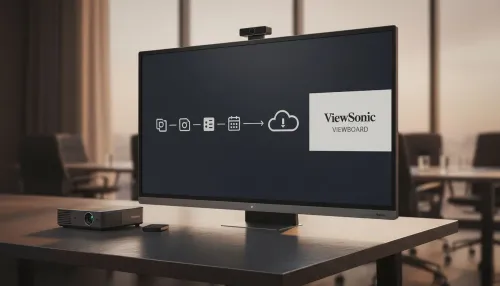
• Audit setup • Link accounts • Configure ViewBoard • Test workflows Integrate Google Workspace with ViewSonic ViewBoard to enable secure SSO, calendar and Drive sync, and smooth collaborative whiteboarding 🔗📋
Read more
Discover webcams that automatically adjust light and color for crystal-clear video calls 🎥✨. Boost your streaming quality today!
Read more
Discover webcams that blend into your workflow 🎯 Capture moments while you work, stream, or create. Upgrade your setup with smart, multitasking tech!
Read more
Dedicated media keys give streamers one-touch control to mute, switch scenes, clip highlights, and adjust audio — cutting task time and boosting consistency 🎛️⚡
Read more
PBT vs ABS keycaps: Clear, local guide for South African gamers—compare feel, sound, durability and where to buy. Find the best material for your budget and playstyle 🎮🇿🇦
Read more
- Multi-Function Digital Dial: define benefits - Show gamer setups and macros - Offer buying and setup tips Multi-Function Digital Dial puts programmable control at your fingertips for faster actions and smoother streaming. 🎮⚙️
Read more
- Explain benefits; - Show the science; - Compare options; - Recommend picks. Magnetic wrist rest for gaming cuts wrist strain and boosts comfort during long sessions 🕹️✨
Read more