You start typing an email on your iPhone on the couch, walk to your desk, and finish it on your Mac without losing a word. You copy a paragraph on one device and paste it on the other as if they share a single clipboard. That is Handoff and Universal Clipboard, two of Apple's Continuity features, and once they are set up correctly they quietly remove dozens of tiny friction points from your day.
Quick Answer
Handoff lets you start a task on one Apple device and pick it up on another; Universal Clipboard copies content on one device and pastes it on another. Both require the same Apple ID, Wi-Fi and Bluetooth switched on, and Handoff enabled in Settings on each device. Setup takes about three minutes.
What You Need Before You Start
Both features ride on the same foundation, so confirm these first:
- Every device is signed in to the same Apple ID (now Apple Account).
- Wi-Fi is on (the devices do not need the same network, but Wi-Fi must be active).
- Bluetooth is switched on, because that is how the devices discover each other.
- Both devices are reasonably close together, within Bluetooth range.
If any of these is off, the features simply will not appear, which is the single most common reason people think Handoff is broken.
Turning On Handoff
On the iPhone, open Settings, tap General, then AirPlay and Handoff, and switch Handoff on. On the Mac, open System Settings, go to General, then AirDrop and Handoff, and tick the box that allows Handoff between this Mac and your iCloud devices. That is the entire setup. There is no pairing code and no account to create beyond your existing Apple Account.
Using Handoff in Practice
Once enabled, Handoff works automatically across supported apps like Mail, Safari, Notes, Maps, Pages and many third-party apps. Here is the flow:
- Open a supported app on your iPhone, for example a draft email in Mail.
- Wake your Mac. A Handoff icon for that app appears at the right edge of the Dock.
- Click that icon and the email opens on the Mac exactly where you left it.
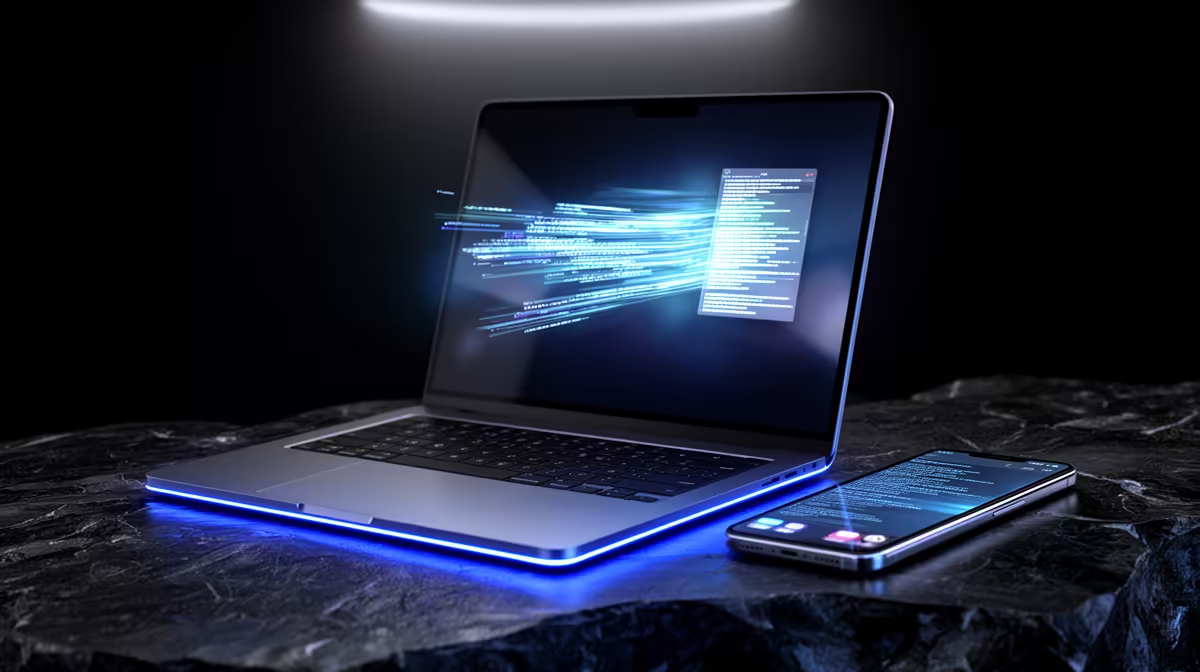
Going the other way works too. Start a Safari page on the Mac, and an app switcher banner on the iPhone offers to continue it. The handoff is the live document, not a copy, so your edits stay in one place. Once you see how seamlessly this moves between an iPhone and a Mac, the case for keeping both inside Apple's ecosystem becomes obvious, and the current MacBook lineup at Evetech shows which models pair cleanly with a recent iPhone.
Using Universal Clipboard
Universal Clipboard needs no separate switch; it activates with Handoff. To use it:
- Select text, an image, or a file on one device and copy it as you normally would.
- Move to the other Apple device within a few moments.
- Paste. The copied content appears, having travelled invisibly between the two devices.
It handles text, photos, and even files, so you can copy a paragraph on your iPhone and paste it into a document on your Mac, or grab an image on the Mac and drop it into a message on the phone. The clipboard contents stay available for a short window after copying, so paste reasonably promptly.
When Handoff Is Not Working
If the Handoff icon never appears, work through this checklist:
- Confirm both devices use the same Apple Account.
- Toggle Bluetooth and Wi-Fi off and back on, on both devices.
- Make sure Handoff is enabled in Settings on each device.
- Restart both devices, which clears most Continuity glitches.
Nearly every Handoff failure comes down to one of the four requirements being off rather than a genuine fault. If you are choosing a new Mac to pair with your phone, the broader laptop best-sellers at Evetech give a feel for where MacBooks sit against the wider laptop market.
Frequently Asked Questions
Do my Mac and iPhone need to be on the same Wi-Fi network for Handoff?
No. Both need Wi-Fi switched on and Bluetooth active, but they do not have to be joined to the same network. They discover each other over Bluetooth and then transfer the content.
Why is the Handoff icon not showing on my Mac?
The most common causes are a different Apple Account on one device, Bluetooth or Wi-Fi being off, or Handoff not being enabled in Settings. Check all three, then restart both devices if it still fails.
Does Universal Clipboard work with images and files, or just text?
It handles text, images and files. You can copy a photo on your iPhone and paste it into a document on your Mac, and the content stays available to paste for a short period after you copy it.
Is there a time limit on pasting with Universal Clipboard?
Yes. The copied content stays available across devices for a short window, so paste it reasonably soon after copying. Wait too long and you will need to copy again.
Which apps support Handoff?
Apple's own apps like Mail, Safari, Notes, Maps and Pages support it, along with many third-party apps that have built in Continuity. If an app supports Handoff, picking it up on the other device just works once the feature is enabled.
Want the full Continuity experience? Explore the MacBook range at Evetech and pair a new Mac with your iPhone for seamless Handoff and Universal Clipboard.