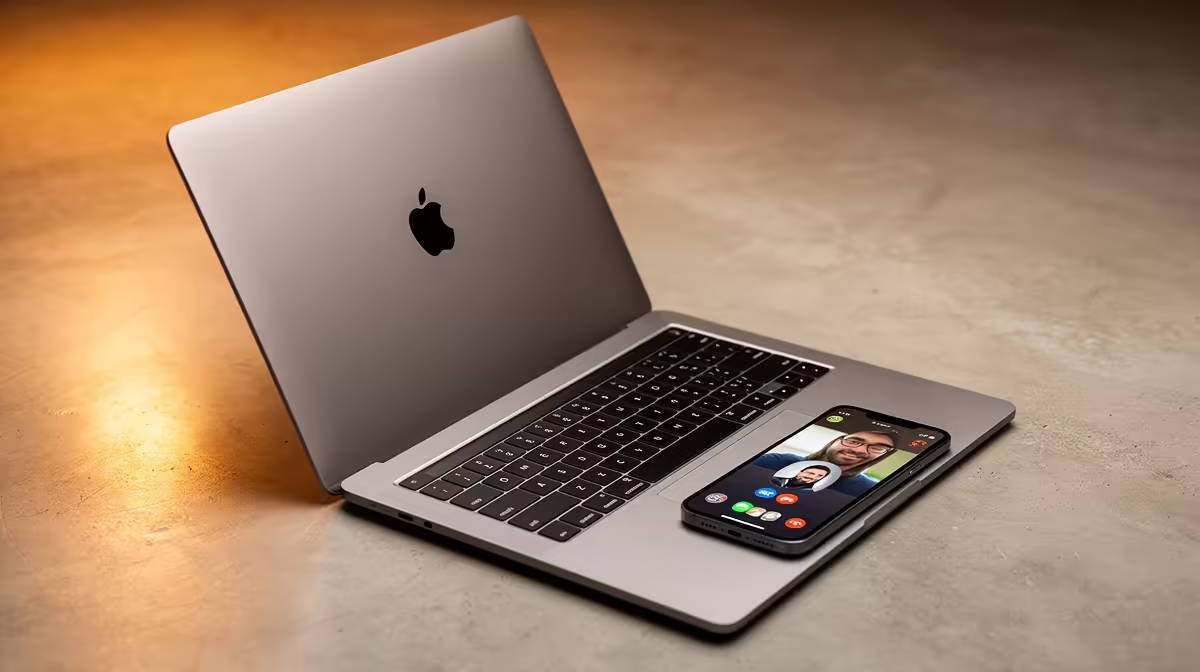
The webcam built into most laptops is a compromise, and a Mac is no exception. The sensor is tiny, the lens sits behind a thin lid, and the result on a video call is soft and noisy. Continuity Camera fixes this for free if you already own an iPhone, turning that far better rear camera into a wireless Mac webcam that activates on its own. No cable, no app to install, no settings buried five menus deep. Here is exactly how to set it up and what you need first.
Quick Answer
Continuity Camera lets a nearby iPhone act as a wireless webcam for your Mac. Log both devices into a shared Apple ID, keep Wi-Fi and Bluetooth active, mount the iPhone near your Mac with the screen locked, and it appears automatically as a camera source in apps like FaceTime, Zoom, and Teams. Setup takes a few minutes and delivers sharper, cleaner video than the built-in Mac camera.
What You Need Before You Start
A few requirements have to line up for Continuity Camera to work.
- Software versions. Your Mac needs macOS Ventura or newer, and your iPhone needs iOS 16 or newer. Both have been around long enough that most current devices qualify, but check Settings if you are unsure.
- Same Apple ID. Both devices need to use the same Apple ID, with two-factor authentication switched on. That shared account is how they recognise each other.
- Wi-Fi and Bluetooth on. Continuity Camera uses both radios to locate the iPhone and maintain the wireless link. No separate pairing or shared network task is required; both simply need to be switched on.
- Proximity. The iPhone must be physically near the Mac, ideally within a few metres, and it should be stationary and locked for the cleanest handoff.
If you are weighing up which Mac fits your workflow, the MacBook range at Evetech covers the current models and where each one lands on price.
Step-By-Step Setup
Step 1: Position The iPhone
Place the iPhone so its rear cameras face you, in landscape orientation, locked, and stable. A simple desk mount or a stand that grips the phone works best. A propped-up phone that wobbles will give shaky video, so a fixed mount is worth the small outlay. The rear camera, not the selfie camera, is what Continuity Camera uses, which is why image quality jumps so much.
Step 2: Open Your Video App
Launch the app you want to use, FaceTime, Zoom, Teams, or QuickTime. In most cases the Mac detects the nearby iPhone and switches to it automatically the first time. If it does not, move to the next step.
Step 3: Select The iPhone As Your Camera
In the app's video or camera settings, open the camera source list. Your iPhone appears by name as a camera option. Select it. The same menu usually lets you pick the iPhone as a microphone too, though many people keep a separate mic for audio.
Step 4: Use The Built-In Video Effects
Once connected, click the Video icon in the Mac menu bar to reach Continuity Camera's effects. Centre Stage keeps you framed as you move, Portrait blurs the background, and Studio Light brightens your face while dimming what is behind you. Desk View, on supported models, shows your desk from above using the ultra-wide lens, which is handy for demonstrations.
Step 5: Confirm It Stays Connected
The link is wireless, so keep the iPhone charged or on a charger for long calls. If the connection drops, check that both radios are still on and that the iPhone has not gone into a deep sleep state. Plugging the iPhone in over USB also works and removes any battery worry during long sessions.
Why The Image Looks So Much Better
A modern iPhone rear camera has a far larger sensor, sharper optics, and stronger image processing than the small module in a laptop lid. That means cleaner footage in poor light, more natural colour, and crisp detail. The difference is most obvious in a dim room, where the built-in camera turns grainy and the iPhone holds up. For anyone who takes video calls seriously, it is the cheapest meaningful upgrade available, since you already own the hardware. If you would rather see how the latest MacBooks rank for video work and everyday use, the laptop best sellers at Evetech reflect what South African buyers are currently choosing.
Frequently Asked Questions
Do I need a cable for Continuity Camera?
No. It works fully wirelessly over Wi-Fi and Bluetooth. You can connect over USB if you want to keep the iPhone charged during long calls, but it is not required.
Why isn't my iPhone showing up as a camera?
Confirm both devices share an Apple ID with two-factor authentication active, that Wi-Fi and Bluetooth are running on each, that the iPhone is locked and stationary, and that both meet the macOS Ventura and iOS 16 minimums.
Can I use Continuity Camera in Zoom and Teams?
Yes. Once set up, the iPhone appears as a standard camera source in almost any video app, including Zoom, Teams, and Google Meet, not just Apple's own apps.
Does it drain my iPhone battery?
It uses power like any camera session, so for long calls keep the phone on a charger. A USB connection both charges and carries the feed at once.
Which iPhone camera does it use?
It uses the higher-quality rear camera system, which is why the image is so much sharper than a laptop's front-facing webcam.
If your video calls deserve better than a laptop lid camera, Continuity Camera pairs a Mac and an iPhone you may already own. Explore the MacBook range at Evetech to find the model that suits your work, then put your iPhone's camera to use on every call.