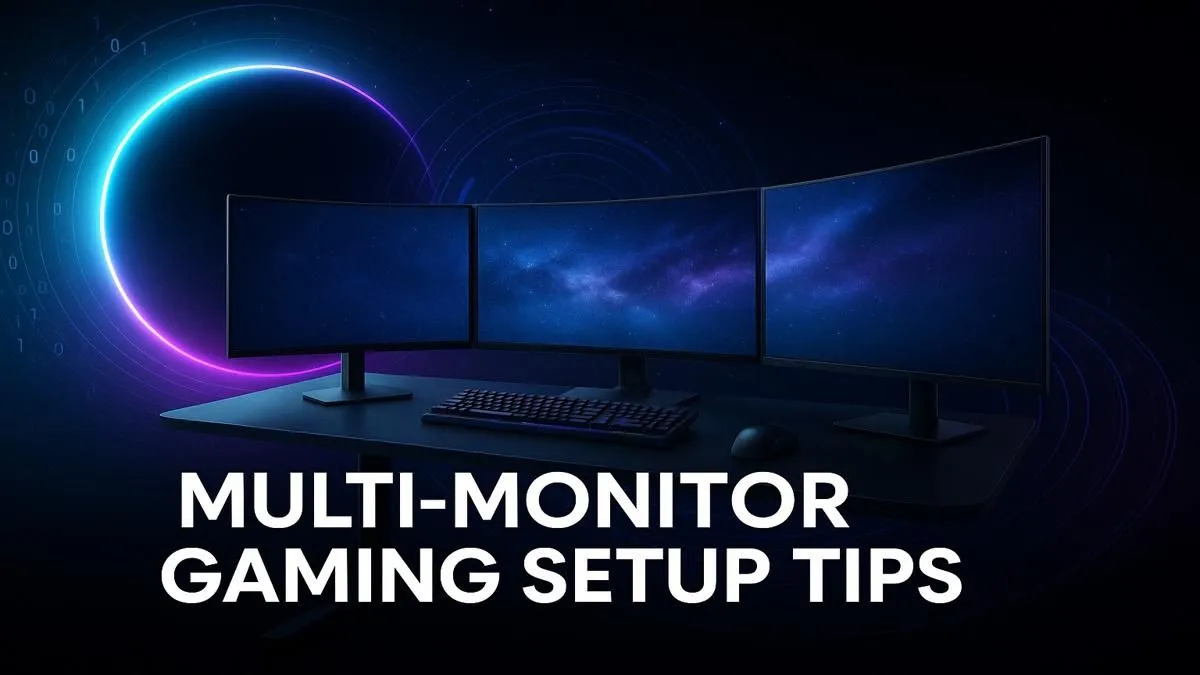
Tired of being boxed in by a single screen? For serious South African gamers and multitasking pros, a single display just doesn't cut it anymore. A multi-monitor gaming setup isn't just about looking cool… it's about unlocking a new level of immersion and productivity. Imagine flanking your main display with two more for a panoramic view in flight sims or keeping your Discord and stream stats visible without alt-tabbing. Let’s build your ultimate setup.
Why a Multi-Monitor Gaming Setup is a Must-Have
Expanding your digital real estate is one of the best upgrades you can make to your PC battle station. For gamers, a multi-monitor gaming setup offers an unparalleled field of view. In racing games like Assetto Corsa or flight simulators like Microsoft Flight Simulator, the side monitors act as peripheral vision, pulling you directly into the cockpit. 🚀
But it's not just about immersion. For streamers and content creators, it’s a workflow revolution. You can dedicate your main screen to the game while managing your broadcast software, chat, and alerts on a second or third display. No more frantic alt-tabbing mid-firefight. This efficiency boost also applies to productivity, allowing you to code, design, or research with far more information visible at once. With the right PC monitors, your desk transforms from a simple gaming spot into a command centre.
Building Your Command Centre: The Core Components
Putting together the perfect multi-screen environment involves more than just plugging in extra displays. You need to balance performance, aesthetics, and your budget.
Choosing Your Displays
The heart of your setup is, of course, the monitors themselves. For a seamless experience, try to match the size, resolution, and ideally, the model of your monitors. Mismatched bezels or different colour profiles can be distracting.
- Resolution & Refresh Rate: For your primary gaming display, 1440p (QHD) at 144Hz or higher is the sweet spot for many South African gamers, offering a great blend of sharpness and smoothness. Driving three of these will require a powerful GPU. You can find a huge variety of high-performance gaming monitors to fit any spec. For those who prioritise pure visual fidelity for work and play, exploring stunning 4K and 5K displays is a worthy investment.
- Panel Type: IPS panels offer the best colour accuracy and viewing angles, making them ideal for multi-monitor setups where you'll be viewing screens from an angle. VA panels provide excellent contrast, while TN panels boast the fastest response times, though often at the cost of colour and viewing angles.
- Going Curved: For maximum immersion, nothing beats a setup with curved gaming monitors. The gentle curve helps wrap the image around you, reducing distortion at the edges and making the experience feel more natural.
Bezel Correction Pro Tip ✨
Both NVIDIA Surround and AMD Eyefinity have a "bezel correction" feature. This brilliant tool creates a small gap between the on-screen images, simulating the physical monitor bezels. This means a car driving across your screens won't magically jump the gap… it will pass behind the bezel, just as it would a real window frame, making the experience far more believable.
The Power Behind the Pixels: Your GPU
Remember, more monitors mean more pixels for your graphics card to push. A dual 1080p setup is fairly manageable, but a triple 1440p or 4K multi-monitor gaming setup demands a high-end GPU. Look for a card with at least 8GB of VRAM (12GB+ is better) and enough DisplayPort or HDMI outputs to support all your screens at their native refresh rates.
Desk Space and Mounting Solutions
Three 27-inch monitors take up a significant amount of desk space. Before you buy, measure your desk to ensure you have enough room. A great way to reclaim space and achieve perfect alignment is by using monitor arms. A triple-monitor stand or three individual arms will give you precise control over height, tilt, and angle. You can find a wide selection of quality monitor accessories to get your setup looking clean and professional.
Smart Configurations for Your Setup
A typical triple-monitor setup involves three identical landscape displays. But why stop there? Consider these popular and effective alternatives:
- The Main + Vertical: Use a primary landscape monitor for gaming and a smaller, secondary monitor in a vertical (portrait) orientation. This is perfect for Discord, Spotify, or reading long articles and code.
- The Flexible Add-on: Need a third screen just for monitoring system temps or a guide, but don't have the space? Modern portable monitors are an incredible solution. They are lightweight, USB-C powered, and can be easily positioned wherever you need them.
Ultimately, the best multi-monitor gaming setup is the one that fits your space, budget, and how you play. It's a journey of optimisation that pays off with every game you launch and every task you complete. 🔧
Ready to Expand Your Horizons?
A multi-monitor setup is one of the most impactful upgrades you can make. From panoramic gaming to next-level productivity, the benefits are clear. Explore our massive range of PC monitors and start building the command centre you deserve.