

Clean Gaming Keyboard: Guide for Dusty & Humid Conditions
Clean gaming keyboard quickly and safely in dusty or humid conditions with step-by-step tips, tool checklist, and maintenance routines to prevent corrosion and switch failure. 🧼💨
Read moreOur PC build troubleshooting guide helps you solve the most common issues first-time builders face. From no power to boot failures, we'll walk you through step-by-step fixes to get your new rig running smoothly. Don't panic, let's get you gaming! 🛠️✅
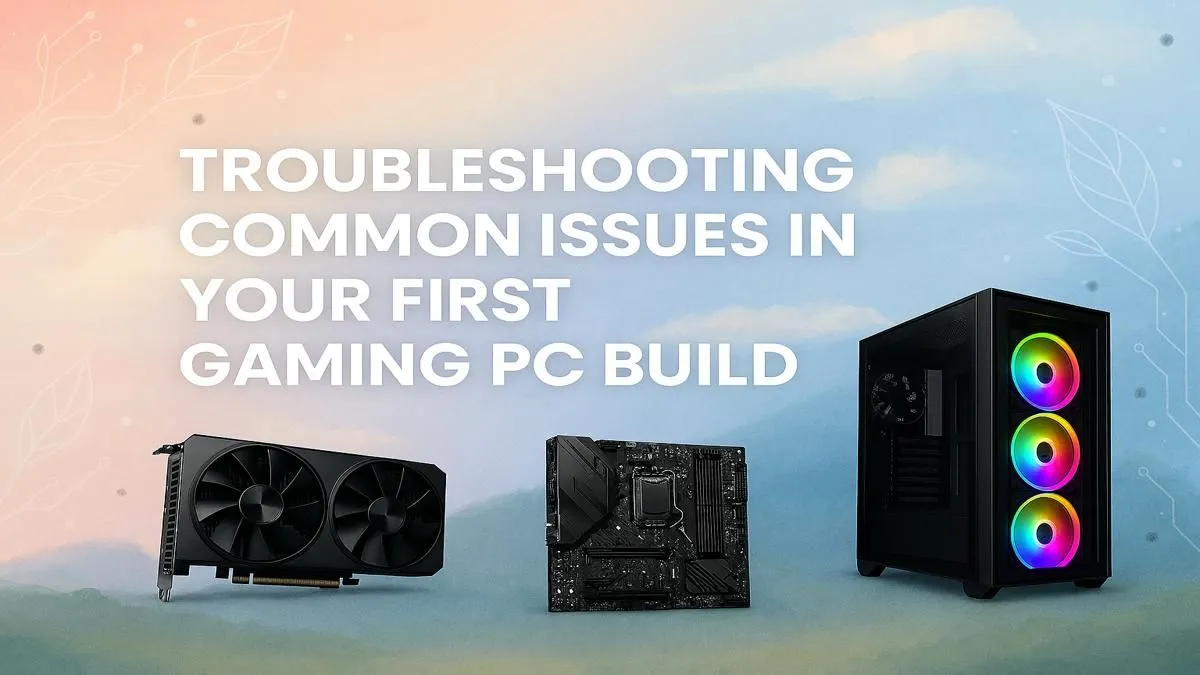
You’ve done it. The last screw is tightened, the side panel is on, and your brand-new gaming rig sits there, gleaming. You press the power button, ready for that glorious first boot… and nothing happens. The silence is deafening. Don’t panic! This is a rite of passage for many first-time builders in South Africa. This simple PC build troubleshooting guide will help you diagnose and fix the most common issues, getting you from zero to hero. 🚀
Before you start pulling components out, let's cover the absolute basics. These might seem obvious, but they trip up even seasoned builders in their excitement. This first phase of PC build troubleshooting is all about external and simple internal connections.
Even on straightforward budget gaming PCs, getting these fundamentals right is non-negotiable.
Okay, so the fans are spinning and the lights are on, but your monitor is blank. This is progress! It means the PC is getting power, but the video signal isn't reaching the screen. This is one of the most common first-time builder issues.
This is the number one mistake. If you have a dedicated graphics card (GPU), you must plug your HDMI or DisplayPort cable into the GPU's ports, not the ports on the motherboard's I/O panel. The motherboard ports are for CPUs with integrated graphics, and installing a dedicated GPU usually disables them.
Components can sometimes shift slightly during a build or get seated imperfectly.
Many modern motherboards have small 'EZ Debug' LEDs (usually for CPU, DRAM, VGA, BOOT). When your PC boots, these lights flash in sequence. If it gets stuck on one, you've found the problem area! Check your motherboard manual to understand what each light means. It’s the fastest way to diagnose first-time builder issues.
If you've tried everything above and are still stuck, it's time to consult your motherboard manual. It's the ultimate source of truth for your specific hardware. On more complex custom PCs over R20,000, the manual is your best friend for interpreting beep codes or debug displays.
Sometimes, despite your best efforts, a component might be Dead on Arrival (DOA). It's rare, but it happens. If you've spent hours troubleshooting to no avail, don't beat yourself up. At this point, deciding to explore professionally assembled pre-built PC deals is a smart, stress-free move. You get a full warranty, expert support, and can jump straight into the action with one of the best gaming PC deals in South Africa. ✨
Ready for the Reward, Without the Risk? Building a PC is an amazing experience, but sometimes you just want to game. If PC build troubleshooting isn't for you, skip the stress. Our expertly assembled rigs are tested, optimised, and ready to dominate right out of the box. Browse our massive range of PC components or let our experts build your dream machine today.
First, ensure the power supply switch is on and all power cables (24-pin motherboard, 8-pin CPU) are securely connected. Check that the front panel power switch connector is on the correct motherboard pins.
A common mistake is plugging the monitor into the motherboard instead of the graphics card. Also, check if your GPU is seated properly and its power cables are connected. Reseating your RAM can also solve this issue.
Motherboard debug lights indicate which component (CPU, DRAM, VGA, BOOT) is failing the Power-On Self-Test (POST). Consult your motherboard manual to understand the specific error code for your model.
Ensure the RAM sticks are in the correct slots (usually A2 and B2 for dual-channel) as per your motherboard manual. You should hear a distinct click when they are fully seated. If the PC won't POST, try booting with just one stick.
Forgetting the motherboard I/O shield, applying too little thermal paste, incorrect front panel connector placement, and not enabling XMP/EXPO in the BIOS are very common PC building mistakes.
This often points to a short circuit, an overheating CPU due to a poorly mounted cooler, or a power supply issue. Check for loose screws on the motherboard and verify your CPU cooler installation.
Clean gaming keyboard quickly and safely in dusty or humid conditions with step-by-step tips, tool checklist, and maintenance routines to prevent corrosion and switch failure. 🧼💨
Read more
Best gaming keyboard features to prioritize when building a high-end setup: mechanical switches, low latency, hot-swap, RGB, macros, durability and ergonomics 🎮⌨️
Read more
Custom actuation point keyboard setup guide: learn to set per-key actuation on your analog gaming keyboard for faster, precise inputs and better control 🎮⚙️
Read more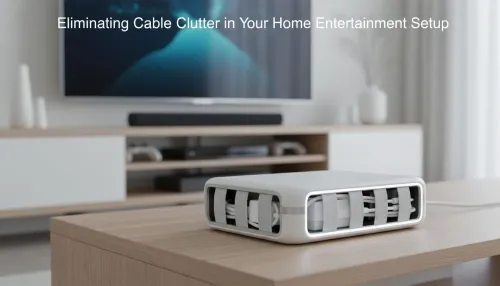
Cable management for home entertainment helps you eliminate cable clutter quickly and safely. Learn routing, concealment, and product picks to tidy your setup fast 📺🔌
Read more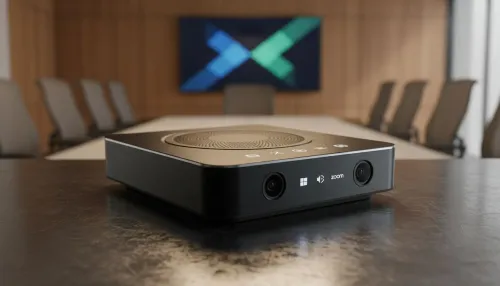
conference room setup Microsoft Teams Zoom: Upgrade AV, camera, mic, and network to ensure seamless meetings, clear audio, and crisp video 🎯🔧
Read more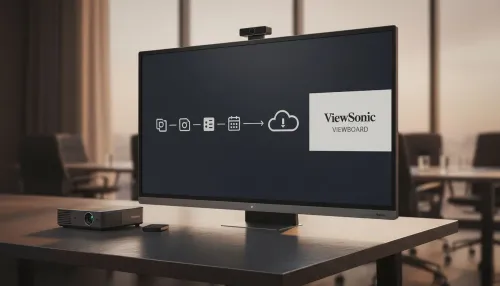
• Audit setup • Link accounts • Configure ViewBoard • Test workflows Integrate Google Workspace with ViewSonic ViewBoard to enable secure SSO, calendar and Drive sync, and smooth collaborative whiteboarding 🔗📋
Read more
Discover webcams that automatically adjust light and color for crystal-clear video calls 🎥✨. Boost your streaming quality today!
Read more
Discover webcams that blend into your workflow 🎯 Capture moments while you work, stream, or create. Upgrade your setup with smart, multitasking tech!
Read more
Dedicated media keys give streamers one-touch control to mute, switch scenes, clip highlights, and adjust audio — cutting task time and boosting consistency 🎛️⚡
Read more
PBT vs ABS keycaps: Clear, local guide for South African gamers—compare feel, sound, durability and where to buy. Find the best material for your budget and playstyle 🎮🇿🇦
Read more
- Multi-Function Digital Dial: define benefits - Show gamer setups and macros - Offer buying and setup tips Multi-Function Digital Dial puts programmable control at your fingertips for faster actions and smoother streaming. 🎮⚙️
Read more
- Explain benefits; - Show the science; - Compare options; - Recommend picks. Magnetic wrist rest for gaming cuts wrist strain and boosts comfort during long sessions 🕹️✨
Read more