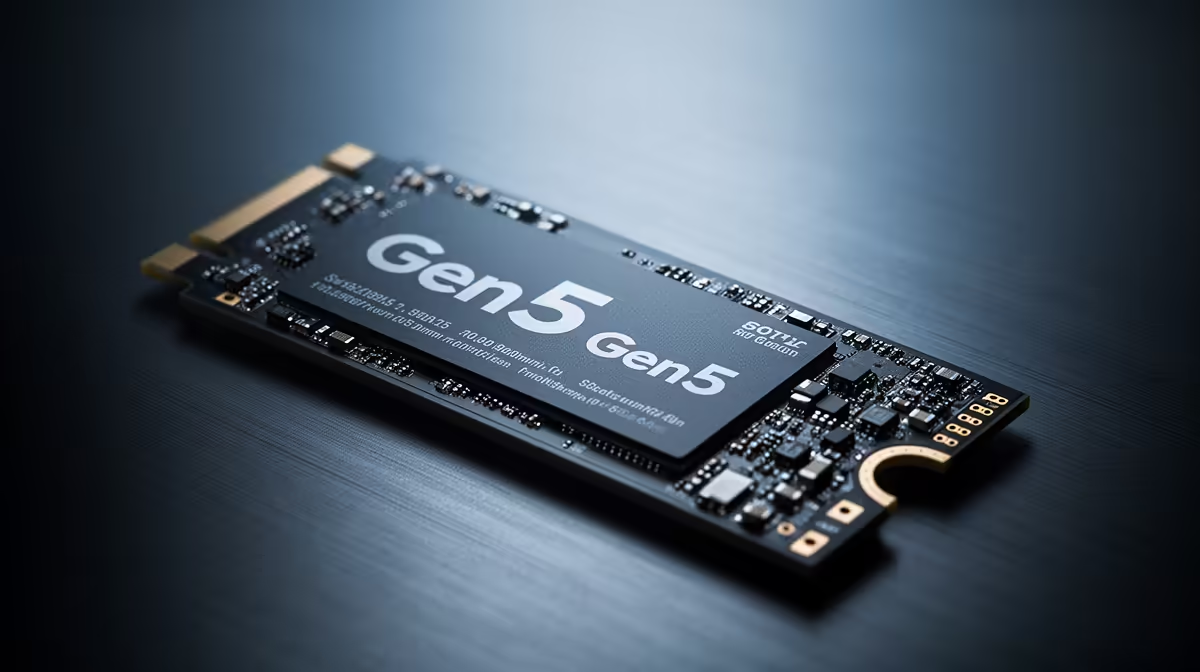
So, you’ve splashed out on a blazing-fast PCIe Gen5 SSD, expecting warp-speed load times, but instead, you're hitting a wall? Don't stress. From drives not showing up in your BIOS to speeds that feel more like a taxi than a rocket ship, these teething problems are common. Here in South Africa, we build our rigs tough. This guide will walk you through the most frequent PCIe Gen5 SSD troubleshooting steps to get your drive running at its peak potential. 🚀
Is Your Rig Truly Gen5 Ready?
Before diving into complex fixes, let's start with the basics. A Gen5 SSD needs a Gen5 ecosystem to thrive. Simply plugging it into any M.2 slot won't unlock its face-melting speeds. It’s like putting a V8 engine in a go-kart… the chassis needs to match the power.
Here’s a quick compatibility checklist:
- CPU: You'll need a modern processor that supports PCIe 5.0. Think Intel 12th Gen (or newer) or AMD's Ryzen 7000 series (or newer).
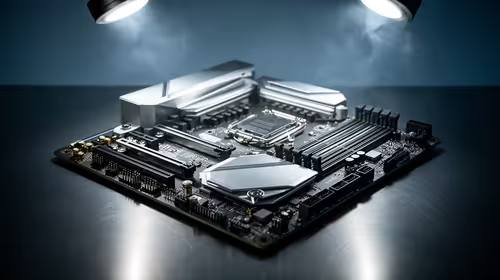
- Motherboard: Your motherboard must have a dedicated PCIe 5.0 M.2 slot. Check your board’s manual, but it's typically the slot closest to the CPU.
- BIOS/UEFI: Ensure your motherboard's BIOS is updated to the latest version. Manufacturers frequently release updates to improve compatibility with new hardware like these next-gen SSDs and other components.
If any of these are out of sync, your drive might not be detected or will default to slower Gen4 or even Gen3 speeds.
Common PCIe Gen5 SSD Issues & Quick Fixes
Okay, your hardware is compatible, but you're still facing problems. Let's tackle the most common culprits in PCIe Gen5 SSD troubleshooting for SA gamers.
### SSD Not Detected in BIOS
This is easily the most panic-inducing issue. You've installed your shiny new drive, and… nothing.
- Reseat the Drive: Power down completely, unplug your PC, and carefully remove and reinstall the M.2 drive. A slightly loose connection is a frequent cause.
- Check CSM Settings: In your BIOS, look for a setting called "Compatibility Support Module" (CSM) and ensure it's disabled. Modern NVMe SSDs require UEFI mode to function correctly.
- Try a Different Slot: If your motherboard has multiple M.2 slots, try another one. This can help rule out a faulty slot, though you might lose Gen5 speeds if it's a Gen4-only slot.
Firmware is Key 🔧
Always check the SSD manufacturer's website for a firmware update utility (like Samsung Magician or Crucial Storage Executive). Running the latest firmware can solve a surprising number of performance and stability issues. These updates are specifically designed to optimise the drive and fix bugs discovered after launch.
### Disappointing Speeds
Are you paying for a 12,000MB/s drive but only getting 7,000MB/s? This usually means it's running at PCIe 4.0 speeds.
- Verify the Link Speed: Use a tool like CrystalDiskInfo or HWiNFO64 to check the "Transfer Mode." It should explicitly say "PCIe 5.0 x4". If it says PCIe 4.0, your drive is being bottlenecked.
- Force Gen5 in BIOS: Some motherboards default to a more stable setting. Dive into your BIOS settings (often under "Advanced" or "Onboard Devices") and manually set the M.2 slot's PCI Express Configuration to "Gen5".
### Overheating and Throttling ⚡
PCIe Gen5 SSDs run hot. Seriously hot. When they get too warm, they "throttle" or slow down to protect themselves, killing your performance. This is especially relevant in warmer South African climates.
- Heatsinks are Not Optional: Most motherboards with Gen5 support include a substantial M.2 heatsink. Use it! If your drive came with its own, compare it to the motherboard's and use the beefier one.
- Improve Case Airflow: Ensure your PC case has good airflow. A couple of intake fans at the front and an exhaust at the back can make a huge difference in keeping ambient temperatures down. While these drives are performance kings, for bulk storage or a cooler build, reliable 2.5-inch SSDs remain a fantastic, budget-friendly choice.
Fixing these common issues should get your drive back on track. A little bit of PCIe Gen5 SSD troubleshooting is often all it takes to unlock the incredible performance you paid for.
Ready to Unleash True Gen5 Speed?
Fixing issues is one thing, but starting with the right drive is key. Whether you're upgrading or building a brand-new rig, we've got the perfect fit for your setup. Browse our latest SSD deals and find the storage solution to conquer your world.