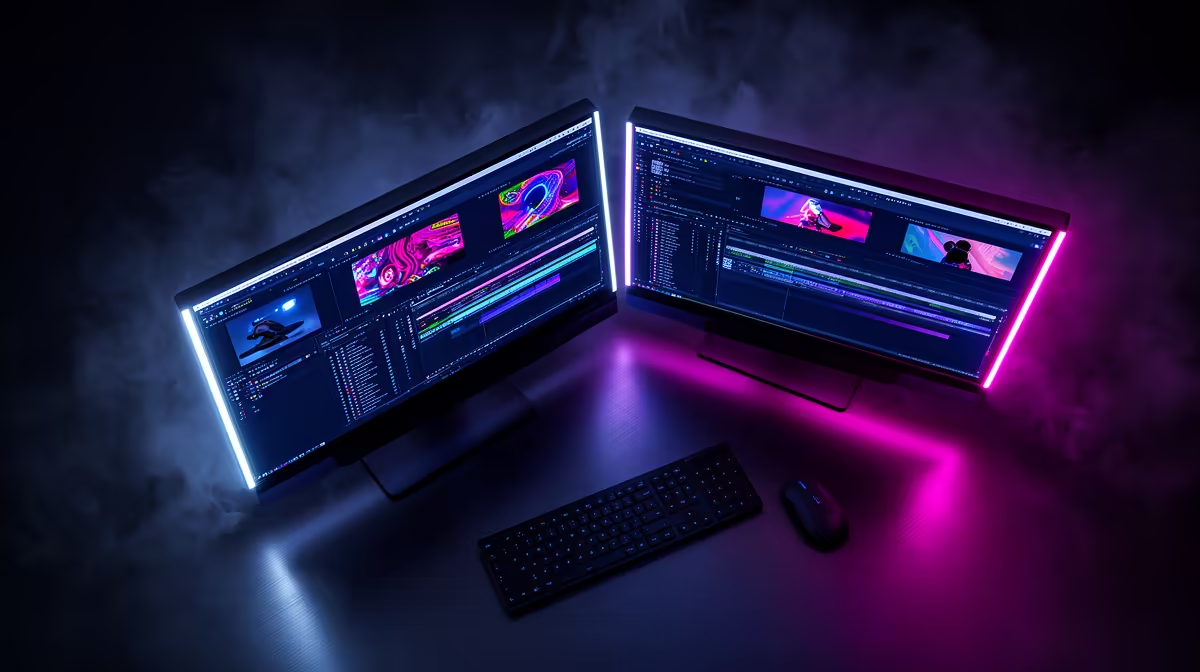
Editing footage on one screen while a reference clip plays on another, or gaming on a high-refresh panel with a stream overlay open beside it, is a normal Tuesday for plenty of South African creators. None of that works well on a single monitor, and it does not require a full tower either. A well-specced gaming mini pc can carry that entire workflow if the outputs are planned properly from the start.
Quick Answer
The GR70 supports a genuine multi-screen setup through its combined HDMI, DisplayPort and Thunderbolt-enabled USB-C outputs, all included in its R66,399 price alongside sixteen physical Ryzen 9 9955HX cores and an RTX 5070 doing the actual rendering work with its own 8GB buffer. For most two or three-screen creator setups, that output combination covers editing, gaming and a preview display without needing an external dock, and it leaves enough graphics and processing headroom that adding a fourth screen later would not meaningfully strain the system.
🖥️ Matching Each Output to a Purpose
Not every display connection is interchangeable in practice, even when a GPU technically supports several at once. DisplayPort is generally the stronger choice for a primary gaming or high-refresh monitor, since it tends to handle higher refresh rates and resolutions more consistently than HDMI on the same card. HDMI remains a solid pick for a secondary screen, a TV used as a preview display, or older monitors that only support that connection.
USB-C with Thunderbolt is where a lot of creators get the most value beyond a third screen. It can drive a display and handle fast external storage or a dock over the same port, which matters if you are pulling footage off an external drive while editing. That single port doing double duty is genuinely useful when desk space and port count are both limited on a compact chassis.
A Practical Three-Screen Layout
A common creator layout puts the editing timeline on the DisplayPort monitor, a reference or browser window on the HDMI screen, and a smaller preview monitor running off the USB-C output. Because the RTX 5070 is handling the rendering load, the outputs mostly need to match refresh rate and resolution needs rather than worry about GPU headroom running short.
🧠 Where Processor and Memory Come In
Driving three screens is not just a graphics card question. Background rendering, proxy generation and simultaneous playback across multiple windows lean on processor and memory more than most people expect. The sixteen-core chip gives enough parallel headroom to keep an editing timeline responsive while a second application runs in the background, and the 32GB of memory on board avoids the stutter that comes from running out of headroom across several open programs at once. The included terabyte of storage also matters for a multi-screen workflow specifically, since project files and cache data load fastest from local NVMe rather than an external drive connected purely for extra capacity.
Keeping Cable Runs Manageable
A compact chassis means shorter cable runs to begin with, but planning which output feeds which monitor before you start plugging things in saves a lot of rearranging later. Labelling cables by output type, rather than by monitor, makes it much easier to swap a screen out later without retracing the whole setup.
🛠️ Building the Setup Around Your Actual Workflow
Before finalising a screen count and layout, it helps to know exactly what outputs you are working with. The full GR70 listing shows every port included in the R66,399 configuration referenced here. If a different balance of ports or GPU tier suits your workflow better, Evetech's full mini PC selection is worth comparing before you commit. The RTX 5070 is what ultimately decides how far those outputs can be pushed on resolution and refresh rate, so checking what similar cards cost right now is a sensible step before finalising your monitor plans.
Frequently Asked Questions
How many monitors can this machine realistically run at once?
It supports HDMI, DisplayPort and Thunderbolt-enabled USB-C together, which comfortably covers a two or three-screen setup for most editing and gaming workflows.
Which output should carry my main gaming monitor?
DisplayPort is generally the stronger choice for a primary high-refresh display, with HDMI well suited to secondary screens or older monitors.
Does running three monitors slow down gaming performance?
Display output itself does not burden the GPU the way rendering does, but background applications running across multiple screens can add processor and memory load, which the sixteen cores and 32GB on board are built to absorb.
Can I connect an external drive and a monitor to the same port?
Yes, Thunderbolt over USB-C can carry both a display signal and fast external storage over a single connection, useful when port count is limited.
Do I need a dock to run three monitors on this machine?
Not necessarily. Since HDMI, DisplayPort and Thunderbolt-enabled USB-C are all present natively, a dock only becomes useful if you want to add a fourth display or extra peripherals beyond what those three ports already cover.
Ready to plan a multi-screen setup that actually works?
Check out this RTX 5070 mini rig out of Evetech's mini PC shelf, on sale for R66,399, built to drive multiple screens off a single compact build.