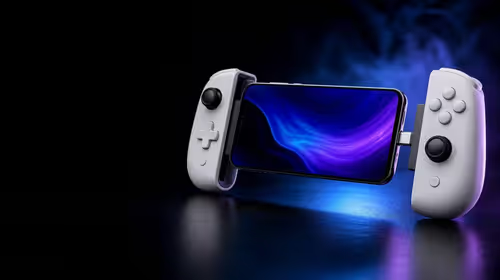
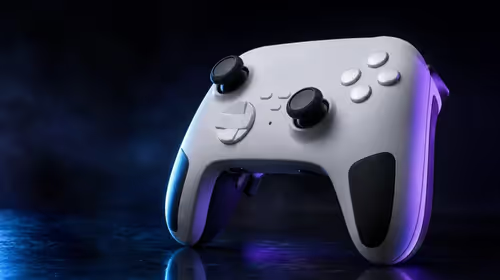
Lenovo's removable controls can turn the handheld into a tabletop machine or give one hand mouse-like movement. Legion Go FPS mode becomes useful once the sensor, base, bindings and game support are set up for the way you aim.
Quick Answer
The original full-size Lenovo Legion Go has detachable left and right controllers, and its right controller can use an optical sensor in FPS mode with the supplied base. Confirm the exact Legion model because Legion Go S variants use an integrated control layout. FPS mode gives you mouse-style pointing at a desk, while tabletop mode lets you separate your hands from the screen. It does not turn the two halves into two complete gamepads for local multiplayer.
Identify the model before following a guide
Read the full product name and model code in Windows, Lenovo Space and the rear label. Controller rails, buttons and modes differ across the Legion Go family.
A guide showing the removable controllers on the original Legion Go does not apply to an integrated Legion Go S. Do not pull at a controller unless the exact manual documents a release mechanism.
Update Lenovo Space and controller firmware through Lenovo's supported route when release notes address your issue. Record current versions first.
Detach without twisting the rail
Power the handheld and pause the game. Hold the device over a clear desk or soft mat. Use the documented release on one controller, then slide it in the required direction while supporting the screen.
Do not bend the controller away from the body or lift by one rail. Inspect contacts for debris and keep liquid away from them.
To reattach, align the rail and slide until the lock engages. Give it a light check before lifting the device. If Windows or Lenovo Space misses a side, reseat it and use the supported pairing process.
Tabletop mode is a posture choice
Use the built-in stand on a firm surface and place the screen at a comfortable height. Detaching the controls reduces the weight in your hands and lets your elbows rest wider.
The two controller halves normally operate together as one control set. Local multiplayer needs each player to have a complete supported input device. Pair another controller when the game expects two gamepads.
Check battery status for both detachable controllers before travel. They charge through their documented connection path, and separate charging accessories vary.
FPS mode turns the right controller into a pointer
On the supported original Legion Go controller, switch to FPS mode through the hardware and software steps in the current manual. Mount the right controller in its base so the optical sensor faces the surface.
The controller then behaves more like a vertical mouse with buttons under your fingers. Use a clean, opaque mousepad. Glass, glossy or patterned surfaces can reduce optical tracking.
Keep the left controller for movement and mapped game actions. The first hour feels unfamiliar because your right hand uses another posture and button set.
Build the FPS mapping in a safe order
Start in a single-player practice area. Confirm pointer movement, left and right click, scroll and the escape or menu command. Then map reload, interact and weapon changes.
Save an FPS profile separate from ordinary handheld controls. Some games switch poorly between controller and mouse prompts, while others support mixed input.
Competitive games can restrict remapping or mixed input. Follow the title's current rules and anti-cheat guidance. FPS mode is a hardware pointer, not permission to add automated macros.
Tune sensitivity from Windows to game
Set one reasonable pointer speed and disable unwanted acceleration where the supported game path allows it. Choose an in-game sensitivity that gives enough turn distance on the mousepad.
Avoid changing DPI, Windows speed and game sensitivity together. Use one practice drill and adjust one layer.
Polling behaviour and sensor performance belong to the exact controller firmware. Test for jitter and lift-off on your pad before using a high sensitivity.
Dock and display setup need another plan
FPS mode makes more sense with the Legion Go on its stand or docked to a monitor. Connect external power through a supported charger and keep vents clear.
An external display can use a higher resolution than the handheld APU holds in a game. Start at 1080p, set a realistic frame target and add upscaling when supported.
Keep the controller sensor cable-free area clear of the dock and charger. A power brick or rough desk seam can interrupt a broad mouse sweep.
Troubleshoot by mode
If the pointer does not move, confirm the physical FPS switch, controller seating in the base, Lenovo Space profile and optical-sensor surface. Restart the controller through the documented method.
If buttons work but prompts flicker, lock the game to the intended input type when it offers that choice. Close remapping tools that compete with Lenovo Space.
When one detached side drops connection, bring it close, check charge and re-pair through official guidance. Do not open a covered controller to inspect its battery.
Inspect exact controller layouts across the handheld gaming console range. To judge FPS mode against a fixed setup, choose one desktop on the PC best-seller page and repeat the same aim drill with its mouse.
FAQ
Does every Legion Go have detachable controllers?
No. Confirm the exact model. The original full-size Legion Go design differs from integrated-control Legion Go S variants.
Can the two halves serve two players?
They are designed to work together as one control set. Most local multiplayer needs another complete supported controller.
Does FPS mode work on any surface?
No. Use a clean mousepad or suitable opaque surface and avoid glass or glossy patterns.
Confirm the exact Legion model, detach through its documented rail release and build one clean FPS profile on a proper mousepad.