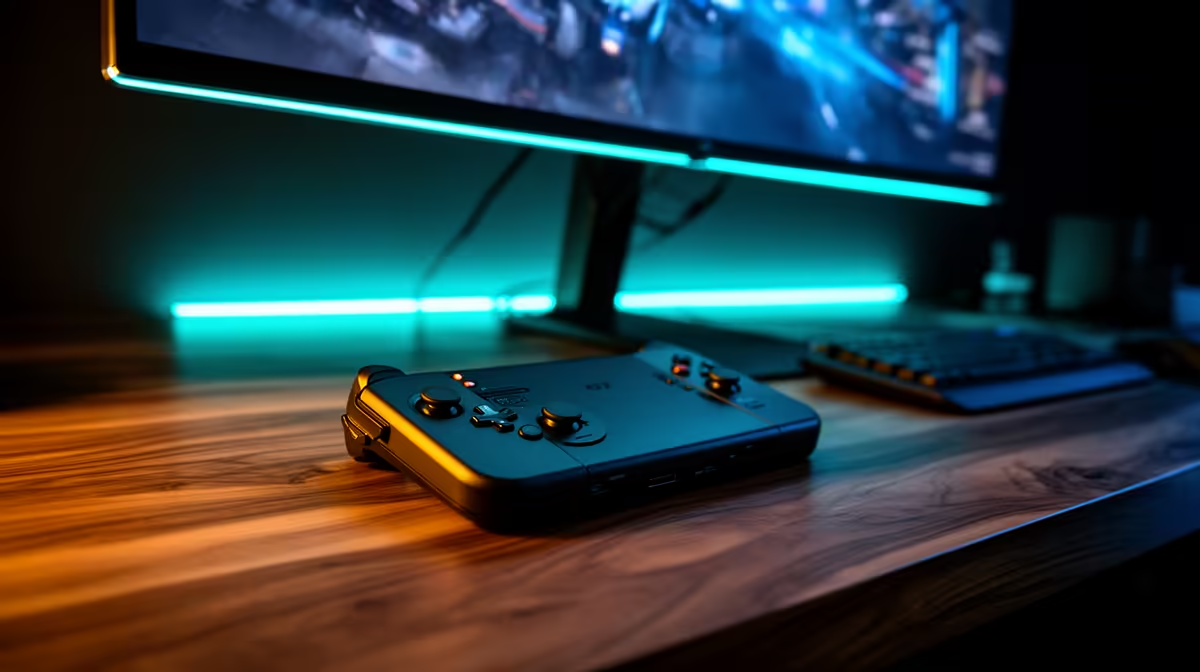
At a desk, the Ally X can trade battery restraint for a larger display and full set of peripherals. A stable ROG Ally X desk setup depends on dock bandwidth, charger support, Windows display choices and controlled power modes.
Quick Answer
Turn a ROG Ally X into a desk PC with a USB-C dock that supports the required DisplayPort mode, USB devices and enough Power Delivery for the handheld's chosen performance profile. Connect power to the dock, test the monitor at 1080p or 1440p first and set Windows to Extend before making the external screen primary. A dock port labelled 4K does not guarantee high refresh, VRR, HDR and full USB speed at the same time.
Match the dock to the exact USB-C port
Read the ROG Ally X and dock manuals for video output, USB data, charging input and maximum passthrough. USB-C is the connector shape; DisplayPort Alt Mode, USB4 and Power Delivery are separate capabilities.
Check the dock's upstream cable length and whether it is captive. The cable must reach without pulling the handheld from its stand or blocking a vent.
List every device: monitor, Ethernet, keyboard, mouse, headset, storage and capture card. Add their bandwidth and power needs before buying.
Power determines the available mode
Use a charger and USB-C cable that support the voltage, current and protocol required by the Ally X and dock. The dock consumes part of the input power, leaving the rest for the handheld and USB devices.
Windows may show charging while the battery still falls under a heavy game if the supplied power is too low. Check Armoury Crate and Windows power status, then measure battery percentage through a thirty-minute load.
Do not treat a third-party wattage label as proof of protocol support. Use certified cables and exact compatibility guidance.
Start the display at a conservative mode
Connect the monitor and open Windows display settings. Choose Extend these displays, arrange their positions and select the external monitor.
Set its native resolution with a moderate 60Hz refresh for the first signal test. Then raise refresh, enable VRR and test HDR one feature at a time. The dock, cable, monitor input and GPU output all share responsibility.
Make the external display primary after the stable mode is confirmed. Some games use the primary display at launch; others keep a saved monitor choice.
Resolution controls desktop performance
The Ally X can output a high-resolution desktop while a game struggles to render at that same resolution. Set the game to a lower internal resolution, use a supported upscaler and choose a frame target the APU holds.
Start at 1080p for demanding games. Compare 1440p with the same scene and frame-time graph. A 4K desktop is useful for text and does not require the game to render 4K.
Exclusive full-screen, borderless and windowed modes can remember different screens. Test Alt-Tab, sleep and wake before relying on the setup for work.
Choose a power profile by sustained load
Desk power removes the need to chase battery runtime, but maximum power adds heat and fan noise. Use the lowest supported profile that holds the game or work target.
Keep the handheld intake and exhaust clear. A vertical stand must not cover a vent or press a rear button. Check temperature and clocks during a long game because the desk environment differs from handheld use.
Do not place the dock or handheld on soft fabric. Leave room around the charger and dock too.
USB layout matters for input and storage
Put keyboard and mouse receivers away from high-speed storage cables where possible. USB 3 noise can interfere with 2.4GHz receivers. A short extension can bring the receiver closer to the desk.
High-polling mice and capture devices deserve a direct-port test. A hub may share bandwidth across all downstream ports.
Use safely remove for external storage before undocking. A game library on a docked SSD can corrupt when the cable is pulled during a write.
Ethernet and audio need explicit defaults
Install the dock's supported network driver when Windows does not recognise it. Test local link speed and internet latency separately. A gigabit label does not promise the ISP route.
Windows can switch audio to the monitor over HDMI or DisplayPort. Select the headset or speakers you want and set the communications device for voice chat.
If audio crackles under storage load, test another USB port, cable or reduced device set. Do not update every driver at once.
Build a one-cable disconnect routine
Save work, close games on external storage and eject drives. Disconnect USB-C after the system is idle. Check that Windows returns the Ally screen to primary and restores a usable scale.
When reconnecting, wait for the dock, monitor and USB devices to enumerate before launching a game. A simple routine prevents missing audio or displays.
Map ports and charging against each device on the handheld gaming console range. If the setup will never leave the desk, compare its dock, charger and storage total with one machine shown on the PC best-seller page.
FAQ
Can one cable charge and output video?
Yes, when the handheld port, dock, charger and cable support the required DisplayPort and Power Delivery modes.
Should I use maximum power at the desk?
Use the lowest profile that holds your workload. More power can add heat and noise without improving a capped game.
Will games switch resolution by themselves?
Some remember the external display and others do not. Verify resolution, monitor and upscaling in each game's settings.
Match the dock's video and Power Delivery to the Ally X, prove a 60Hz display baseline and add refresh, VRR and peripherals one at a time.