Why You Should Rotate Screen for Spreadsheets
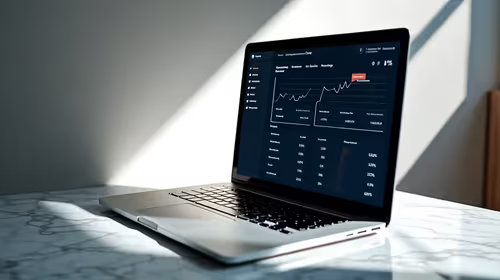
Ever feel like you are squinting at row 400 of your budget sheet? If you are a South African professional or a gamer tracking market prices, flipping your display is a total revelation. Learning how to rotate screen for spreadsheets into portrait mode gives you back your vertical freedom. It is the ultimate productivity hack for any modern setup. 🚀
Most standard PC monitors are designed for landscape viewing. This is great for movies or gaming... but terrible for long-form data. When you master portrait mode, you can see hundreds of rows at once without touching your mouse wheel. This reduces fatigue and speeds up your workflow significantly.
Mastering the Vertical Flip
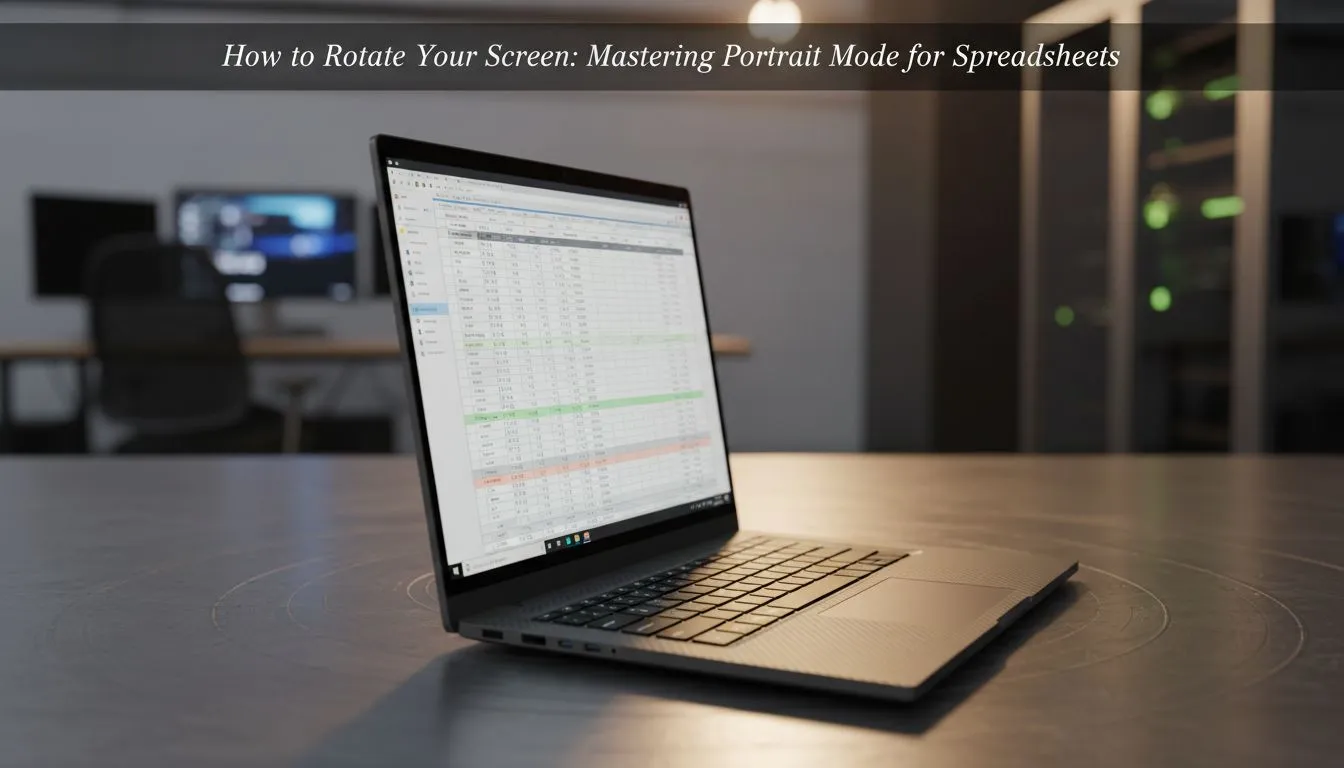
To rotate screen for spreadsheets on Windows, simply right-click your desktop and select "Display Settings." Under the "Display Orientation" drop-down menu, choose "Portrait." Your screen will flip, and you will need to physically turn your monitor 90 degrees.
For the best experience, you should look for Flat monitors rather than curved ones for your secondary vertical display. While Curved monitors are immersive for racing sims, they can look a bit awkward when stood on their end. 🔧
Productivity Pro Tip ⚡
When using a vertical monitor, use the Windows Snap feature by pressing 'Windows Key + Up Arrow' to split your portrait screen into two square-ish workspace zones. This allows you to keep your spreadsheet on the bottom half while having your email or Discord open on the top half for maximum efficiency.
The Technical Edge for Data Professionals
If you are spending eight hours a day looking at code or financial data, panel quality matters. We highly recommend IPS panels for portrait setups. IPS technology ensures that colours and brightness remain consistent even when viewing the screen from an angle... which is vital when a monitor is oriented vertically.
Even for work, smoothness helps reduce eye strain. Modern displays featuring Adaptive Sync ensure that scrolling through massive data sets remains fluid. Whether your system uses FreeSync (AMD) or you prefer the premium integration of G-Sync (NVIDIA), having a variable refresh rate makes a noticeable difference in daily comfort. ✨
Investing in a dedicated vertical screen is a small price to pay for the massive boost in clarity. In South Africa, where desk space is often at a premium, a portrait monitor saves room while giving you more usable pixels. Master the rotate screen for spreadsheets technique today and stop scrolling your life away. 🚀
Ready to Find Your Perfect Match? Mastering portrait mode requires the right hardware to support your hustle. For maximum power, choice, and value in South Africa, our monitor selection is hard to beat. Explore our massive range of monitor specials and find the perfect display to conquer your world.