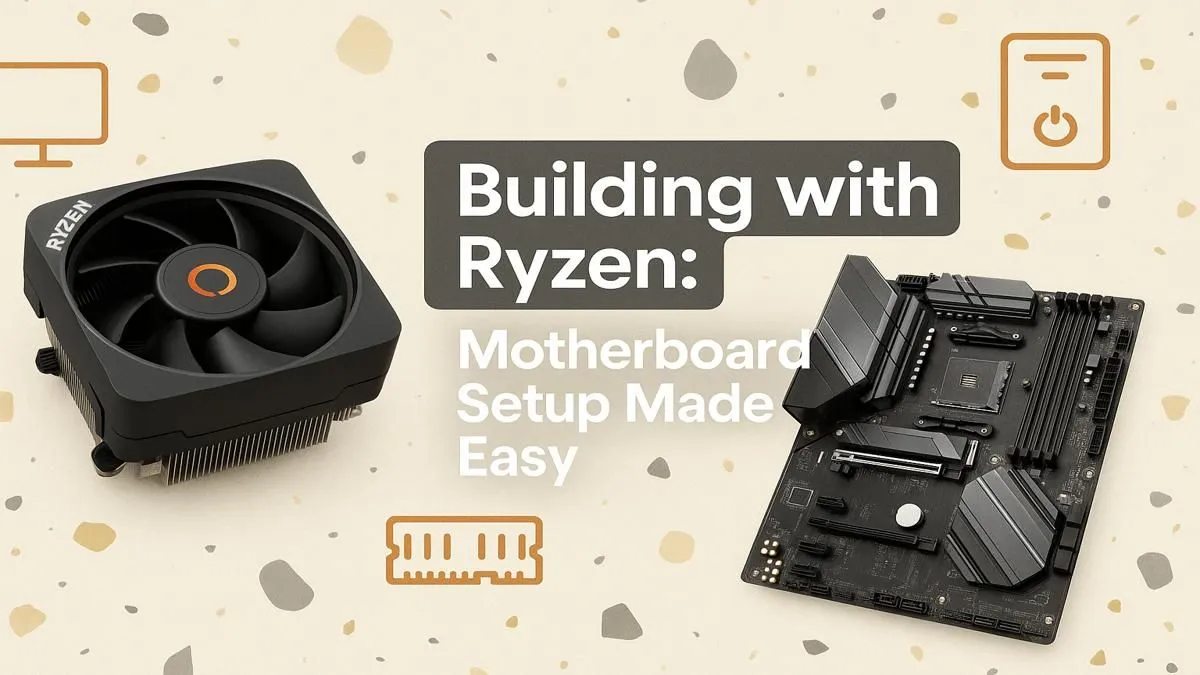
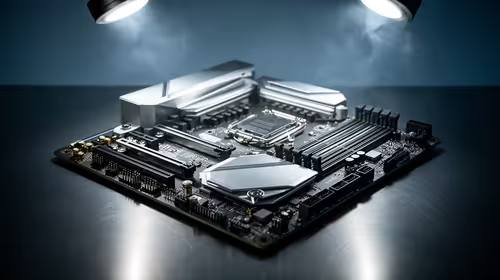
So, you’ve got a shiny new AMD Ryzen CPU and a motherboard box that’s practically humming with potential. Awesome! That feeling of unboxing fresh components is pure magic. But getting your Ryzen motherboard setup right is the crucial first step that turns a pile of expensive parts into a powerful gaming rig. Don't stress… this guide will walk you through the process, step-by-step, ensuring a smooth and successful first boot. Let's get building! 🔧
Before You Begin: The Pre-Flight Checklist
A little prep work saves a lot of headaches later. Before you even touch a component, let’s get our ducks in a row. A proper Ryzen motherboard setup starts with a clean, organised workspace.
First, gather your tools: a set of Phillips head screwdrivers (magnetic tips are a lifesaver), cable ties, and your motherboard’s manual. Seriously, that little booklet is your best friend.
Next, let's talk about static electricity... your PC’s nemesis. Work on a hard surface, not a carpet. Ground yourself by periodically touching a metal part of your PC case that's plugged in but switched off at the wall. An anti-static wrist strap is even better. This simple precaution protects your delicate electronics from getting zapped.
The Main Event: Assembling Your Motherboard
This is where the magic happens. We'll install the most critical components onto the motherboard before mounting it in the case.
Installing the AMD CPU
This part feels scary, but it’s surprisingly simple.
- Open the retention arm on the CPU socket on your motherboard.
- Carefully remove your Ryzen CPU from its plastic clamshell. Hold it by the edges... never touch the pins on the bottom!
- Look for the tiny golden triangle on one corner of the CPU. Now, find the matching triangle on the motherboard socket.
- Align the triangles and gently place the CPU into the socket. It should drop in with zero force. If it doesn't, check the alignment again.
- Once it's seated, lower the retention arm back down to lock it in place. You’ll feel a bit of tension, which is normal. ✨
Seating the RAM
Your RAM sticks have a small notch that lines up with a bump in the DIMM slots on your motherboard.
- Open the clips on the RAM slots. Most modern boards only have a clip on one side.
- Consult your motherboard manual to see which slots to use for dual-channel memory (usually slots 2 and 4).
- Align the notch on the RAM stick with the slot and press down firmly on both ends until the clips click into place. It takes more force than you might think!
BIOS Update Pro Tip ⚡
Some motherboards, especially older stock, might need a BIOS update to work with the very latest Ryzen CPUs. Check the manufacturer's website. Many boards support 'BIOS Flashback', which lets you update the BIOS from a USB stick without even needing a CPU installed. It's a lifesaver!
Mounting the Motherboard in the Case
Your PC case has several mounting points. You need to install small brass screws called 'standoffs' into the correct holes that align with your motherboard. This prevents the back of the board from short-circuiting on the case metal. Once the standoffs are in, gently lower the motherboard, align the screw holes, and secure it. Don't overtighten the screws… just snug is fine.
Powering Up and Connecting the Essentials
Now it's time to plug everything in. A clean wiring job not only looks great but also helps with airflow.
- Main Power (24-Pin): This is the largest connector from your power supply. It only goes in one way.
- CPU Power (8-Pin or 4+4 Pin): This usually plugs in at the top-left of the motherboard. It's essential for powering your CPU.
- Front Panel Connectors: These are the tiny, fiddly pins for your case’s power button, reset switch, and LEDs. Your motherboard manual is essential here to get the layout right.
For many builders seeking incredible value without sacrificing performance, proven B550 motherboards remain a top choice for AM4 systems.
The First Boot and BIOS Tweaks 🚀
With everything connected, it’s time for the moment of truth! Power on your system. If all goes well, you’ll see the manufacturer's logo splash screen. Press the key indicated (usually DEL or F2) to enter the BIOS/UEFI.
The first thing you should do in the BIOS is enable the memory profile. It might be called XMP, EXPO, or DOCP. This simple tweak ensures your RAM runs at its advertised speed, not the slower default. Save your changes and exit. From here, you’re ready to install your operating system! For enthusiasts looking to push their new CPUs to the limit with advanced overclocking and connectivity, the latest high-performance X870 motherboards are built to handle the heat.
Completing your Ryzen motherboard setup is a massive milestone. You've laid the foundation for your entire PC. Whether you're building a budget rig or a top-tier beast, this core skill is universal. As new platforms emerge, like the exciting upcoming B850 motherboards, you'll have the confidence to tackle any build.