

Clean Gaming Keyboard: Guide for Dusty & Humid Conditions
Clean gaming keyboard quickly and safely in dusty or humid conditions with step-by-step tips, tool checklist, and maintenance routines to prevent corrosion and switch failure. 🧼💨
Read moreUnlock lightning-fast speeds! Learn how to set up Wi-Fi 7 on your MSI B850M Gaming Plus WiFi motherboard with this easy step-by-step guide. 🚀 Optimize your gaming rig for ultra-low latency today. ⚡
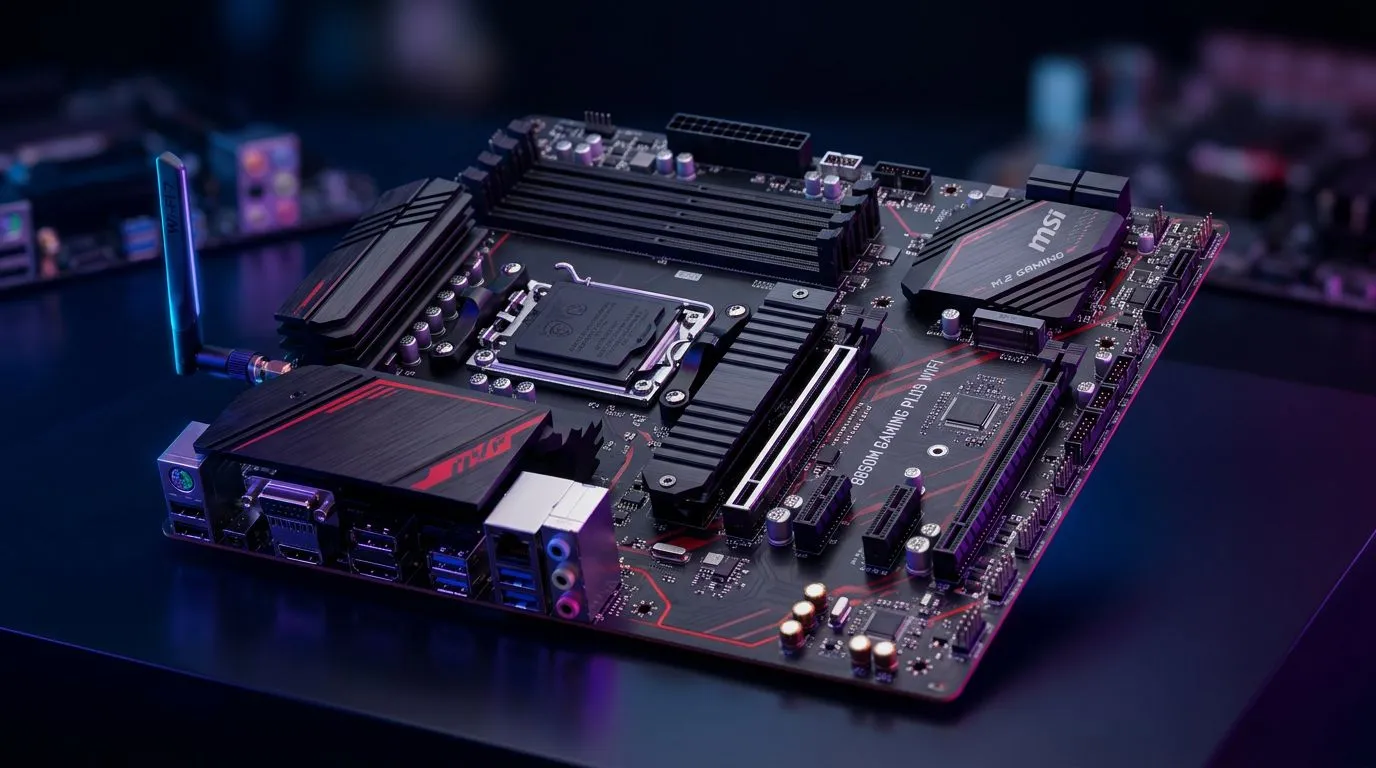
If you’re building or upgrading for gaming and streaming, your Wi‑Fi should feel like a solid LAN cable… not a coin toss. Wi‑Fi 7 promises lower latency, faster real-world throughput, and better handling of busy networks. But only if you set it up correctly. 🔧
In this guide, we’ll walk you through configuring Wi‑Fi 7 on your MSI B850M Gaming Plus WiFi step by step. We’ll also cover the settings that matter for South African homes, where load shedding, fibre routes, and wall thickness can all impact performance. Ready? Let’s do it. ⚡
Wi‑Fi 7 (802.11be) is designed to improve speed and efficiency versus older Wi‑Fi generations. In practice, the biggest wins you’ll notice are:
But there’s a catch. Your experience depends on your router and your client settings. Even the best motherboard Wi‑Fi won’t magically match Wi‑Fi 7 performance if your router is still Wi‑Fi 5 or Wi‑Fi 6.
Before you touch settings, confirm:
If you’re still shopping for motherboard options in the MSI/AMD/Intel universe, browse Evetech’s motherboard selection here:
This process is mostly about drivers, then correct network selection, then tuning.
Start with the OS first, then the drivers. The goal is to avoid Windows using a generic driver.
Do this:
If you’re comparing options and want to keep budget in check, you might also consider how price affects wireless features:
In Windows:
If you have a Wi‑Fi 7 router, you’ll typically see separate SSIDs for bands (2.4 GHz, 5 GHz, and sometimes 6 GHz). Pick the SSID that matches the fastest band you have available.
Once connected:
Windows keeps profiles. Choose correctly:
This helps keep your network behaviour predictable for gaming.
Use a “same-room test” first. Move your PC into the room where your router sits for 2–3 minutes, then check speeds and stability. If performance jumps, the issue is signal strength, not your Wi‑Fi 7 configuration.
Wi‑Fi 7 can still lose to a poorly tuned connection. Here are practical tweaks.
If your environment has multiple access points or strong neighbour networks, Windows may roam between them.
Try:
In general:
After Windows updates, check Wi‑Fi driver version and stability. If you notice stutter in game menus or random disconnects, rolling back or reinstalling the Wi‑Fi driver is often faster than fiddling endlessly.
If you’re doing everything right but your connection isn’t using the expected capabilities, troubleshoot in this order:
If you want to avoid wasting time, start with the simplest test: connect to the Wi‑Fi band closest to the router, then compare results.
If you’re aiming for smooth online play, stable downloads, and a “feels like LAN” connection, the right Wi‑Fi setup matters. Get the drivers right, pick the correct band, and tune your environment. Your future self will thank you. ✨
Ready to Find Your Perfect Match? The Mac vs Windows debate is complex, but for maximum power, choice, and value in South Africa, Windows is hard to beat. Explore our massive range of laptop specials and find the perfect machine to conquer your world.
Yes, the MSI B850M Gaming Plus WiFi is engineered to support Wi-Fi 7, providing faster throughput and lower latency for competitive gaming.
While not always required for connectivity, updating to the latest BIOS version ensures optimal compatibility and stability for your Wi-Fi 7 module.
Download the latest wireless drivers directly from the official MSI support page for your specific motherboard model and run the installer.
To experience true Wi-Fi 7 speeds, you must have a Wi-Fi 7 compatible router and a stable high-speed internet connection from your ISP.
Ensure your antennas are securely attached to the rear I/O and that you are connected to the 6GHz band, which is necessary for Wi-Fi 7 performance.
Yes, Windows 11 includes native support for Wi-Fi 7 features, ensuring your MSI B850M motherboard can utilize the latest wireless standards effectively.
Clean gaming keyboard quickly and safely in dusty or humid conditions with step-by-step tips, tool checklist, and maintenance routines to prevent corrosion and switch failure. 🧼💨
Read more
Best gaming keyboard features to prioritize when building a high-end setup: mechanical switches, low latency, hot-swap, RGB, macros, durability and ergonomics 🎮⌨️
Read more
Custom actuation point keyboard setup guide: learn to set per-key actuation on your analog gaming keyboard for faster, precise inputs and better control 🎮⚙️
Read more
Cable management for home entertainment helps you eliminate cable clutter quickly and safely. Learn routing, concealment, and product picks to tidy your setup fast 📺🔌
Read more
conference room setup Microsoft Teams Zoom: Upgrade AV, camera, mic, and network to ensure seamless meetings, clear audio, and crisp video 🎯🔧
Read more
• Audit setup • Link accounts • Configure ViewBoard • Test workflows Integrate Google Workspace with ViewSonic ViewBoard to enable secure SSO, calendar and Drive sync, and smooth collaborative whiteboarding 🔗📋
Read more
Discover webcams that automatically adjust light and color for crystal-clear video calls 🎥✨. Boost your streaming quality today!

Discover webcams that blend into your workflow 🎯 Capture moments while you work, stream, or create. Upgrade your setup with smart, multitasking tech!

Dedicated media keys give streamers one-touch control to mute, switch scenes, clip highlights, and adjust audio — cutting task time and boosting consistency 🎛️⚡

PBT vs ABS keycaps: Clear, local guide for South African gamers—compare feel, sound, durability and where to buy. Find the best material for your budget and playstyle 🎮🇿🇦

- Multi-Function Digital Dial: define benefits - Show gamer setups and macros - Offer buying and setup tips Multi-Function Digital Dial puts programmable control at your fingertips for faster actions and smoother streaming. 🎮⚙️

- Explain benefits; - Show the science; - Compare options; - Recommend picks. Magnetic wrist rest for gaming cuts wrist strain and boosts comfort during long sessions 🕹️✨