Rear buttons keep useful actions under fingers that would otherwise only hold the Deck. Good Steam Deck back-button mappings reduce thumb travel without crowding your grip or creating accidental presses.
Quick Answer
Map Steam Deck rear buttons to actions that make you leave the sticks, such as jump, crouch, reload or a radial menu. The four grip buttons work through Steam Input and can use a separate layout for each game. Start by copying one or two existing face-button actions rather than adding a new command layer. If your hands tense or the grips trigger by accident, change button choice before blaming the hardware.
Learn the physical buttons first
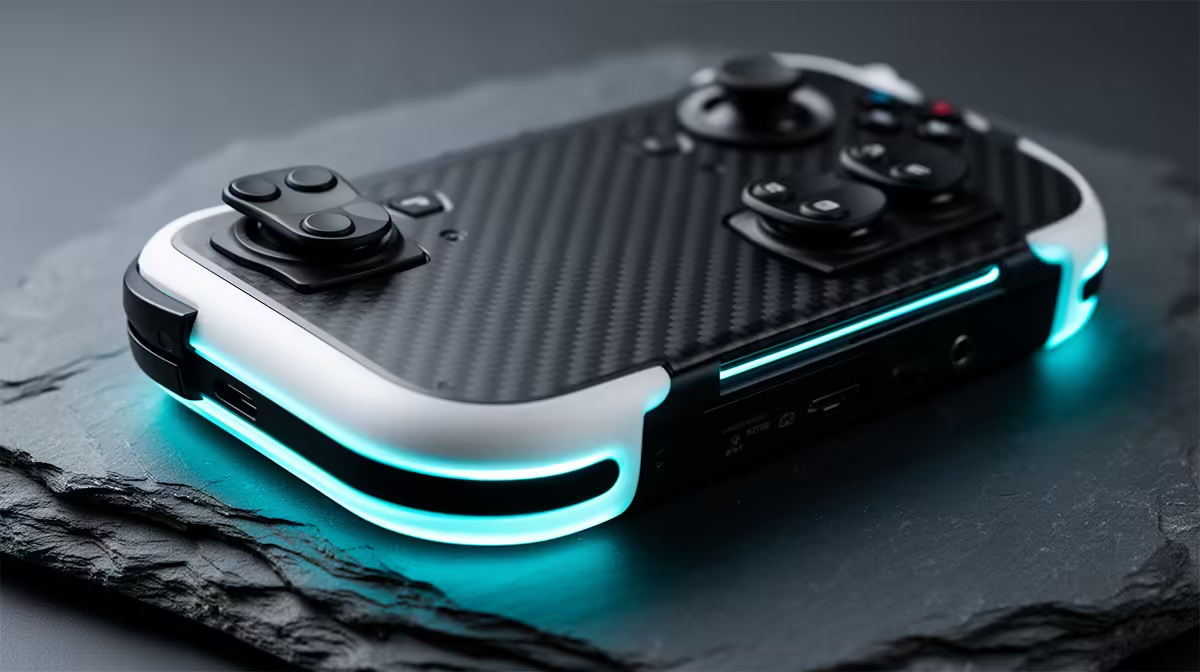
The Deck places L4 and L5 behind the left grip, with R4 and R5 behind the right. Press them by squeezing the grip with a middle or ring finger rather than lifting a finger and jabbing at the shell.
Spend five minutes in a menu with no mapping. Notice which rear buttons your fingers reach without shifting the Deck. Large and small hands can prefer different pairs.
Do not force all four into the first layout. Two useful buttons beat four accidental inputs.
Duplicate actions before inventing new ones
In a shooter, copy A or Cross-style jump to a right rear button so the right thumb stays on the camera stick. Put crouch or slide on the other side. Reload is useful when the game punishes a missed camera correction less than it punishes a late reload.
For action games, try dodge and lock-on. In a strategy title, map keyboard shortcuts or a radial menu through Steam Input when the game and profile permit it.
Leave the face button active at first. You can learn the rear input without losing the control shown in tutorials.
Edit the per-game Steam Input layout
Open the game's controller settings through the current Steam interface and enable the rear grip buttons in the layout. Menu names can change with SteamOS updates, so use Valve's current controller guide when the option moves.
Assign a simple command, apply it and test in a training area. Save the layout with a clear name that includes the game and date.
Steam Input can map controller buttons, keyboard keys, mouse actions and layered commands. A game with anti-cheat or unusual launcher handling may treat emulated keyboard input differently. Follow the title's rules and keep to ordinary supported remapping.
Community layouts are a starting map
Browse community layouts for the exact game and controller. Check play hours, update date and notes. A popular layout can target an older game build or assume a control scheme you do not use.
Preview every changed command before applying. Save your current personal layout first. Then import the community version and test one action group at a time.
Do not share a layout containing personal macros, chat text or credentials. Keep automation within game and platform rules.
Use long press and mode shifts with restraint
Steam Input activators can make a button respond to regular press, long press or double press. Layers and mode shifts can turn the trackpad or sticks into another control set.
These tools help games with many PC commands. They also create memory load. Put rare inventory or map actions on long press and keep combat actions on a plain press.
Add one layer, then play a full mission. If you cannot remember the control without opening the layout, simplify it.
Tune accidental presses
If a rear button fires while you hold the Deck, move the action to another grip or use a light long-press threshold for a non-urgent command. Do not apply a delayed activator to jump or dodge when instant response matters.
Check grip sleeves and cases. A shell can change leverage or press a button edge. Remove the accessory for one A/B test.
Hand discomfort is a fit warning. Rest, change grip and reduce session length. If pain persists, seek advice from a qualified healthcare professional.
Keep a fallback layout
Export or save the known-good profile before a SteamOS or game update. After an update, check prompts, rear actions and gyro one group at a time.
When a mapping stops working, return to the default template and add the rear buttons again. This is faster than diagnosing five old layers at once.
Inspect rear-button and control layouts across the handheld gaming console range. For a desk comparison, open the PC best-seller page, choose a controller there and map the same two actions.
Keep a screenshot of the finished rear-button page so you can rebuild it after a reset.
FAQ
What should I map first?
Copy jump and crouch, or the two actions that pull your thumb from a stick most often.
Can each game use another layout?
Yes. Steam Input supports per-game configurations, and you should name each saved profile clearly.
Can rear buttons send keyboard commands?
Steam Input can map supported keyboard inputs. Check game handling and competition rules before using mixed input.
Map two rear buttons to existing face-button actions, test one full session and add complexity only after the grip feels natural.