

Clean Gaming Keyboard: Guide for Dusty & Humid Conditions
Clean gaming keyboard quickly and safely in dusty or humid conditions with step-by-step tips, tool checklist, and maintenance routines to prevent corrosion and switch failure. 🧼💨
Read moreNeed a pedal calibration fix? Don't let faulty pedals ruin your race. This guide walks you through troubleshooting common issues, from deadzones to software conflicts, for brands like Logitech, Fanatec, and Thrustmaster. Get back on track fast! 🏎️💨
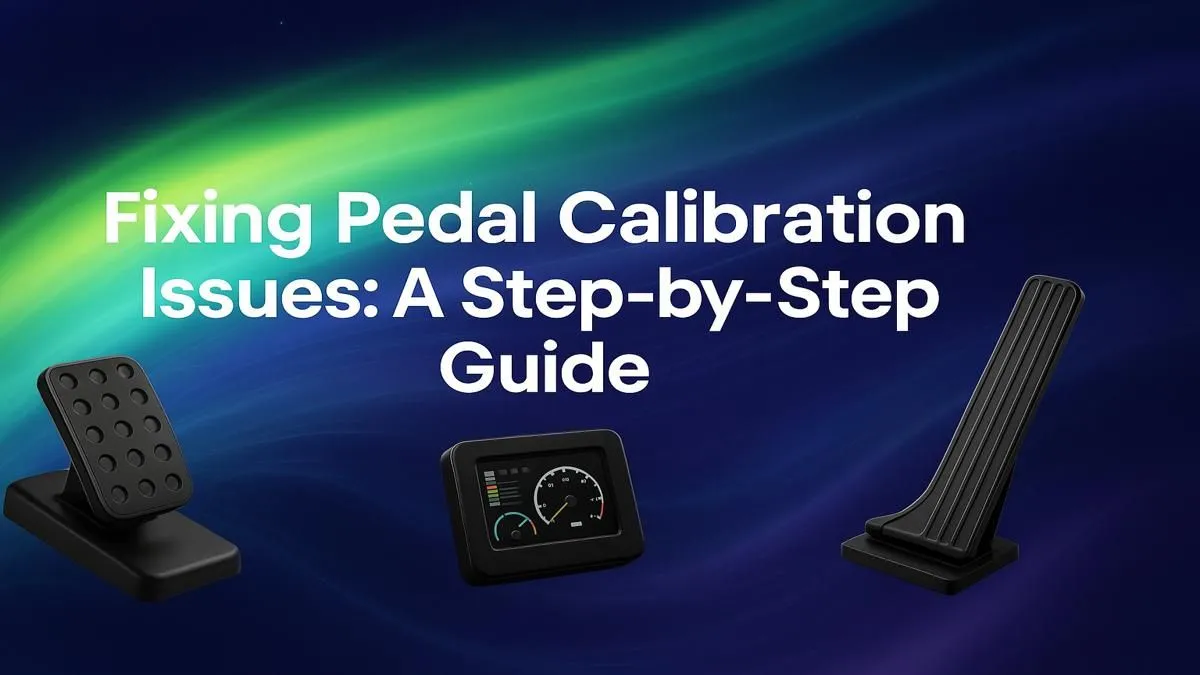
There's nothing more frustrating. You're lined up for the perfect overtake at Kyalami, you feather the throttle... and nothing happens. Or worse, your brakes lock up, sending you into the barrier. Before you throw your wheel across the room, know this: a simple pedal calibration fix is often all you need. This guide will walk you through troubleshooting your sim racing pedals step-by-step, getting you back on the virtual track in no time. 🏁
Before we dive into the fix, let's understand the problem. Most of the time, pedal issues aren't a sign of a broken unit. The culprit is usually one of these:
Understanding these common causes makes the process of troubleshooting your pedal calibration much simpler.
Ready to get your hands dirty? Let's walk through the most effective methods to recalibrate your pedals, starting with the easiest solutions.
It sounds basic, but always start here. Unplug the USB cable from your PC and your pedal set. Wait about 10 seconds, then plug it back in securely, preferably into a different USB port on your computer. This simple action can often resolve connection-related glitches.
Windows has a built-in controller calibration tool that works for most USB devices.
Windows Key + R to open the Run dialog.joy.cpl and press Enter.Almost every modern racing sim (like Assetto Corsa Competizione or iRacing) has its own pedal calibration settings. Look for "Controls" or "Input Settings" in the game's menu. You'll typically find an option to set the throttle, brake, and clutch axes. The game will ask you to press each pedal to its maximum travel to learn its range. This is often the most important step, as it overrides the Windows settings.
Before you start calibrating, always check if your wheel and pedals have a firmware update available. Manufacturers frequently release updates that improve performance, fix bugs, and enhance compatibility. A quick check on the official support page can save you a lot of troubleshooting headaches.
If the basic pedal calibration fix didn't work, it might be time for a deeper look. For more advanced pedals, manufacturer-specific software is your best friend. For instance, if you're running gear from a brand like Thrustmaster, their control panel offers more detailed diagnostic and calibration tools than the standard Windows utility.
Sometimes, the issue is physical. A stable platform is crucial for consistent performance and preventing cable damage. Mounting your gear to a dedicated rig, like one from our range of solid Playseat chairs and cockpits, ensures everything stays put during intense races, protecting your connections and improving your pedal control.
If you've cleaned the sensors (be careful not to void your warranty!), updated firmware, and tried every software fix with no luck, it might be a sign that your hardware has reached the end of its life.
Ready to Upgrade Your Drive? A perfect pedal calibration fix can breathe new life into your rig, but sometimes an upgrade is the only way to the podium. Explore our massive range of sim racing gear and find the perfect setup to dominate the track.
Pedal calibration is the process of setting the minimum and maximum input range for your gaming pedals. This ensures your PC accurately reads your foot pressure, preventing deadzones or overly sensitive responses in-game.
To reset gaming pedals, unplug them from your PC, wait 30 seconds, and reconnect. Then, open the manufacturer's software or Windows' 'Set up USB game controllers' panel and use the 'Reset to Default' or 'Recalibrate' option.
Common issues include outdated drivers, software conflicts, incorrect in-game settings, or dust in the sensors. A proper pedal calibration fix, starting with software updates and cleaning, often resolves these problems.
Yes. Search for 'Set up USB game controllers' in the Start Menu, select your device, click Properties, go to the Settings tab, and click the 'Calibrate' button to follow the on-screen wizard.
A deadzone is an area of pedal travel that registers no input. It can be caused by physical wear, dirt in the sensors, or incorrect software settings that need to be adjusted during calibration.
Yes, most racing pedals, even new ones, benefit from an initial calibration. This sets a baseline for your specific hardware and ensures maximum accuracy and responsiveness from the very first use.
Clean gaming keyboard quickly and safely in dusty or humid conditions with step-by-step tips, tool checklist, and maintenance routines to prevent corrosion and switch failure. 🧼💨
Read more
Best gaming keyboard features to prioritize when building a high-end setup: mechanical switches, low latency, hot-swap, RGB, macros, durability and ergonomics 🎮⌨️
Read more
Custom actuation point keyboard setup guide: learn to set per-key actuation on your analog gaming keyboard for faster, precise inputs and better control 🎮⚙️
Read more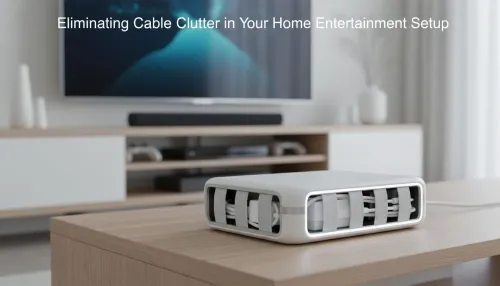
Cable management for home entertainment helps you eliminate cable clutter quickly and safely. Learn routing, concealment, and product picks to tidy your setup fast 📺🔌
Read more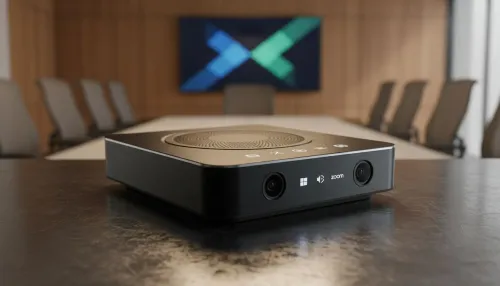
conference room setup Microsoft Teams Zoom: Upgrade AV, camera, mic, and network to ensure seamless meetings, clear audio, and crisp video 🎯🔧
Read more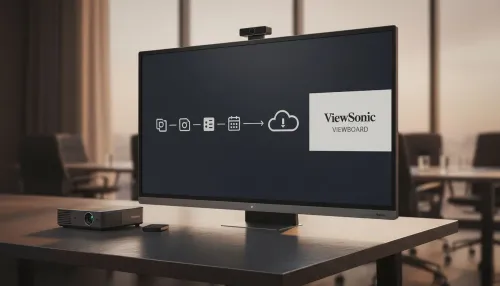
• Audit setup • Link accounts • Configure ViewBoard • Test workflows Integrate Google Workspace with ViewSonic ViewBoard to enable secure SSO, calendar and Drive sync, and smooth collaborative whiteboarding 🔗📋
Read more
Discover webcams that automatically adjust light and color for crystal-clear video calls 🎥✨. Boost your streaming quality today!
Read more
Discover webcams that blend into your workflow 🎯 Capture moments while you work, stream, or create. Upgrade your setup with smart, multitasking tech!
Read more
Dedicated media keys give streamers one-touch control to mute, switch scenes, clip highlights, and adjust audio — cutting task time and boosting consistency 🎛️⚡
Read more
PBT vs ABS keycaps: Clear, local guide for South African gamers—compare feel, sound, durability and where to buy. Find the best material for your budget and playstyle 🎮🇿🇦
Read more
- Multi-Function Digital Dial: define benefits - Show gamer setups and macros - Offer buying and setup tips Multi-Function Digital Dial puts programmable control at your fingertips for faster actions and smoother streaming. 🎮⚙️
Read more
- Explain benefits; - Show the science; - Compare options; - Recommend picks. Magnetic wrist rest for gaming cuts wrist strain and boosts comfort during long sessions 🕹️✨
Read more