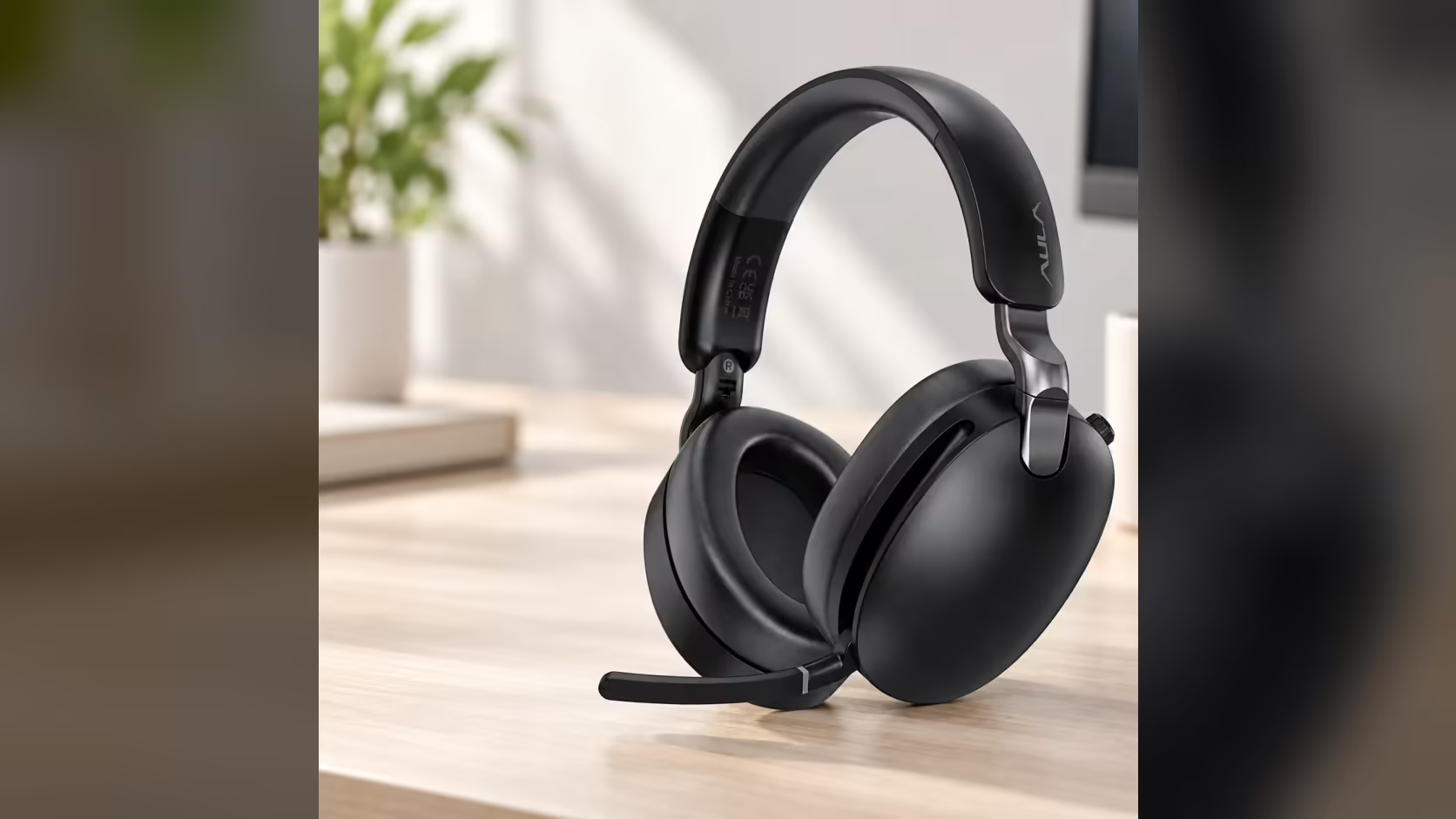
You plug in a new wireless headset, the music plays, and then someone on your opening call says they cannot hear you. It is one of the most common setup problems on a PC, and it almost always comes down to one missed step. With the AULA A500, the fix is simple: set it as both the output and the input device. This guide walks through the Windows sound settings for a headset so everything works on the day you plug it in.
Quick Answer
Plug the AULA A500's USB receiver into your PC, then choose "A500" as both the output device and the input device in Windows sound settings. Setting only the output leaves Windows recording from another microphone, such as a webcam or laptop mic, which is a common cause of silent calls. Apps like Teams may also need the A500 selected in their own settings. The A500 sells at Evetech for R639.
🔌 Step one: the receiver
The A500 connects to a PC through a 2.4GHz USB receiver, supplied in the box. Plug it into a free USB port on the PC. A port on the front of a desktop, or one with a clear line of sight to where you sit, tends to give the most reliable signal.
Switch the headset on. Windows should detect it and install what it needs automatically. Once that is done, it appears in the sound settings as "A500".
🔊 Step two: output and input in Windows
Finding the settings
In Windows 11 and Windows 10, open Settings, then System, then Sound. You can also right-click the speaker icon on the taskbar and choose the sound settings option.
Setting the output
Under the Output section, choose "A500" as the device to play sound through. Play a video or some music to check that audio now comes through the headset.
Setting the input
This is the step people miss. Scroll to the Input section and choose "A500" as the input device too. Without it, Windows may keep recording from another microphone, such as a webcam, a laptop's built-in mic or an old headset, even though you are hearing sound through the A500.
Once selected, speak into the mic and watch the input level meter move. If it does, Windows is hearing you.
💬 Step three: apps like Teams
Many communication and gaming apps keep their own audio settings and do not always follow the Windows default. In Teams, for example, open the app's device settings and choose the A500 for both speaker and microphone. Most chat and game apps have a similar audio or voice section.
Doing this once per app saves the "can you hear me?" moment at the start of every call. Some apps also offer a test call or mic test, which is worth running.
A useful extra
AULA says the A500's ANC key picks up Teams calls, and can also bring up your voice assistant. So once the headset is set up properly in Teams, you can answer from the headset itself.
🛠️ Troubleshooting
No sound after plugging in the receiver
- Check that the headset is switched on and in 2.4GHz mode.
- Confirm "A500" is selected under Output in Windows sound settings.
- Try a different USB port, ideally directly on the PC rather than through a hub.
- Check the volume, both in Windows and on the headset's multi-function button.
Nothing records from the mic
- Check that the boom mic is flipped down. On the A500, raising the boom mutes it, so an upright mic records nothing.
- Confirm "A500" is selected under Input in Windows.
- Check the app's own microphone setting.
- Rotate the mic closer to your mouth and test the level meter again.
Using the audio cable instead
The A500 also ships with an audio lead for a 3.5mm socket. When you listen that way, Windows sees your PC's own headphone jack or sound card rather than "A500", so choose that device in the sound settings. For calls on a PC, the receiver remains the simplest route, since Windows then treats the A500 as a single device for both sound and mic.
Once it is working
With output and input set, the A500 gives you hybrid ANC, which AULA rates at up to 38dB, plus a transparency mode for hearing the room. Its 1000mAh cell is rated for about 100 hours with ANC off, or about 60 with cancelling engaged, and charging takes about 3 hours over USB-C. A phone can join over Bluetooth 5.4 at the same time.
Evetech carries the A500 in black. You can compare it with other PC-friendly models in Evetech's gaming headsets range, or browse the wireless headset page. It reaches you from Evetech with a 1 Year Local Warranty.
Frequently Asked Questions
Where are the sound settings in Windows?
Open Settings, then System, then Sound, or right-click the speaker icon on the taskbar.
Why set the input as well as the output?
Otherwise Windows may keep recording from another mic, so people on calls cannot hear you.
Do apps like Teams need the same change?
Often, yes. Many apps have their own audio settings, so choose the A500 there too.
What if there is no sound after plugging in the receiver?
Check the headset is on, "A500" is the output, and try another USB port directly on the PC.
Using the audio cable, what shows up in Windows?
Your PC's own headphone jack or sound card, rather than "A500".
Is the mic muted if nothing records?
Possibly. On the A500, raising the boom mutes it, so flip it down and test again.
Setting up a headset for calls and games?
Browse Evetech's gaming headset range and find a PC-ready option like the AULA A500.