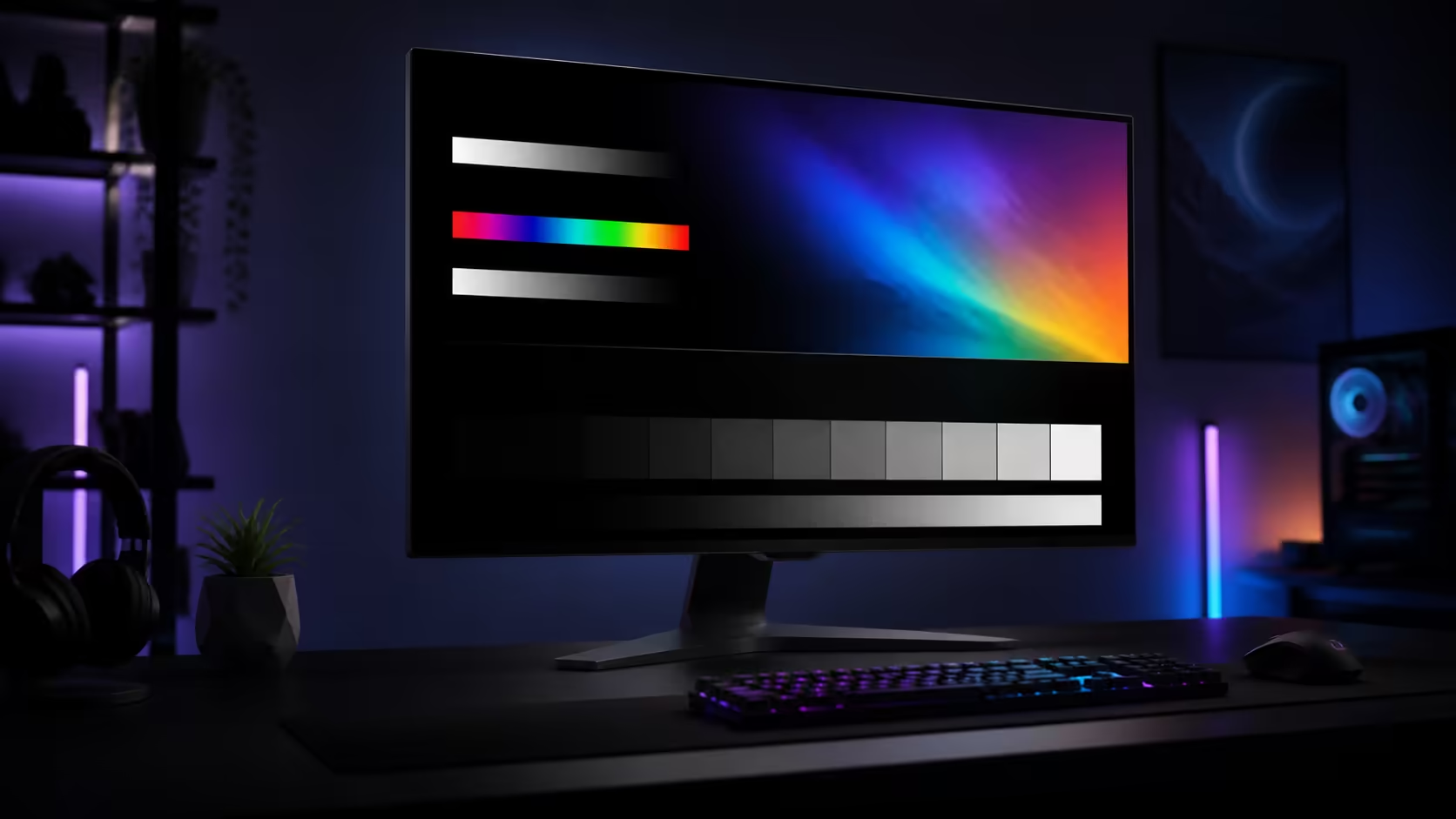
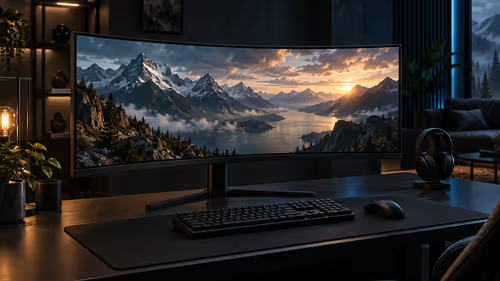
An OLED screen can look excellent with fewer adjustments than many people expect. The best starting point is a neutral picture preset, the correct signal format and a brightness level suited to the room. Windows HDR calibration comes after those basics, while aggressive contrast enhancers and copied internet values can make accuracy worse.
Quick Answer
The best settings for OLED monitor use are the native resolution, highest stable refresh rate, neutral colour mode and comfortable brightness. Keep panel-care features enabled. In Windows 11, use SDR for ordinary desktop work if it looks more consistent, then turn on HDR for supported games and video. Run Windows HDR Calibration on the correct display and complete all three clipping patterns. Adjust SDR content brightness separately so the desktop does not look washed out or painfully bright.
🔌 Establish a clean signal first
Connect the display through a port and cable that support its full resolution and refresh rate. Open Windows Advanced display settings and select the intended refresh rate. A 240Hz panel left at 60Hz will feel slow regardless of picture tuning, while an unsupported cable can cause blanking or force a lower format.
Start with the monitor's standard, sRGB or creator preset rather than a vivid shop mode. Set sharpness to its neutral position and disable dynamic contrast while building a baseline. Leave variable refresh enabled for gaming if the graphics card and connection support it.
The OLED monitor collection helps compare panel resolution, refresh rate and port support before purchase.
🌗 Treat SDR and HDR as different modes
SDR desktop content and HDR media use different brightness relationships. Windows includes an SDR content brightness control while HDR is enabled because the two signal types can otherwise appear mismatched. Set it for comfortable documents and web pages rather than trying to make every white window reach HDR highlight intensity.
For HDR calibration, confirm that HDR is active on the correct screen. Microsoft's app presents three visual tests: darkest visible detail, brightest visible detail and the maximum brightness the display can reproduce. Move each control until the pattern reaches the instructed threshold. Finish with saturation near neutral first; extra intensity is a preference, not additional dynamic range.
Games may provide their own peak brightness and paper-white controls. Run the Windows calibration before changing those values, then follow the game's pattern. If highlights clip into a flat white patch, lower the peak setting. If menus and mid-tones are too dim, adjust paper white instead of raising every control at once.
🧼 Protect the panel without spoiling the picture
Keep built-in pixel shifting, logo detection and scheduled panel refresh active. These features are designed to reduce uneven wear. Avoid interrupting a maintenance cycle by repeatedly cutting mains power as soon as the computer shuts down.
Use sensible task habits as well. Auto-hide a static taskbar if the display runs desktop applications for many hours, choose a short screen-off timer and vary full-screen content. Maximum brightness is rarely necessary in a controlled room. Lower comfortable output reduces glare and cumulative panel stress.
The live catalogue snapshot found a portable 13.3-inch 4K OLED at R3,499, an AOC 27-inch QHD 240Hz WOLED at R9,999 and an ASUS 27-inch OLED at R10,999. These prices were captured at one time and can change. Browse the wider gaming monitor range for alternatives, then check monitor best-sellers for the current market view.
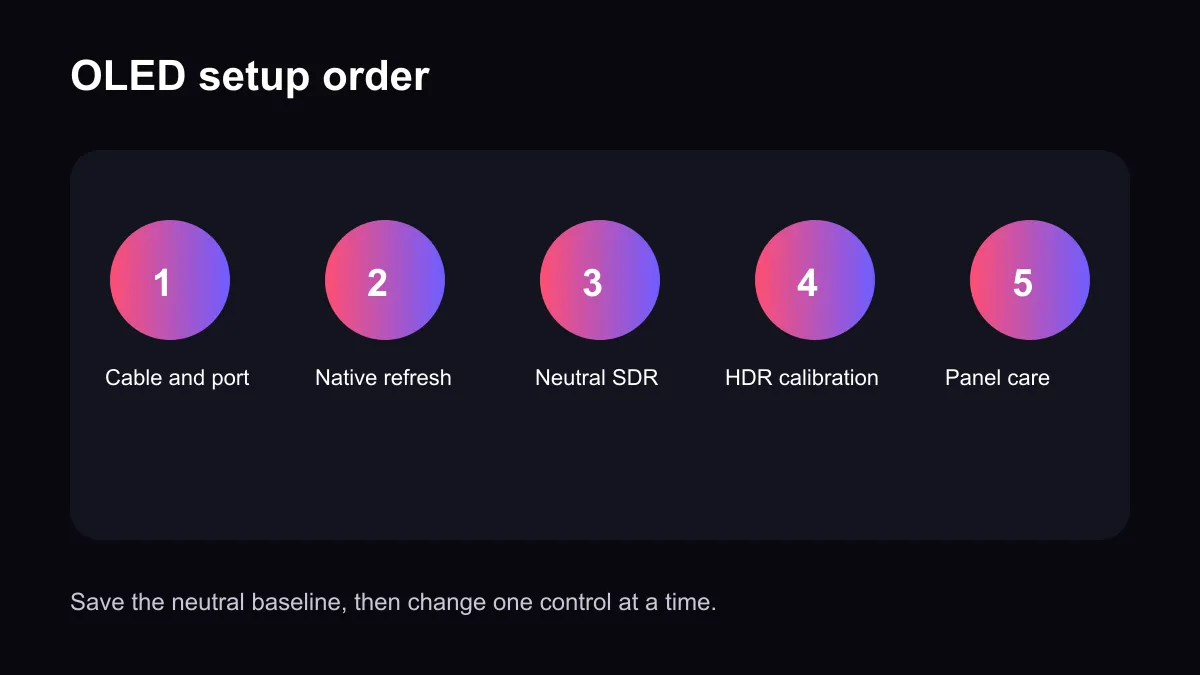
Change one setting at a time and save the neutral baseline. That makes a poor result easy to reverse and reveals which adjustment actually helped.
Frequently Asked Questions
Should HDR remain enabled for desktop work?
It can, but many users prefer SDR for documents and enable HDR for supported games or video. Choose the more consistent result.
How is Windows HDR calibrated?
Select the OLED display, enable HDR and use the Windows HDR Calibration app to complete its three clipping tests.
What brightness is correct for OLED?
There is no universal number. Use enough output for the room without discomfort, clipping or an unnecessarily bright desktop.
Should panel refresh features be disabled?
No. Leave the manufacturer's panel-care functions active and allow scheduled maintenance to finish.
Why does an OLED monitor still look dull?
Check the chosen display, HDR state, cable capability, output range and SDR brightness balance before adding contrast effects.
Setting up an OLED display?
Save a neutral baseline, calibrate HDR on the correct screen and change only one picture control at a time.