You find a page offering a Bluetooth driver, but the laptop sticker only tells you it has an Intel processor. The wireless adapter has its own model number. Before downloading anything, use the exact laptop model and Windows device entry to work out which package applies to the Bluetooth hardware you actually have.
Quick Answer
Identify the Bluetooth adapter in Device Manager and try Windows Update or the PC maker's driver first. These checks cost R0. Use Intel's package only if its supported hardware list matches your adapter and Windows edition.
🧾 Match the Bluetooth hardware
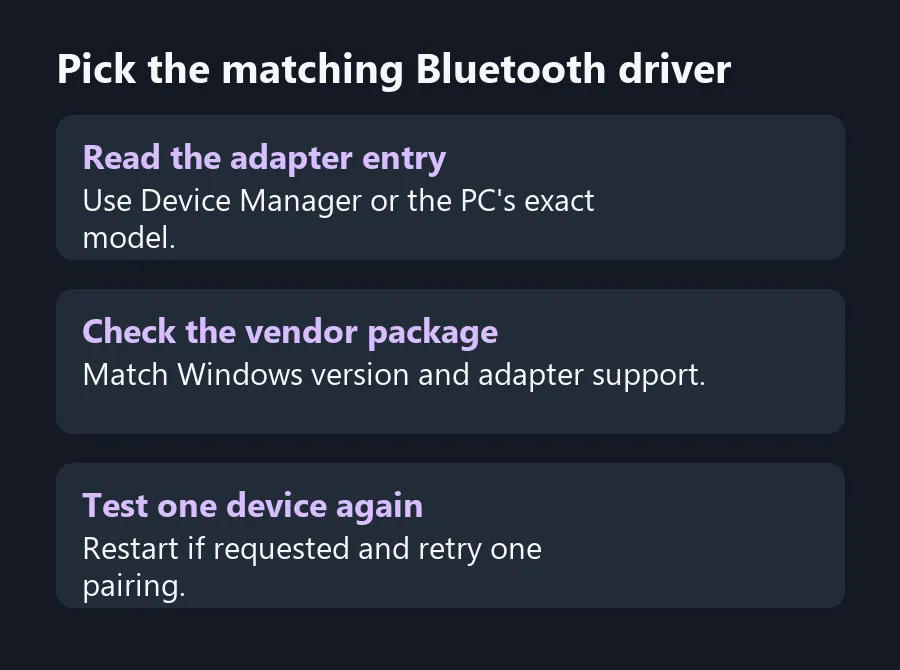
Open Device Manager and expand Bluetooth. Find the adapter entry, which may be named alongside several paired devices. The names of your mouse, headset or phone do not identify the adapter inside the computer. If the adapter label is generic, look up the driver and hardware details for the exact laptop or motherboard model. The processor brand is a separate specification.
If Bluetooth is missing from Windows, check the PC maker's model documentation and available drivers before selecting a generic download. Some models have different wireless options. If you recently fitted a USB adapter, use that adapter's model information and checks. A package for onboard hardware is not automatically suitable for the plugged-in device.
📦 Pick a source you can match
Start with Windows Update and the manufacturer's support page. When the manufacturer's page offers several Bluetooth packages for one product family, identify the wireless adapter before choosing a file. Match the operating system as well. Keep a record of the current driver version if the connection was working before a recent change.
If you use Intel's generic Bluetooth package, open the description and find the specific adapter in the supported list. The file name alone will not tell you whether Intel still includes your model in that release. Use the computer maker's package when it gives you a clear match for that system. If you are shopping for Network Adapters instead, check the exact ports and Windows support before comparing the wireless feature names.
🧪 Test one connection after the change
Restart when Windows or the installer asks you to. Reopen Device Manager and confirm that the adapter has returned. Test one accessory you know works, such as a mouse that pairs with another PC. If one item fails while others connect, investigate that item before trying another driver. If the fault started with the update, use the PC support instructions to decide whether to roll back.
When comparing All Laptops on Special, note the full model code if Bluetooth support matters for your mouse or headphones. A searchable model code makes finding the right driver easier later. Bookmark the manufacturer's page so you can find the right installer when you next reinstall Windows.
Frequently Asked Questions
Does an Intel CPU mean I need an Intel Bluetooth driver?
No. The processor and Bluetooth adapter can come from different makers. Confirm the Bluetooth hardware first.
Where can I find the adapter in Windows?
Open Device Manager and expand Bluetooth. Look for the adapter entry among the paired devices and system entries.
Can Windows Update install Bluetooth drivers?
Yes. Check Windows Update and use the PC maker's support page if Windows cannot find a suitable package.
Should I use the newest Intel file for every Intel adapter?
Check the supported model list for the exact package. A newer release may omit older hardware.
What if only one headset will not pair?
Test another Bluetooth device. If the adapter works with others, troubleshoot the headset and its pairing state first.
Will a USB Bluetooth dongle use my laptop's onboard driver?
It depends on the dongle. Identify its model and follow the adapter maker's Windows instructions.
Pick the matching Bluetooth driver
Use the PC maker's driver if you cannot match the adapter to a supported Intel package.