The fans turn after a firmware update, but the screen stays blank and the board is still showing a DRAM light after BIOS update. A DDR5 board can spend time training memory on a first boot. Distinguish that initial wait from a boot that never progresses before you change parts.
Quick Answer
Check the motherboard manual for its expected first-boot behaviour and give the system time to train. When an update has finished and the light still stays on, use the manufacturer's troubleshooting procedure and test a supported module in the recommended slot. Checking the manual and testing the hardware you own costs R0.
💡 Interpret the light for your board
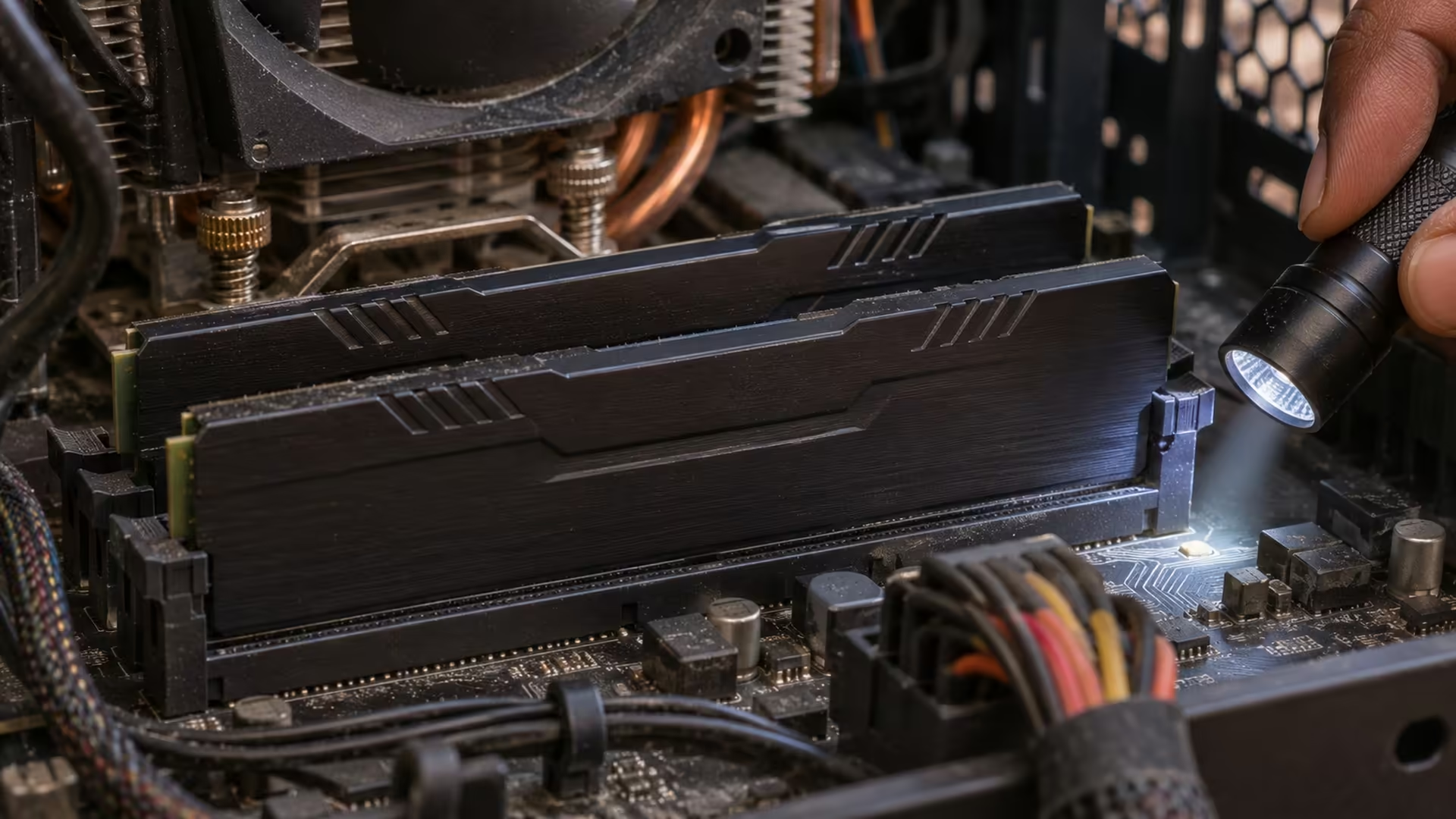
Look for the model on the box or invoice. The indicator labelled DRAM corresponds to a stage in the board's hardware check. Different boards show progress differently, so read the description for the exact model and revision. If the vendor documents a longer first boot after a hardware or firmware change, use that expectation before assuming it has hung.
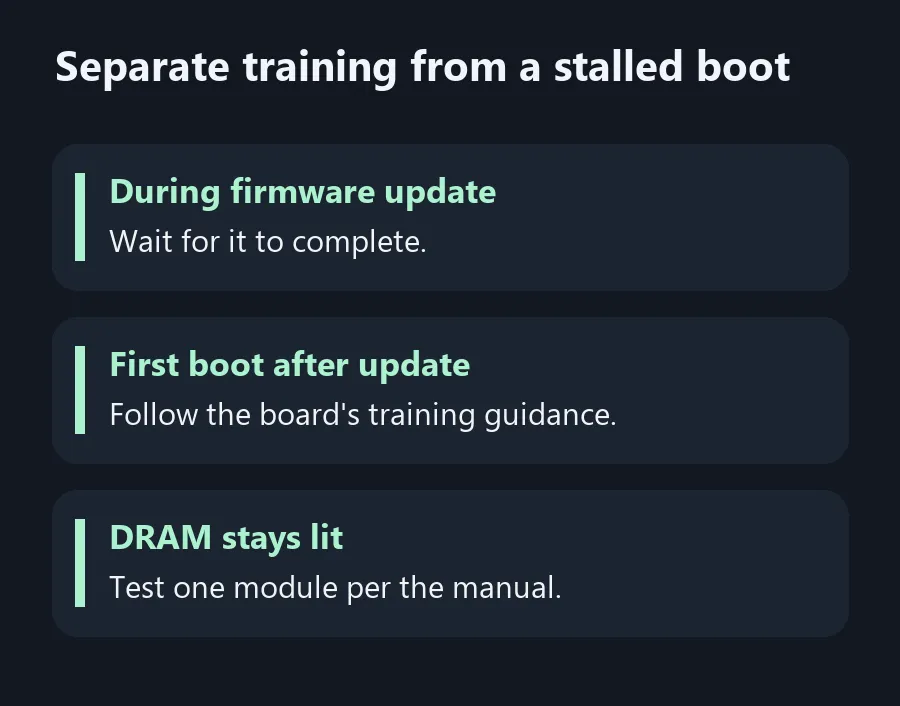
If a firmware flash is still underway, follow its instructions and leave power connected. When the update has finished, record the indicator pattern and whether it ever moves to another light during boot. If the light moves on and the PC starts, record how long the first boot took. Report a persistent light separately.
🧩 Take one memory variable out
Once the board is off and disconnected, use the manual's recommended slot for one module. If you can get into setup, start with default memory settings before trying a faster profile. If the manufacturer prescribes resetting the settings, follow that board's documented method. Change just one thing, log which part and slot you tested, and allow the expected training time again.
If a single module boots, confirm it does so with the current firmware and default settings before you put the other stick back. Consult the exact board's memory support list for your kit's part number and how many sockets were tested. The other boot you compare should be the same configuration except for the one variable you are investigating.
🛒 Match the board and memory before buying
When you report the issue, include the firmware version, full memory kit part number and the slot tested. Say whether settings changed after the update and whether the PC boots with one module. Support can use those details to decide whether to check firmware recovery, the memory configuration or a board fault.
If you are planning to replace parts, read the manufacturer's compatibility information alongside All Motherboards and DDR5. Match the board socket to the processor and the memory kit to an actual supported configuration. It's easier to choose a suitable pair from those two facts than to replace a whole kit because a single yellow or red indicator stayed lit. If the PC recovers at default settings, put the component purchase on hold while you establish which settings it needs to start consistently.
Frequently Asked Questions
Can an update cause memory training on the next boot?
Yes. Use your board's documented first-boot expectation before deciding it has stalled.
Does a DRAM light prove the sticks are broken?
It identifies a stage in the hardware check. Use the manual's isolation procedure to narrow down the cause.
Should I interrupt the update while the screen is blank?
Follow the firmware flashing procedure and leave power connected until it reports that the update is complete.
Which slot should I use for a one-stick test?
Use the slot specified for one module in your exact motherboard manual.
Should I restore a faster memory profile first?
Start at default settings and establish that the PC boots consistently.
What should I tell support?
Give the exact firmware version, model, memory part number, slot and observed light sequence.
Separate training from a stalled boot
Check POST behaviour with firmware defaults and one approved memory module before buying another kit.