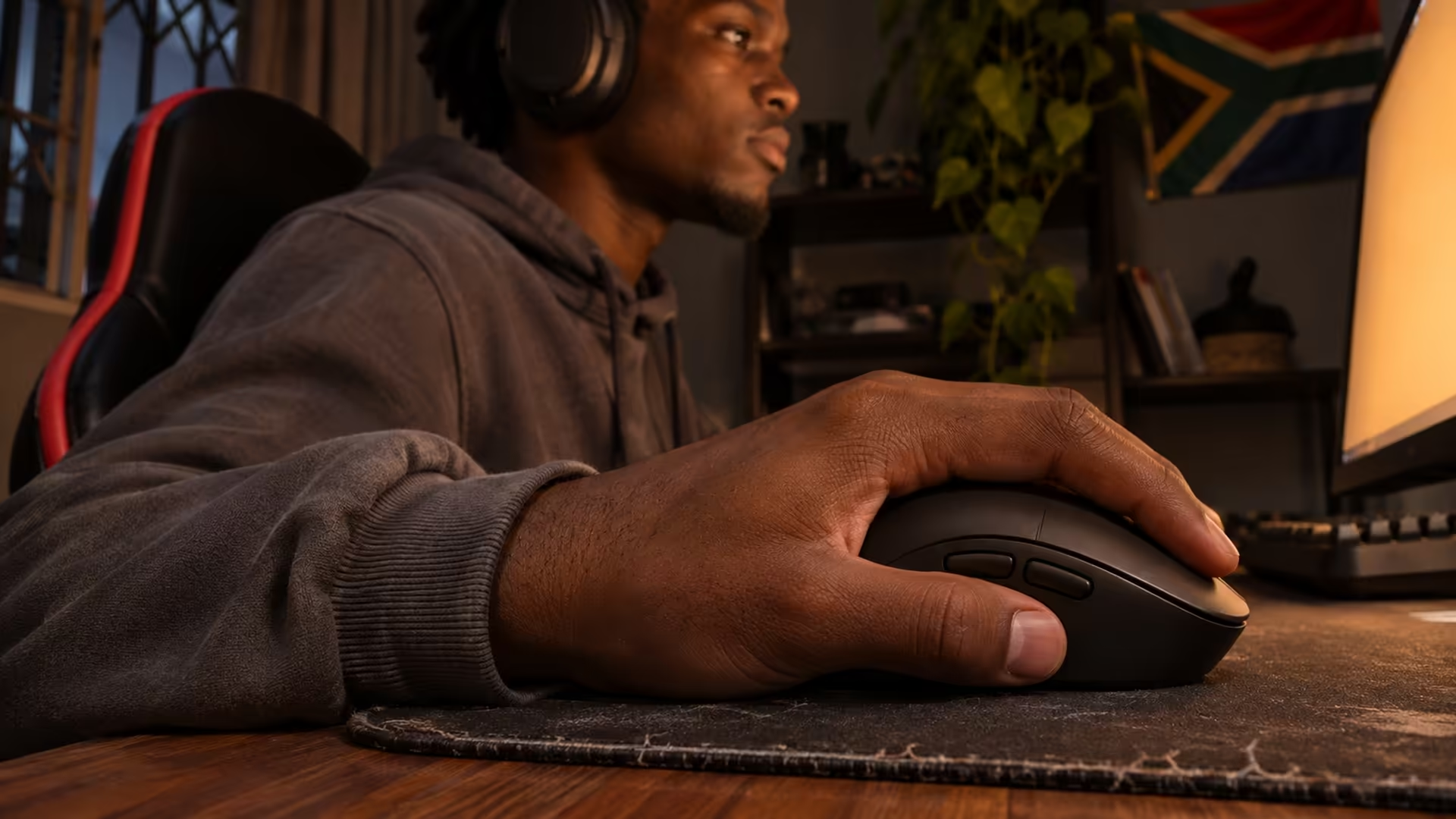
Your thumb buttons still work in a browser, then do nothing when you try to bind push-to-talk. If your gaming mouse side buttons are not working in a single game, check what signal the profile is sending before you replace the mouse or clean a switch you haven't confirmed is faulty.
Quick Answer
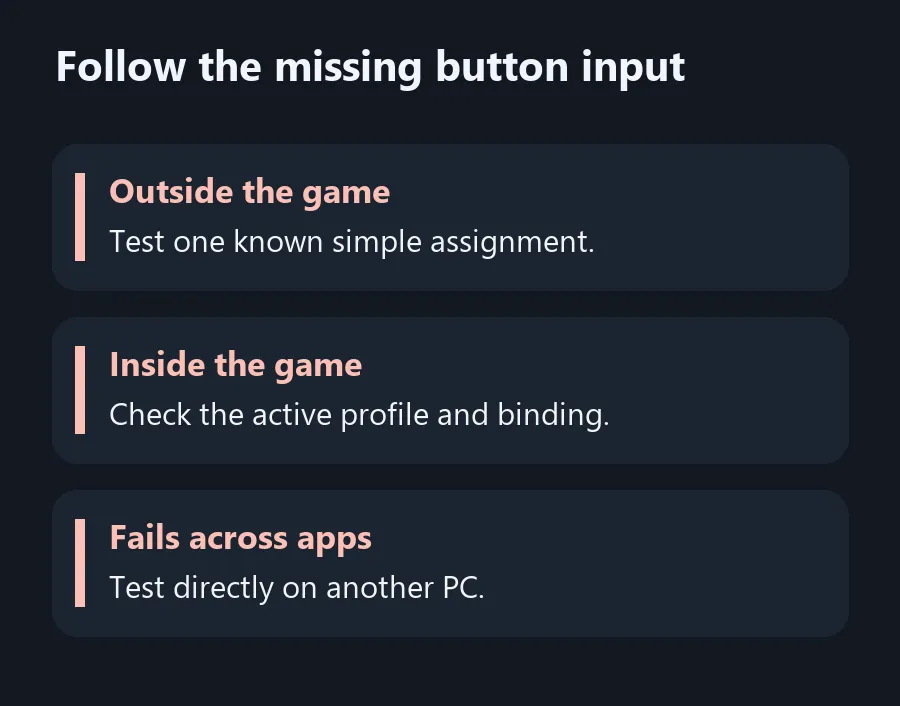
Test a side button outside the game, then check the mouse profile that applies to the game's executable. Use the in-game controls menu to bind a supported input and test one button at a time. This costs R0 with the mouse and software you already have.
🎮 Watch what changes when the game opens
Start with the mouse maker's app and find the function assigned to one thumb button. Some profiles send a mouse button code. Others send a keyboard key, a media action or a command sequence. Write down which assignment is active on the desktop and which appears with the game focused. Profiles may be tied to a specific application, so the launch program and the running game can produce different results.
In the game, open the controls menu and select the action you want. Press the test button once, then read the response. If the game accepts a keyboard input for that action and doesn't take the mouse button, try a simple permitted key assignment in the mouse app. Keep it to one input per action and follow the game's input rules.
🖱️ Rule out a switch fault with a second test
Use a known working profile and try the same button in a second application. You can temporarily choose a normal key that produces a character in an empty editor, then restore the original assignment after the test. If both the browser and the editor respond but the game does not, keep looking at the game's binding and profile.
If a button fails outside the game as well, reconnect the mouse and try a direct USB connection. Follow the maker's documented software and hardware checks. Try another computer if you have access to one and the same simple test makes sense there. Write down whether one input fails or all thumb buttons fail. Tell support if the whole group drops out with a profile change or one switch fails in every profile.
📎 Save the working assignment
Put the working mapping in the game profile and check it again after closing and reopening the game. If the mouse can use onboard memory, read its documentation to see which assignments it can retain without the desktop app. A profile saved on the PC and a profile stored in the mouse can support different functions, which matters if you swap between a laptop and desktop.
If you need to replace the mouse, compare Gaming Mice by the number and position of buttons you can actually reach. Mouse Accessories can help with the desk setup around it. Before you spend, identify the specific control you need the mouse to send and check whether the game accepts it. You can then test the same action during setup instead of starting your binding from scratch.
Frequently Asked Questions
Why do the side buttons work on the desktop only?
The game may use a separate profile or require a different input in its controls menu.
Can I assign a normal key to a thumb button?
Where supported, yes. Use a single permitted key assignment and bind it in the game.
Why does the profile change when I launch a game?
Mouse software can attach profiles to specific applications. Check the profile for the running game.
Can I test the switch outside the game?
Try a simple supported assignment in a second application and see whether the same button responds.
Do all assignments work from onboard memory?
Check the mouse documentation. Some functions need the desktop application running.
When does the mouse itself need diagnosis?
If the same button fails in a known working configuration on another compatible computer, ask the manufacturer to check it.
Follow the missing button input
Test the switch outside the game and separate game bindings from per-application profiles.