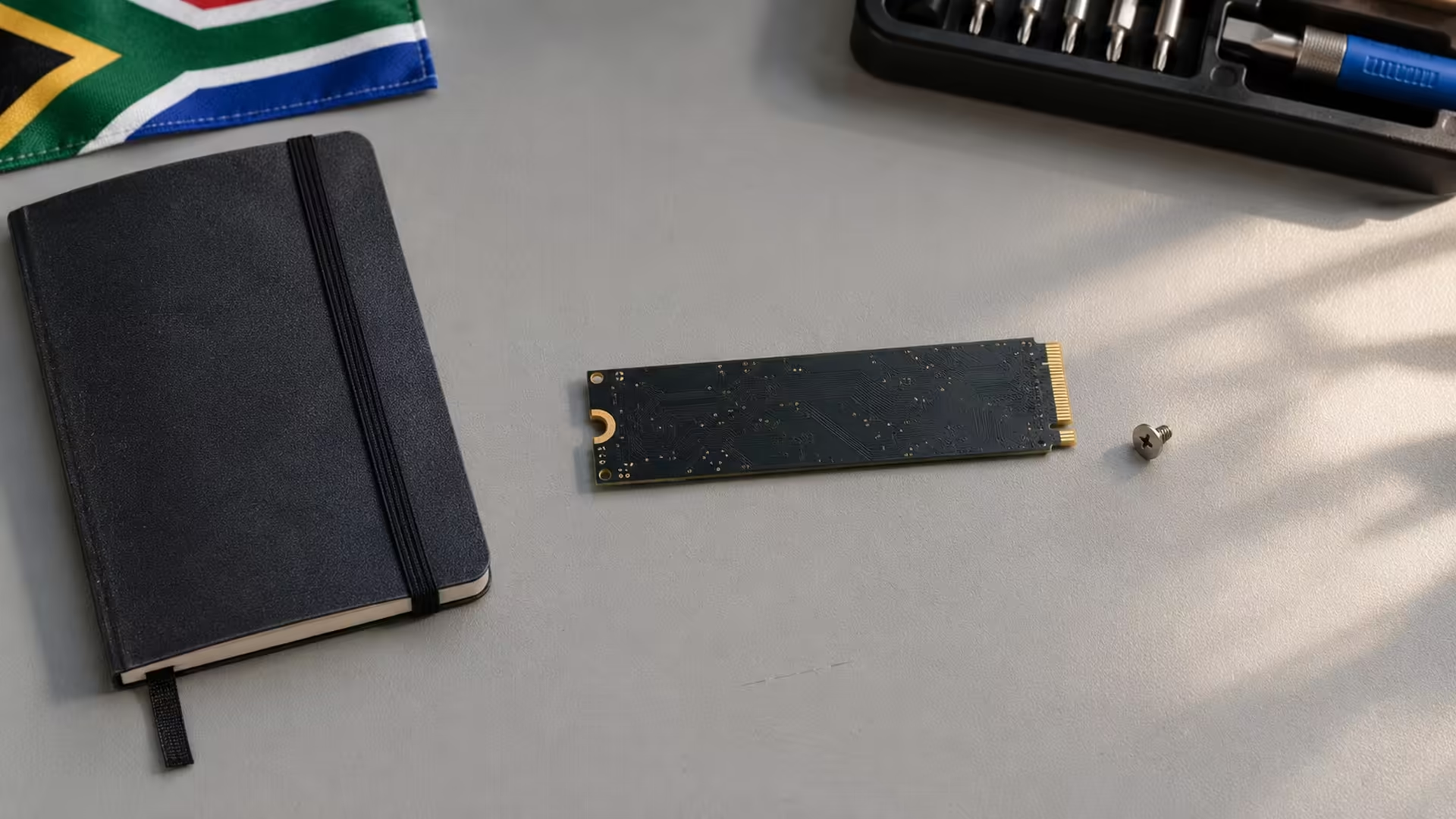
A second drive can work all evening and vanish the next time the PC wakes. When an NVMe SSD disappears after sleep, save anything you can still reach and find out exactly where the drive drops out. Check first for a missing drive letter. If Windows loses the whole device, see whether the firmware still detects it.
Quick Answer
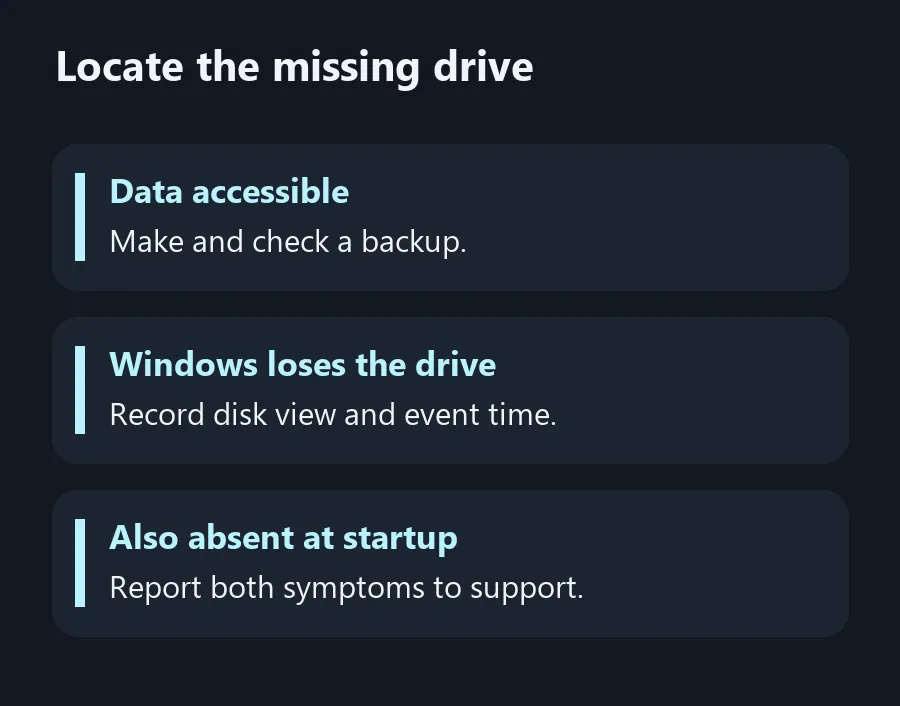
Back up important files while the drive is accessible. Check if Windows still lists the SSD in Disk Management after waking, then see whether the system firmware can detect it after a normal restart. Use checks that cost R0 before deciding between a drive, slot or software issue.
💾 Keep a copy before testing again
If the drive appears after a restart, use that chance to copy your important files to another device. Open a few files from the copy before you rely on it. Avoid formatting, initialising or running a destructive write test on a drive that contains files you need. If it's the only copy and the drive keeps disconnecting during reads, stop and consider asking a recovery specialist what to do next.
Look in Disk Management after the next incident. Note whether the drive's model or capacity is visible and whether the expected volume and letter are present. If the drive is showing and a volume still exists, you've narrowed the problem to a different layer from one where Windows cannot see the SSD at all. Take a screenshot or write down what you see while it is still missing.
🕰️ Give the fault a timestamp
Write down when you put the computer to sleep and when it woke. Use that time in the System event log to find any storage messages around the incident. A timeout or retry event can help establish when the storage connection stopped responding. It takes more evidence to say whether the cause was the SSD, firmware, a controller or something else.
Restart normally after capturing the symptoms. If the drive disappears in Windows and the computer also fails to list it on a firmware check, note both results. If firmware can see it consistently but Windows loses it after wake, look for a documented update or support note for your exact computer, motherboard and drive. Keep a copy of your data and follow the vendor's instructions if you apply firmware.
🔧 Decide whether a slot or a drive needs attention
On a desktop with more than one M.2 slot, check the board manual for support and any lane-sharing rules. Have an experienced technician check the fit or move the drive if you're uncomfortable disassembling the PC. Changing just one component or slot at a time helps you compare what happened. A disappearance even when you start the machine from cold deserves attention before more sleep tests.
Compare NVMe SSDs only after you know what type and length the slot accepts. All SSDs is a sensible place to look for separate storage for your files if you want an alternative to testing further on the affected drive. Keep the old and new drive roles clear when you copy data. Label the backup and confirm you can read it before telling any utility to initialise an empty drive.
Frequently Asked Questions
Should I initialise the missing drive if it returns?
Avoid initialising or formatting any disk that holds files you still need.
Where do I check after waking the PC?
Check Disk Management and note whether the physical disk, its volume and its letter appear.
Does a timeout event prove the SSD has failed?
No. It records a storage response problem. Compare the drive and platform behaviour before identifying the cause.
Does a reboot that brings it back fix the problem?
It restores access for the moment. Use that opportunity to make a backup and record the symptom.
Can I change the slot for a test?
Check the board documentation for supported slots and lane sharing. Make a backup before moving the drive.
When should I stop troubleshooting by myself?
Stop if a drive holding your only copy disappears during reads. Ask a recovery specialist before risking further writes.
Locate the missing drive
Save your files, find which layer loses the SSD, and check support for the exact firmware.