




Chrome change search engine: Set the address-bar default deliberately
Chrome change search engine settings control ordinary address-bar searches. Check site shortcuts and managed-browser rules if the wrong provider keeps returning.
Read moreChrome turn off notifications works through website permissions. Block the noisy site's notification access before muting every browser alert or changing PC sound.

A single website can turn a quiet work session into a stream of desktop alerts. Muting the whole computer is a blunt answer when the browser can remove that one site's permission to interrupt you.
Chrome turn off notifications controls are under Settings, Privacy and security, Site settings, then Notifications. Blocking a site's permission costs R0. Read the sender address and block the noisy site, or choose a stricter default for future requests. This does not mute media playback, clear the site's data or close your account.
An alert can display dramatic wording or an official-looking picture without being a trustworthy system warning. Identify the website address responsible for sending it. If the alert is unwanted, go directly to Chrome's settings rather than following a button in the alert itself.
This distinction is especially useful on a shared computer. Someone may previously have allowed a website to send notifications, even if you do not remember doing so. A permission granted in the past can account for the current interruption without implying that you installed a separate desktop application.
Open the Notifications section of Site settings. Review the allowed sites and remove the unwanted site's ability to send notifications by blocking it. Check the address carefully so you do not silence a different service you still use. Keep the useful permissions you recognise if you need their alerts.
The default setting governs future requests. You can choose a stricter preference or quieter prompting rather than repeatedly deciding on every unfamiliar site. A quieter request is not the same thing as granting permission; decide deliberately when a site has a useful reason to notify you.
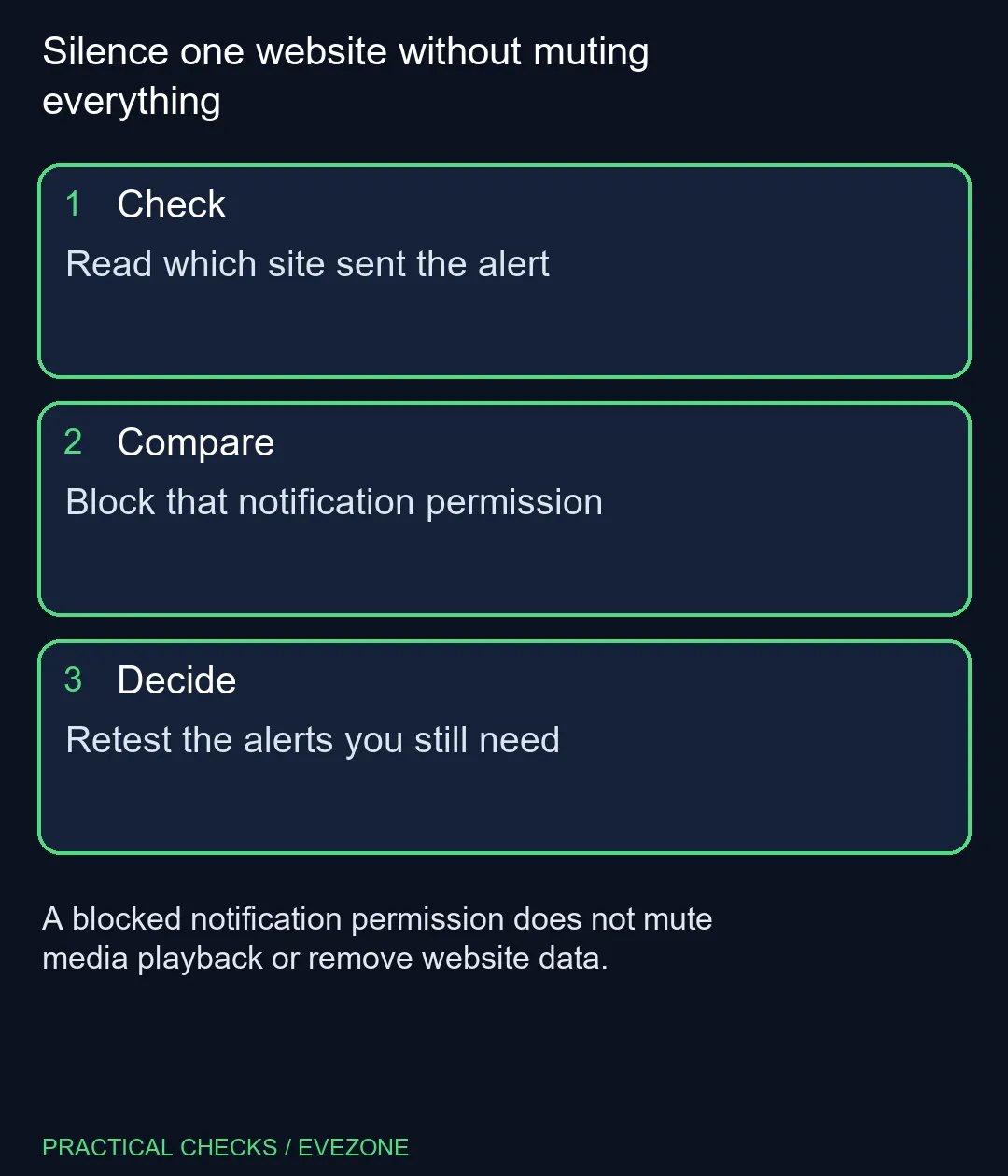
A video may still play sound after notification access is blocked. Site sound is a different permission, and operating-system audio output is another layer. Do not replace speakers or a headset because one browser alert keeps returning. First verify whether the unwanted behaviour is an alert, media playback or a separate browser window.
If a site you want stops notifying you, revisit that site's permission and the system's notification controls. Test with an expected event rather than waiting for an unknown future alert. Work and school devices may have rules managed by an administrator, so check that context when a control is unavailable.
Keep a short list of the services whose alerts help you: a meeting reminder may be worth allowing, while a page visited once may not be. After changing permissions, verify that important reminders still arrive. The aim is a usable notification setup, not automatically turning every alert off.
For a separate audio requirement, all headsets offers equipment choices, and all laptops on special helps if you need a different computer. Neither purchase is required for a R0 website-permission change. Once the noisy sender is blocked, carry on using the page normally if you trust it; notification permission is only one part of its access.
Yes. Review the site's notification permission and block that address while leaving useful sites allowed.
No. Media sound and notification access are different controls. Change the one that matches the unwanted behaviour.
No. A notification permission is not an account-deletion command. It changes whether that site can send browser notifications.
It may have been allowed to send notifications earlier. Check the allowed-site list and remove permissions you no longer want.
No. A website notification can make that claim. Identify the sender and use trusted support tools rather than clicking its proposed fix.
Leave the genuine meeting site's permission enabled and test an expected reminder after changing other permissions.
Silence one website without muting everything Read which site sent the alert.
Yes. Review the site's notification permission and block that address while leaving useful sites allowed.
No. Media sound and notification access are different controls. Change the one that matches the unwanted behaviour.
No. A notification permission is not an account-deletion command. It changes whether that site can send browser notifications.
It may have been allowed to send notifications earlier. Check the allowed-site list and remove permissions you no longer want.
No. A website notification can make that claim. Identify the sender and use trusted support tools rather than clicking its proposed fix.
Leave the genuine meeting site's permission enabled and test an expected reminder after changing other permissions.
Chrome change search engine settings control ordinary address-bar searches. Check site shortcuts and managed-browser rules if the wrong provider keeps returning.
Read more
Chrome task manager helps identify resource-heavy pages and extensions. Save your work, compare the busy task and close it before deciding you need more RAM.
Read more
Chrome reset settings restores browser defaults while keeping saved bookmarks and passwords. Record essential extensions and preferences before confirming the reset.
Read more
Chrome block pop ups settings can stop unwanted windows while allowing a trusted site that needs one. Keep the exception specific instead of allowing every site.
Read more
A discord stream black screen needs a capture-versus-viewer check. Test a harmless shared window before changing drivers, hardware or several settings at once.
Read more
Chrome export passwords creates a sensitive transfer file. Import it into the intended password manager, test access and remove the unencrypted copy.
Read more
Chrome translate not working often needs a page refresh or language-setting check. Test one foreign-language page before changing broader browser settings.

Expedition 33 at R40,000 needs a balanced SA build plan, not a fixed FPS promise. Use the budget as a planning cap, then compare CPU, GPU, RAM, storage, cooling, case fit, and upgrade room before buying.

Best place to buy a gaming PC in Durban North should be shortlisted around the job it must do. South African buyers should compare fit, performance, compatibility, and upgrade room, warranty path, and upgrade room before treating any pick as best.

Expedition 33 low FPS on RTX 5060 settings and driver checks start with frame caps, scaling, and drivers. SA gamers can compare CPU limits, overlays, and heat before cutting image quality or changing hardware.
Chrome translate not working often needs a page refresh or language-setting check. Test one foreign-language page before changing broader browser settings.

Check when Chrome saves power, compare a repeatable task on battery and separate browser changes from battery health and Windows settings.
Find Chrome's caption control, check language and audio and bring back the floating bubble when captions disappear during playback.

Open the simplified Chrome reader, adjust type and spacing and check whether the page supports the view before changing your display setup.

The Pulsar X2 CrazyLight's low hump lets a claw grip sit flat, and its wide waist keeps the sides broad. Evetech buyers who game at a shared flat table get a symmetrical shell for tight arm room.

A 35g Pulsar X2 CrazyLight Mini lifts and resets easily on a small res room desk. With little pad space for low-sensitivity aim, its 115.6mm shell also sits under a claw hand without crowding.

The 115.6mm Pulsar X2 CrazyLight Mini suits fingertip grip because the shell ends close to the knuckles. Evetech lists it for claw and fingertip at 35g, so it also packs light for a campus LAN.

No: the Pulsar Xlite CrazyLight Mini is just 6.4mm shorter and 2.6mm narrower than the Medium. Palm-grip hands near the size line can go either way, and Evetech sells online only, so measure your palm with a tape first.