The video looks right, but the laptop keeps playing sound through its own speakers. DisplayPort audio not working can look like a cable fault even when the cable is doing its job. You can work through the display's audio hardware and the Windows output list in a few minutes, without unplugging the whole workstation.
Quick Answer
Check whether your screen has speakers or audio out, then select the display in Windows Sound. These checks cost R0 with the equipment already on your desk. If the monitor only provides audio out, plug powered speakers or headphones into that socket and test again.
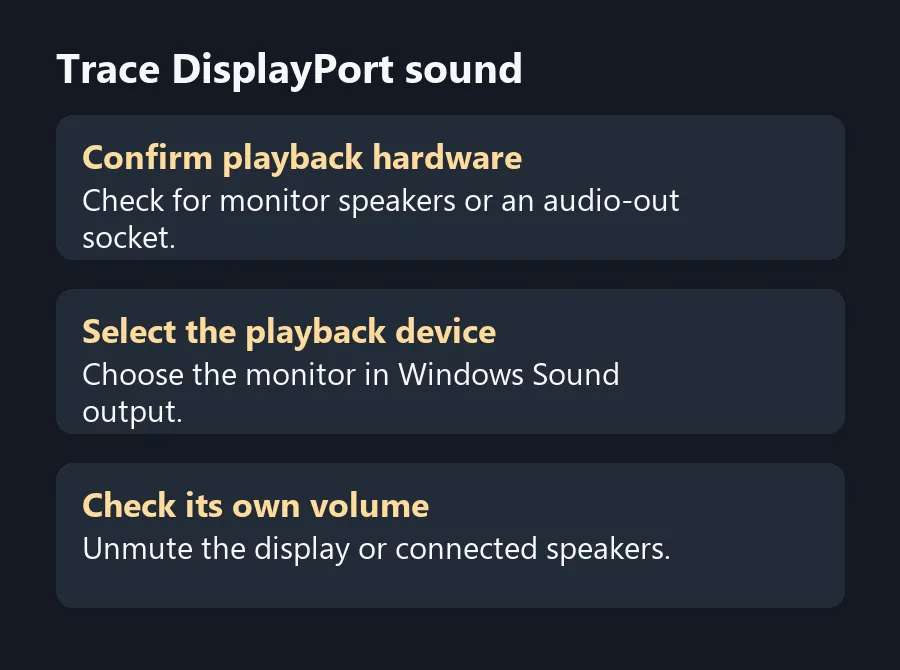
🔊 Find out where the sound can play
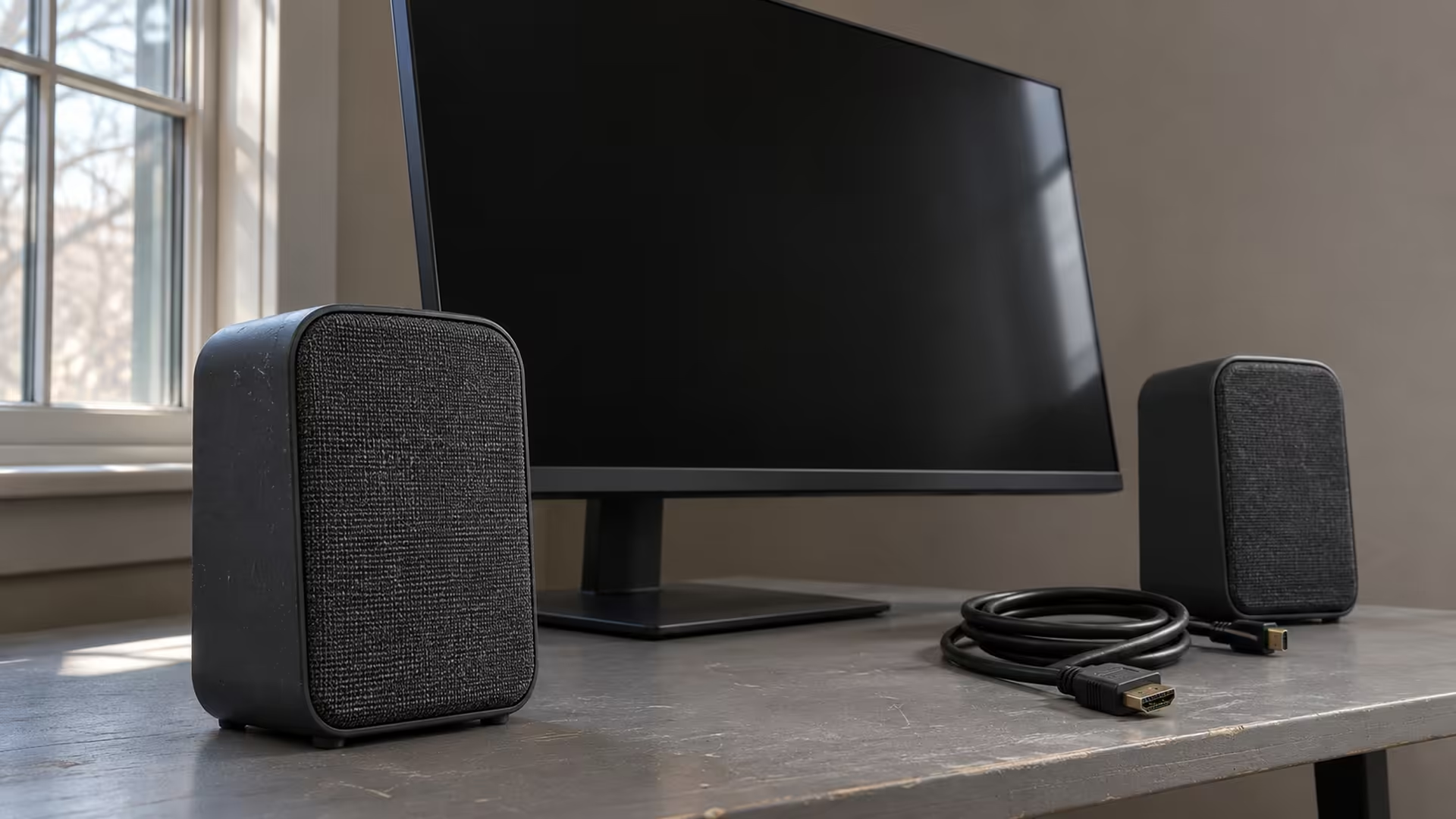
DisplayPort carries audio alongside video, but a working picture tells you nothing about the playback hardware behind it. Find the exact monitor model on the back or in its menu. Look for speakers or an audio output in the manufacturer's specifications. Some panels only pass audio to a headphone jack. Others have neither.
Open the display's on-screen menu. If it has a volume or mute setting, check it before you touch the computer. For external speakers connected to the monitor, check their power and volume too. Compare the audio features listed for Gaming Monitors if integrated sound matters for your desk. Two sizes from the same range can have different features.
🎛️ Route a test sound through Windows
Open Settings, then System and Sound. Select the monitor or its display-audio device under Output. Play a short local clip you know has sound. If only one application is silent, open the volume mixer and look at its app-specific output and volume. Use the same clip or application for each comparison so you can isolate your change.
If the monitor appears as an output but remains silent, try headphones in the monitor's own jack if it has one. Hearing the clip there narrows the problem to the monitor speakers, their settings or the external speakers. It also gives you a way to keep using the same video connection while you decide how you want sound on that desk.
🔌 Simplify the connection if the output is missing
Disconnect docks and conversion adapters for a test when you have a suitable direct DisplayPort route. A dock, adapter or input selection adds another part to verify. Keep the same screen and test one path at a time. After reconnecting, allow Windows to detect the display and check its output list again.
If the display supports audio and still never shows up, check the PC maker's or GPU manufacturer's display-audio driver guidance. If you prefer sound from the PC regardless of the selected display, plug headphones into the PC or use a separate set from Speakers. For a shared desk, a separate output also avoids changing playback devices every time you switch monitor inputs.
Frequently Asked Questions
Does DisplayPort carry sound?
Yes. The source sends audio with the video, provided the connection and receiving device support playback.
Why do I get a picture but no sound?
The screen may lack speakers, have its volume muted or be missing from the selected Windows playback route.
What if Windows shows the monitor under Output?
Select it and play a known clip. Check the monitor's volume and the app's audio settings if it stays silent.
Can I plug speakers into the monitor?
Yes if the monitor offers audio out. Use a compatible powered speaker set or suitable headphones.
Should I buy a new cable first?
First check the monitor's audio hardware and Windows output. Test a known working direct cable before spending money.
Can I keep audio on my PC speakers?
Yes. Select the PC speaker output in Windows and leave the DisplayPort connection in place for the picture.
Trace DisplayPort sound
Check the screen's playback hardware before spending money on a cable.