The desktop connects in the hallway but drops off when you slide it under your desk. A motherboard WiFi antenna not working can leave you with weak signal even though Windows sees the wireless adapter. Before buying a new card or antenna, check the connections at the back and see what changes when you move the antenna into the open.
Quick Answer
Confirm that Windows sees the adapter, attach both supplied antenna leads if your board uses two, then move the antenna into the open. The test costs R0. If Windows cannot see the adapter at all, check the board and its wireless driver before shopping for an antenna.
🔍 Work out which part has gone missing
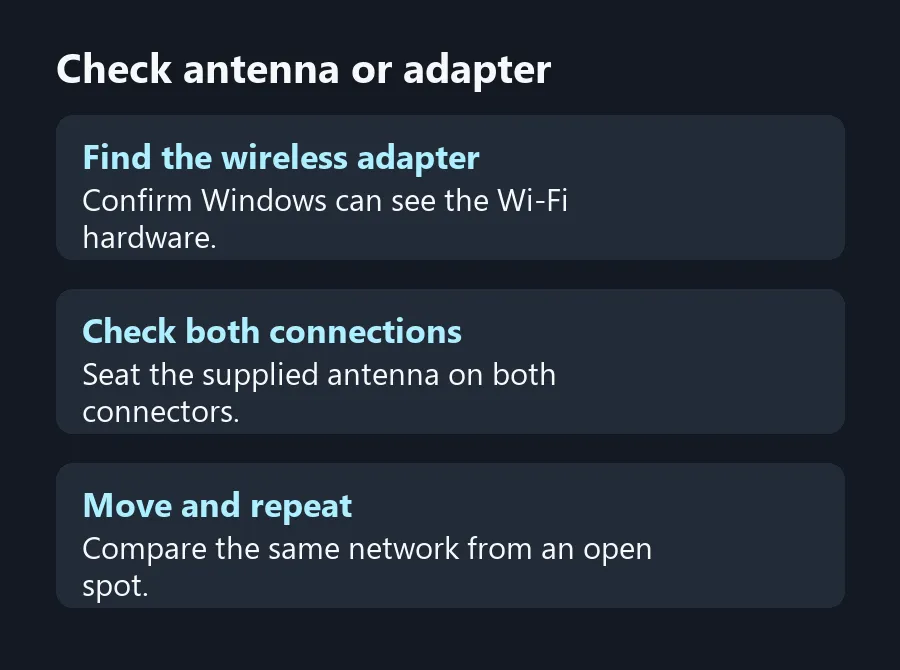
Look for the wireless adapter in Device Manager. If you can see it and connect to a network, make a note of where the connection gets weak. If you cannot see a Wi-Fi adapter, confirm the full motherboard model first. Some model names differ by a Wi-Fi suffix. Download the right wireless driver for that exact model from the maker's support site if it needs one.
For a desktop with a healthy adapter and weak signal, look at the rear connections. The manual tells you which fittings belong to the supplied antenna and how they attach. On a design with two screw-on cables, seat both connectors gently by hand. A clip-in assembly uses a different attachment, so read its instructions before handling it.
📶 Move the antenna before moving the tower
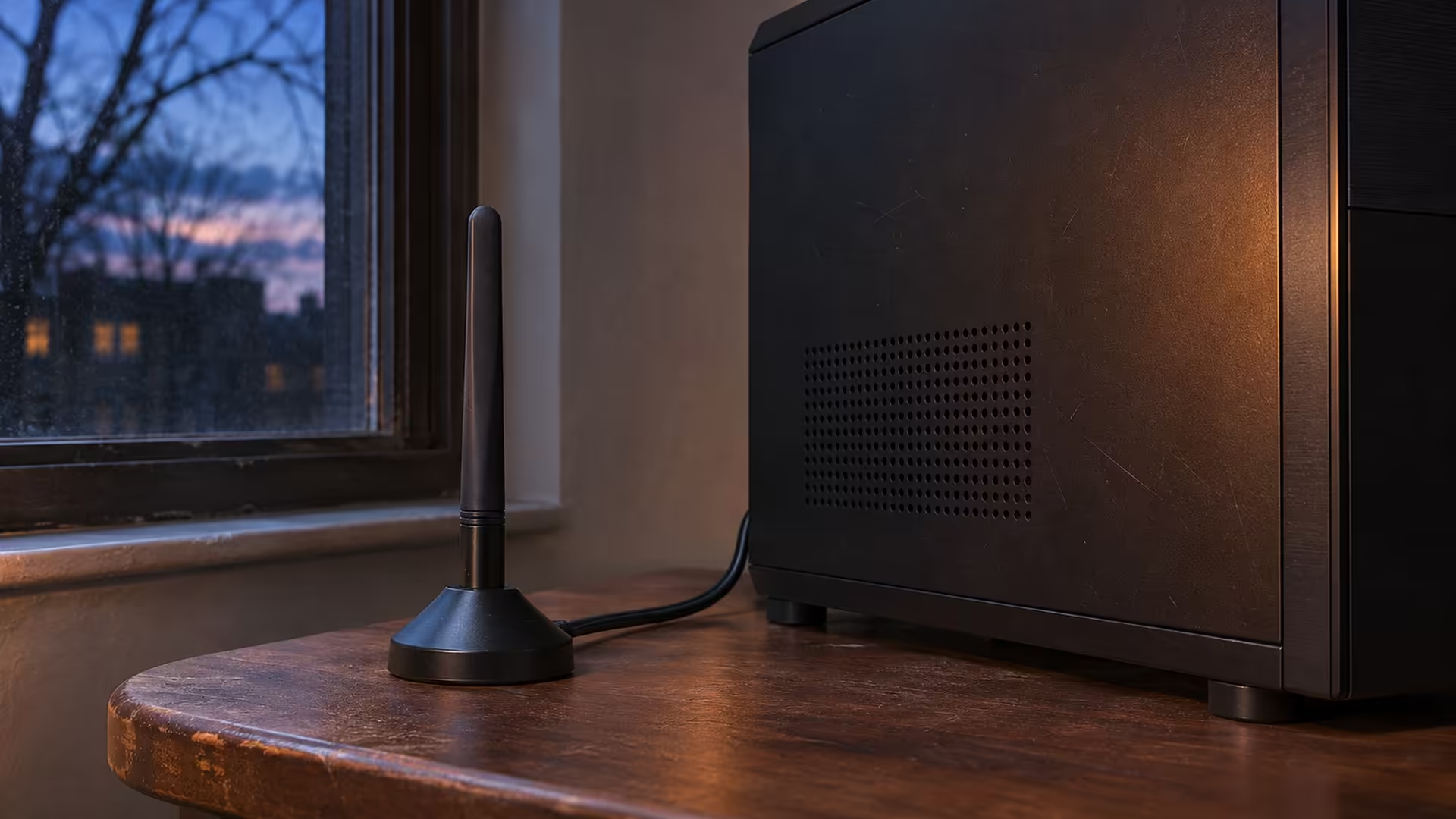
If your antenna has a stand and lead, place it on top of the desk for a test. Leave the tower where it is and use the same wireless network. Compare the signal and whether the connection survives a few minutes of ordinary use. Metal furniture and the case itself can sit between the antenna and the router when the desktop gets pushed back against a wall.
As a second test, compare your phone on the same network beside the antenna. It is a different radio and need not show the same reading. If both devices lose the connection in the same spot, look at the router's placement and the route through your home. You can check Wireless Networking options after confirming that the weak spot affects more than one device.
🧰 Replace the part you can isolate
If the antenna lead is visibly damaged or the fittings will not hold, use the motherboard support page to identify a compatible replacement. If your motherboard has no onboard wireless, compare add-in options with the slots and ports on your PC. You can also use a wired connection temporarily while you sort out the wireless side.
When comparing All Motherboards for a new build, check whether the exact model includes Wi-Fi and how its included antenna mounts. A cabled base can help when you tuck the machine into a cabinet. Leave space for the sockets before positioning the tower.
Frequently Asked Questions
Does a missing antenna remove Wi-Fi from Device Manager?
A missing external antenna usually affects reception. If the adapter itself is missing, check the model, hardware and driver.
Should I attach both antenna leads?
Follow the motherboard manual. Attach both supplied leads if the manual shows a two-connector assembly.
Will a desktop work without its antenna attached?
It may see nearby networks, but reception can suffer. Test with the supplied antenna correctly fitted.
Can I put the antenna on my desk?
Yes if your model includes a cabled base. Try an open spot within reach of the supplied lead.
What if the wireless signal is poor on my phone too?
Test the router and the room's coverage. Weak signal on both devices gives you reason to investigate beyond the desktop.
Can I buy any screw-on Wi-Fi antenna?
Check the connector and supported bands for the exact board. Similar-looking fittings can be incompatible.
Check antenna or adapter
Test the supplied antenna in the open before buying a replacement.