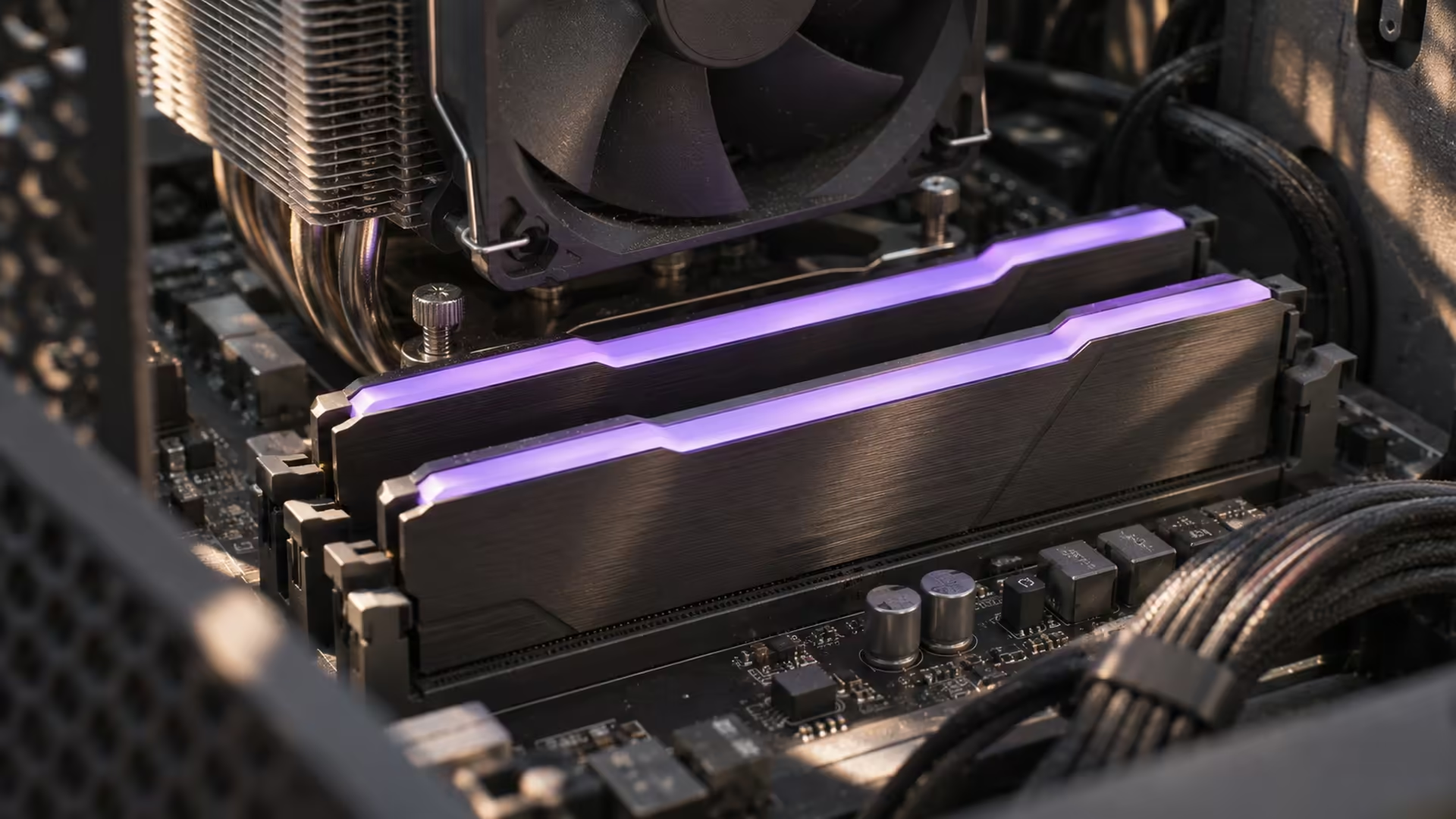
The memory still lights up, but the slider you used yesterday has disappeared. If you have RAM RGB not detected in iCUE, check the amount of memory Windows reports before opening the case. The two checks tell you whether to troubleshoot the lighting controls or the memory itself.
Quick Answer
Open Task Manager and check Performance > Memory. If Windows sees the capacity you expect, try restarting the iCUE service and testing with competing RGB controls disabled. That costs R0 and keeps you from replacing working memory over a missing lighting control.
💡 Check capacity before colour
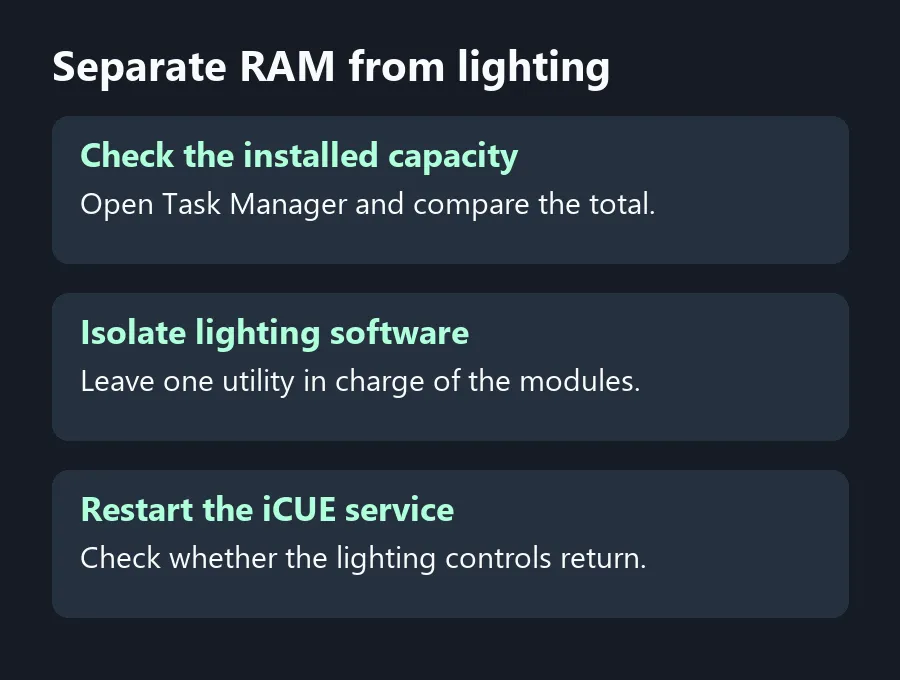
Compare the total in Task Manager with the capacity on the kit or your build sheet. Read the total installed capacity rather than the amount in use, which changes with your workload. If you expected two sticks but Windows reports only half the total, set the lighting issue aside. Confirm the fitted kit and check what the motherboard reports before taking any further action.
If Windows sees the expected capacity and the machine is stable, open iCUE and check whether its home screen shows the memory. A stick can run with its default colour while the app has lost the ability to change it. Write down whether the memory tile is gone or whether the tile is present but the LEDs ignore your changes.
🛠️ Give one app control of the memory
Restart the PC if you have not done so since the problem started. Next, look for another utility with lighting controls, including the one that came with the motherboard. Disable lighting control in that utility for one test. Keep your fan and pump controls as they are. In iCUE settings, use the restart option for its service and check whether the memory tile returns.
Try one static colour you can distinguish from the existing effect. If the sticks respond, turn competing lighting integrations back on one at a time. This tells you which combination brought the problem back and leaves you with a working setup while you decide which app to keep in charge.
🧩 Check compatibility before replacing a kit
If the tile is still absent, record the exact kit and motherboard model, which iCUE version you run and whether lighting control ever worked. Check the kit's support instructions for that combination. Save any custom profiles before repairing iCUE. Use the motherboard documentation for model-specific firmware settings if the vendor points you there.
The 25 November catalogue check found an in-stock DDR5 RGB module at R7,499. Treat that as a dated price example. If you need to replace a kit, use Memory Best Sellers to compare capacity and check All Motherboards against the platform you have.
Frequently Asked Questions
Can the RAM work when iCUE cannot see it?
Yes. Check the installed capacity and system stability. A missing lighting tile alone does not mean Windows has lost access to the RAM.
How can I tell if another utility is interfering?
Disable its lighting controls, restart the iCUE service and test a static colour. Re-enable integrations individually to find the conflict.
What if Windows also shows less RAM than expected?
Treat that as a memory detection problem. Check the kit capacity and the firmware inventory before pursuing RGB settings.
Can I test the lighting without opening the case?
Yes. Check memory capacity and lighting control in software first.
Should I buy a replacement kit for this symptom?
Start with the R0 software checks. Replace hardware only if a separate fault or compatibility limit justifies it.
What details should I save for support?
Record the memory kit model, motherboard model, iCUE version, installed capacity and which other lighting tools you tested.
Check the installed capacity
Check whether Windows sees the expected memory capacity before spending on a replacement.