A solid-state drive can make an older PlayStation 4 feel more responsive when it starts, opens menus and loads games. The upgrade does not increase the console's graphics power, and not every 2.5-inch drive listing is equally suitable. The useful decision begins with physical fit, capacity, backup and the correct system-software file.
Quick Answer
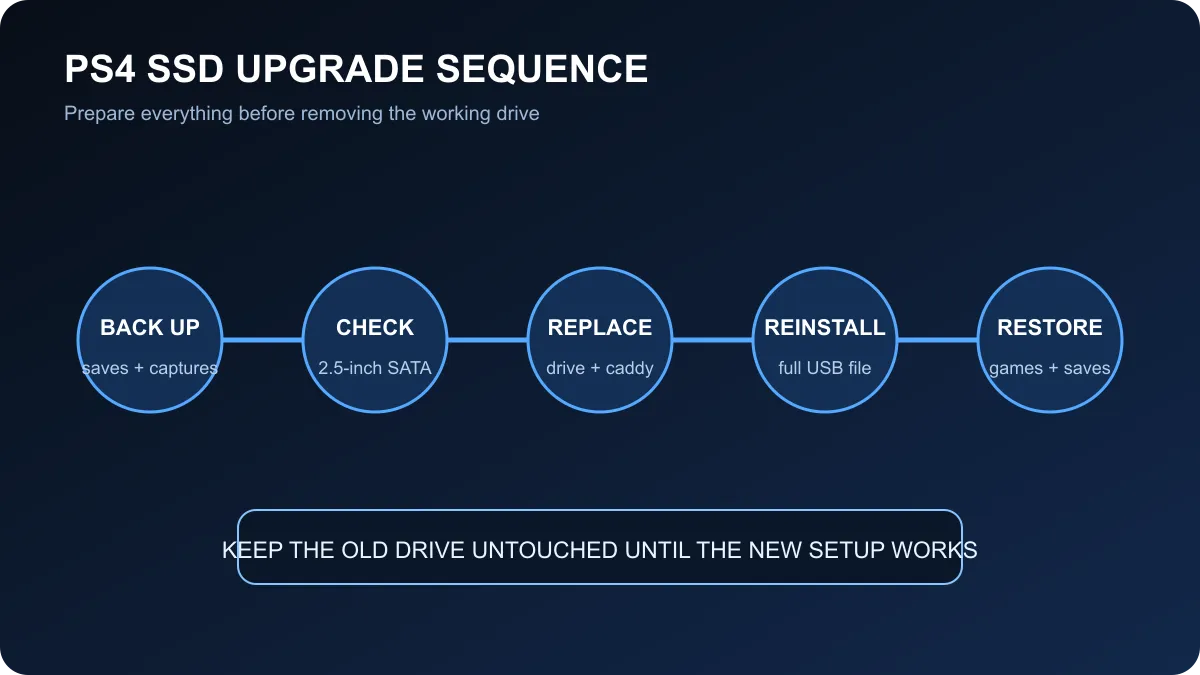
Choose an SSD for PS4 in the standard 2.5-inch SATA format and confirm its thickness fits your exact console model. A 500GB drive suits a small rotating library, while 1TB gives more practical room for large installs and updates. Back up saves and captures before replacing the internal drive, prepare a USB device with Sony's full reinstallation file, and keep the old drive untouched until the new setup is working.
📏 Check format, thickness and capacity
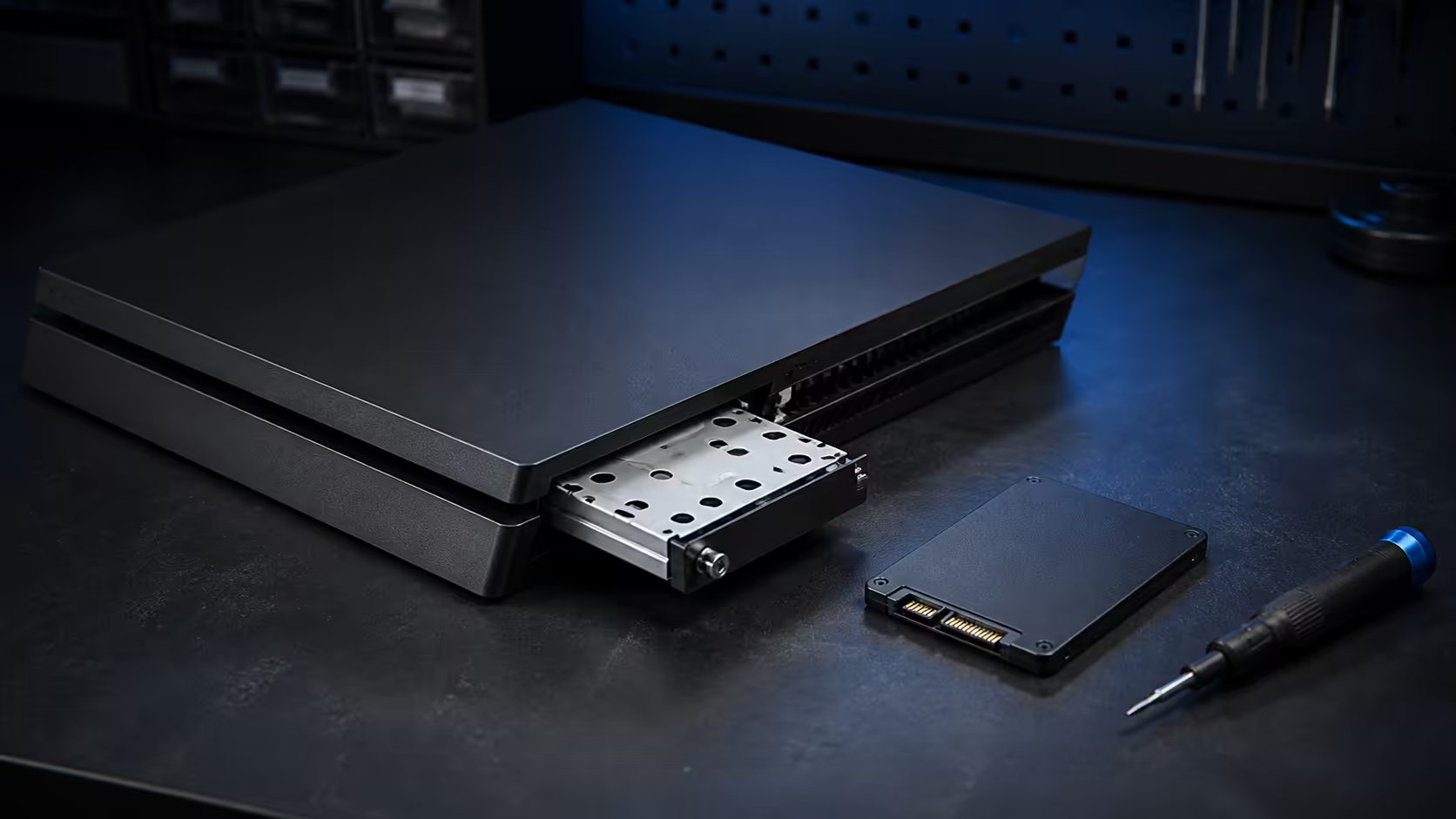
The original PS4 storage bay accepts a 2.5-inch SATA drive in a removable caddy. An NVMe stick does not fit that connector, even if its product page also calls it an SSD. Look for a normal 2.5-inch rectangular drive and verify thickness against the service guidance for your PS4, PS4 Slim or PS4 Pro.
Capacity on the label is not all available for games. System data and formatting use part of the drive, and individual titles can require substantial extra room for patches. A 500GB SSD can work for someone who keeps only a few active games installed. A 1TB model gives a broader library more breathing room, while 2TB costs more but reduces deletion and redownload cycles.
The 2.5-inch SSD collection is the most focused starting point because it filters away many physically incompatible M.2 drives.
💾 Back up before opening the console
Sync supported saved data to your account service or copy it to USB storage, depending on your account and setup. Back up captures or files you want to keep. Confirm that you know the account sign-in details and have access to any multi-factor authentication method before the existing drive leaves the console.
Download the full PS4 reinstallation file from PlayStation support. The smaller normal update file is not enough for a blank replacement drive. Place the file in the exact folder structure required by Sony on a correctly prepared USB device. Doing this while the old drive still works is much easier than discovering a missing file after the console has been opened.
🔩 Replace, reinstall and restore
Shut the console down fully and disconnect its cables. Follow the model-specific cover and caddy instructions, keep the mounting screws organised and move the caddy to the new SSD without forcing the SATA connector. Refit the caddy and cover before reconnecting power.
Start the console in Safe Mode and select the system-software initialisation option described in the official replacement guide. Insert the prepared USB device when prompted. This process erases the new drive and installs the operating system. After setup, sign in, restore saves and reinstall games. Keep the removed drive somewhere safe until the new SSD has completed several normal sessions.
An external SSD is the lower-effort alternative. It avoids opening the console and can store supported games over USB, but it leaves another cable and enclosure beside the system. Internal replacement produces a tidier setup and improves system storage responsiveness. Pick the route that matches your confidence and warranty position.
💰 Current South African price points
The read-only catalogue snapshot found a Dahua V800 256GB 2.5-inch SATA SSD at R1,199, 512GB options from R1,499 and R1,549, and a WD Blue SA510 500GB at R1,699. A captured WD Blue 1TB model was R2,799. The lowest price is not automatically the best PS4 choice: usable capacity, warranty and a retail rather than OEM package also matter.
Use the broader solid-state drive collection to confirm availability, but recheck the form factor before buying. The SSD deals page can surface better value across capacities.
A PS4 cannot use the full speed of a modern premium SATA SSD in every workload, so buying the most expensive model rarely makes sense. Prioritise a suitable 2.5-inch drive, enough capacity, a clear warranty and a careful backup. The biggest practical gain is shorter waiting and smoother system response, not a change to image quality or frame-rate limits.
Frequently Asked Questions
What type of SSD fits inside a PS4?
A standard 2.5-inch SATA SSD is the practical choice. Check the exact console model and drive thickness before buying.
Is 500GB enough?
It suits a smaller rotating library, but usable space is below the label capacity. A 1TB drive gives more room for large games.
Will an SSD make games run faster?
It usually improves startup, loading and menu response. It does not increase graphics capability or the console's frame-rate limit.
Do I need to reinstall system software?
Yes after an internal replacement. Use the full reinstallation file from PlayStation support, not the smaller update file.
Can I use an external SSD instead?
Yes. External storage avoids opening the console, while internal replacement creates a tidier system-storage upgrade.
What should I do before replacing the drive?
Back up saves and captures, prepare the reinstall USB drive and confirm that you can sign back into the console account.
Upgrading an older console's storage?
Compare current 2.5-inch SATA capacities, then prepare the backup and reinstall USB before opening the PS4.