



Mouse cursor moving on its own? Isolate the input
Disconnect the mouse first, then check for pointer movement from another input. Check the tracking surface and separate the mouse from the touchpad before ordering a replacement.
Read moreIf disk activity and progress continue, let the Steam patch keep running. Separate game patching from a slow fibre connection before spending on storage or a faster line.
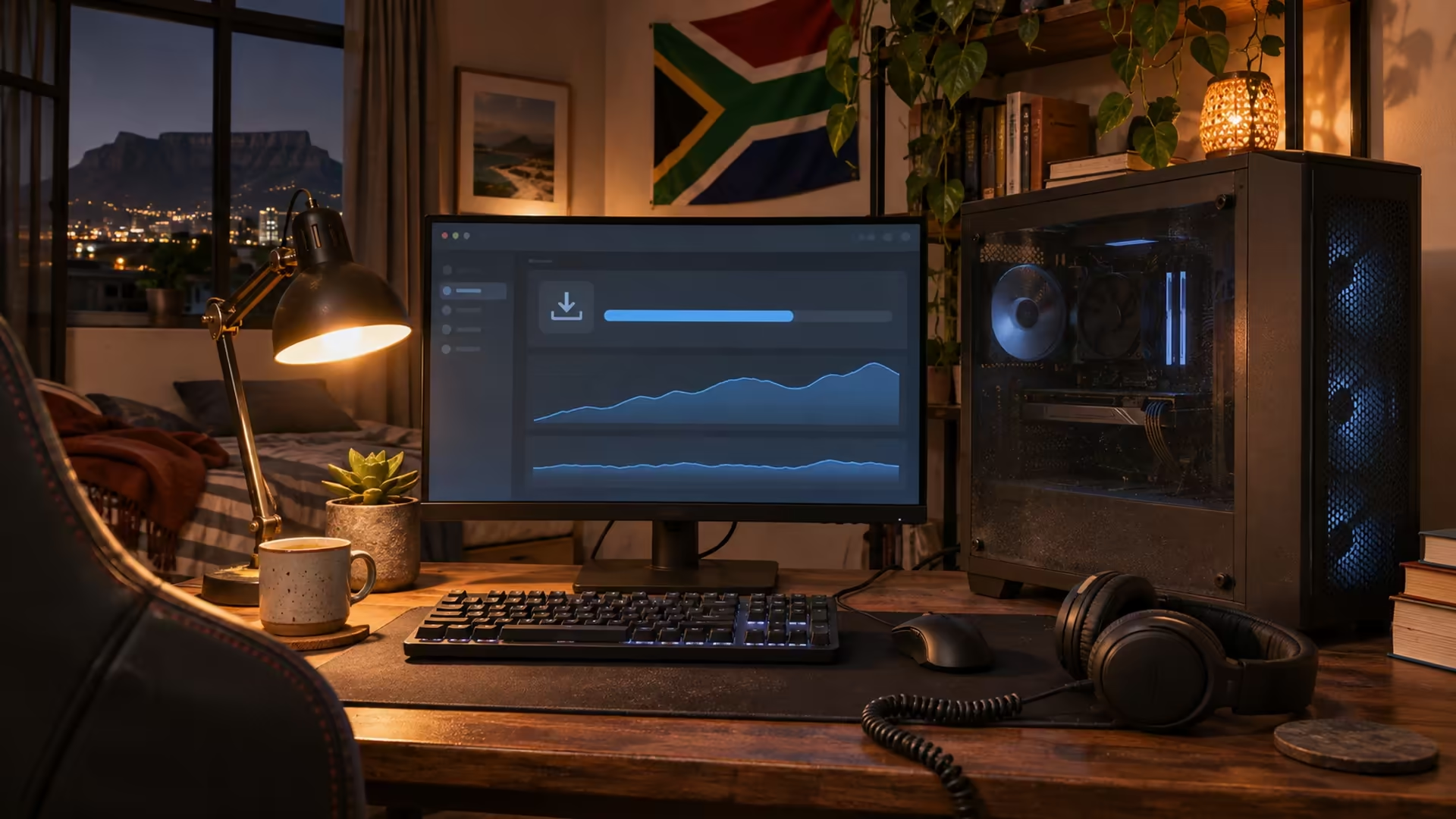
A Steam patch can stop receiving data while the drive keeps writing. Watch the download page for both kinds of activity before restarting the client. The size of the download tells you how much crosses the network. During installation, a small patch can still involve rewriting large game files on the drive.
If Steam's network speed falls to zero while disk usage and the progress bar keep moving, leave the patch running. Check the game library's free space and the download status first. Those checks cost R0.
Open Downloads inside Steam and look at the active job. Watch the network and disk activity over a short stretch, then check whether overall progress moves. A fall in one line while the other moves is different from both lines sitting at zero with an error.
Valve includes disk allocation in the progress displayed for an update. SteamPipe can copy almost an entire pack file to build a replacement when the patch changes only a small part of it. If you see a small transfer followed by heavy local work, choose one patch to observe from start to finish. Watch until the job either advances or shows a message.
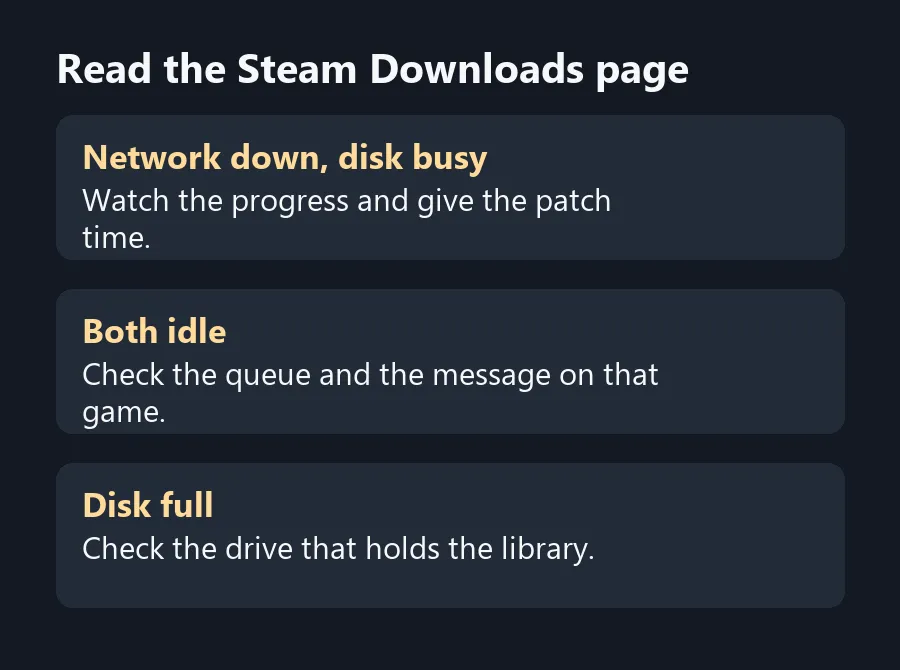
Find the game library in Steam's storage settings. Check free space on that drive in Windows, especially if you keep Steam on one drive and install games on another. Compare the space with whatever the client asks for. The space available on C: does little for a game on D: if Steam needs space on D: to build the updated files.
If the library sits on a hard drive, open Task Manager and watch its disk activity. Close an unrelated bulk copy or let it finish, then observe Steam again. A busy drive can make a download look stop-start. If the game shows a space or write error, use that message to choose the next check. Switching download region will not clear a full drive.
Start a different game's update on the same library when you have enough data and disk space. If only one game shows long disk-heavy phases, wait and check how that game patches before moving your whole library. If several games spend long stretches writing on an old drive, compare Internal SSDs against the cost of adding capacity to the machine.
Look at NVMe SSDs after checking the slot and interface on your motherboard or laptop. Leave room for the games you play and temporary patch work. If you're on a metered connection, move the existing game through Steam's supported storage controls if available, so you avoid unnecessarily downloading it again.
SteamPipe can rebuild a large local pack file even when the network download contains only a small change.
Check the disk activity and progress. If those keep moving, the update may still be working through local files.
Check the drive hosting that Steam library. Space elsewhere may not help with patch files for that installation.
It may shorten the transfer. It will not shorten the disk work after those files arrive.
If you already have space on one, move a test game using Steam's storage controls and observe its next update.
Read the job status. Look for a paused queue, a free-space warning or another error before changing settings.
Read the Steam Downloads page Separate game patching from a slow fibre connection before spending on storage or a faster line.
SteamPipe can rebuild a large local pack file even when the network download contains only a small change.
Check the disk activity and progress. If those keep moving, the update may still be working through local files.
Check the drive hosting that Steam library. Space elsewhere may not help with patch files for that installation.
It may shorten the transfer. It will not shorten the disk work after those files arrive.
If you already have space on one, move a test game using Steam's storage controls and observe its next update.
Read the job status. Look for a paused queue, a free-space warning or another error before changing settings.
Disconnect the mouse first, then check for pointer movement from another input. Check the tracking surface and separate the mouse from the touchpad before ordering a replacement.
Read more
Check the document feeder for automatic duplex scanning before buying a colour laser all-in-one. Check the scanner and exact toner codes before budgeting in rand for a shared office printer.
Read more
Use a secondary zone in Google Calendar to display your client time beside Johannesburg. Use SAST alongside a client's local time without shifting existing events.
Read more
Use webmail to see if the same mailbox can still send and receive. Find out whether mail trouble follows the account or the desktop app before replacing equipment.
Read more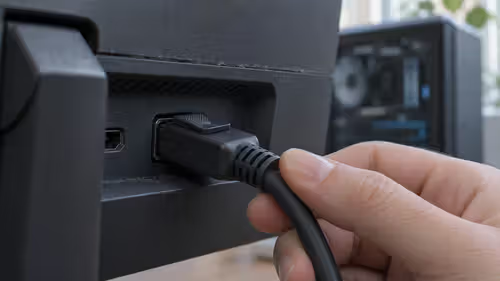
Wake the PC, select DisplayPort and reseat the cable before changing the monitor sleep setting. Test the monitor's sleep setting and video path before replacing the screen.
Read more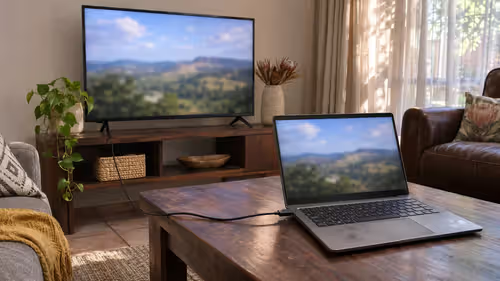
Select the TV or HDMI audio device in Windows Sound settings. Get laptop sound onto a TV before buying an adapter, cable or speaker.
Read more
On Android, check whether the ad comes from a website notification, a browser pop-up or an installed app. Turn off the site's notification permission or check the app responsible for ads outside the browser. These checks cost R0 and work without installing.

Start with the main camera in good light and try 4K at 30 fps for everyday detail. Choose 4K at 60 fps when you want smoother motion and have enough light and storage. Changing the settings and testing a clip costs R0.
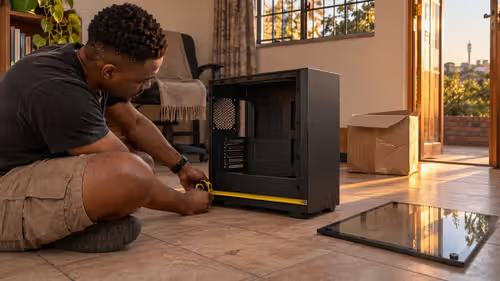
Compare the XPG INVADER X MINI Chroma's included fans, motherboard support and component clearances with a case you can buy locally. Evetech had the white Gamdias AURA GC1 Elite ATX case listed in stock at R349 on 20 November, with four fans in its listing. That.
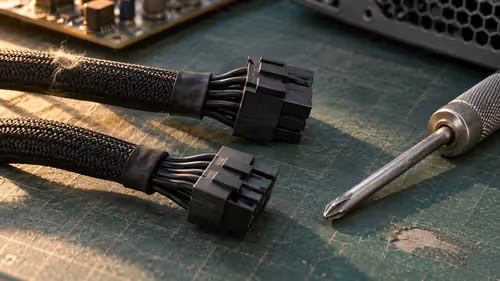
Seasonic has teased the 3,200W PRIME ENTERPRISE PX-3200 with six 12V-2x6 GPU connectors for multi-GPU workstations. For a gaming build, use the power recommendation and connectors for your exact graphics card and processor. Evetech's 20 November in-stock.
A good mid tower earns its place through airflow, part clearance and cable room, not through looks or a glass side panel. Check GPU length, cooler height and fan mounts first. Mid tower cases here run from R499 to R7,299.

Press Win+R, type netplwiz and untick Users must enter a user name and password. If that box is missing, switch off Require Windows Hello sign-in in Settings, Accounts, Sign-in options first. Only do this on a PC no one else can reach.

Lower the power limit a little in MSI Afterburner, or set a custom voltage-frequency curve, to cool and quiet a GPU. Change one step at a time and test each change. Undervolting helps most in warm SA rooms, where a few watts saved keeps fans quiet.

Bad 1% lows mean short frame rate dips you can feel even when the average looks fine. Common causes are a CPU limit, slow or single-channel RAM, VRAM overflow, background tasks and shader compiling. Measure first, then change one thing at a time.
The RX 6700 XT brings 12GB of VRAM; the RTX 3070 brings 8GB, DLSS and stronger ray tracing. Both are rated near 220 to 230W, so one PSU suits either. A Radeon card in the R9,999 to R19,999 band sets the AMD budget.
The RX 580 has more video memory but draws far more power; the GTX 1650 runs from the slot alone on most models. That makes the 1650 the safer drop-in for weak office power supplies, while the RX 580 wants proper PCIe leads and a roomier case.

The best earbuds are the ones that fit your ears, work with your phone and suit how you use them. List your main uses, then check fit, battery, noise cancelling and call quality. Local earbuds span roughly R199 to R3,999, so decide your ceiling early.
Back up, shut down, unplug the charger, open the base and swap the drive. Then clone the old disk or reinstall Windows. Check whether your laptop takes a 2.5-inch SATA drive or an M.2 stick, because the two are not interchangeable.