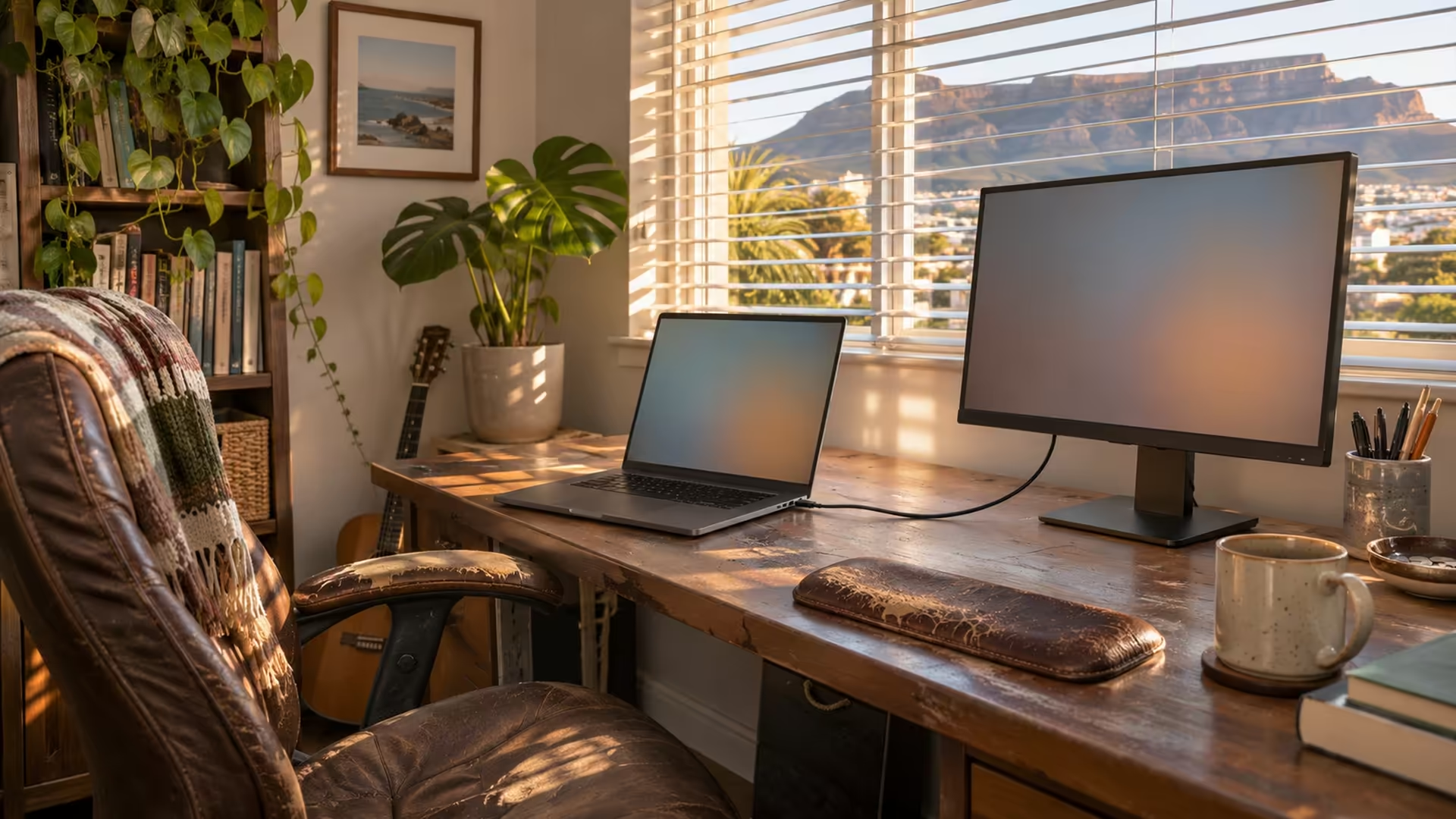
USB-C monitor not charging laptop under load. A laptop can show a picture from a USB-C monitor and still lose battery during a long render. Note when the percentage starts dropping. Compare idle and loaded behaviour before you replace the screen or cable.
Quick Answer
Check your monitor's USB-C power output against the laptop's input requirements. Test with the original charger at R0 before buying anything. The Dell P2425DE appeared at R5,949 with 90W USB-C Power Delivery in Evetech's sample. Compare the supported power and cable for your exact models.
🔌 Check both ends of the cable
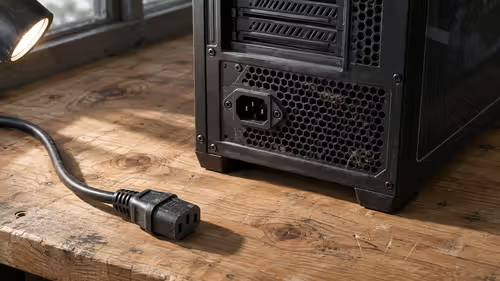
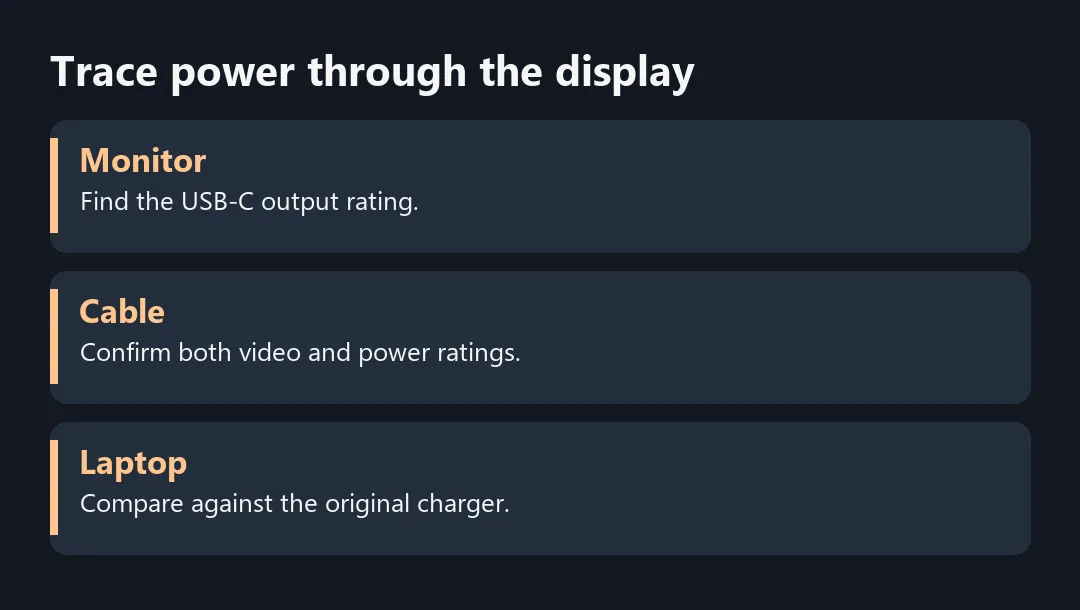
Find the monitor port intended for the connection to the laptop. Check its manual for video and power delivery. Use the cable the monitor maker specifies or a compatible cable rated for the job. Do the same with the laptop's charging port. The connection can carry a picture without telling you the amount of power the laptop receives.
⚡ Compare under the same workload
Write down the battery reading after a quiet period and after a run of the workload that caused the drop. Repeat with the original laptop charger and the same workload. If the original charger maintains the level, compare its rated power with what the screen can provide.
Check any dock in the path as its own device. Compare a direct monitor connection first, then add the dock back.
🇿🇦 Compare the port specification before you spend
Use Office Monitors to compare options if you want a different screen. On Dell Monitors, find the model that lists the power delivery you need and then confirm the rated laptop input. A separate laptop charger may already solve the heavy-work problem without any purchase.
Look for any restrictions that change available power when you use an accessory port on the monitor. Note the laptop's warning if it reports a slow charger. If the battery only drops during a game or render, confirm whether the laptop accepts enough power from a monitor for that job. A replacement display is a large purchase compared with keeping the supplied charger at the desk.
Frequently Asked Questions
Can video work when charging is too slow?
Yes. Check the cable, port and supported power for each part of the connection.
What does 90W describe on the P2425DE?
The sampled listing gave 90W as its USB-C Power Delivery rating.
What is the quickest free test?
Run the same task using the original charger and compare the battery behaviour.
Can I plug into any USB-C port on the monitor?
Use the port designated for the host connection in the manual.
Should I test through a dock first?
Start with the direct connection so you can assess the dock separately.
What if the laptop needs more power during games?
Use its compatible charger for the game and keep the monitor connected for video as supported.
Trace power through the display
Find the USB-C output rating. Confirm both video and power ratings. Compare compatible options at Evetech.