A short burst of static can swallow the last syllable of a word. With a USB microphone crackling, pause the call and record the problem locally. That gives you a repeatable test you can play back in another pair of headphones, even after the chat window or stream has closed.
Quick Answer
Record locally, lower the input gain, then test the microphone directly in a different USB port. Those checks cost R0. Crackle in the saved file points you towards the input path or recorder, while a clean file shifts your attention to the call app or playback path.
🎙️ Keep a short control recording
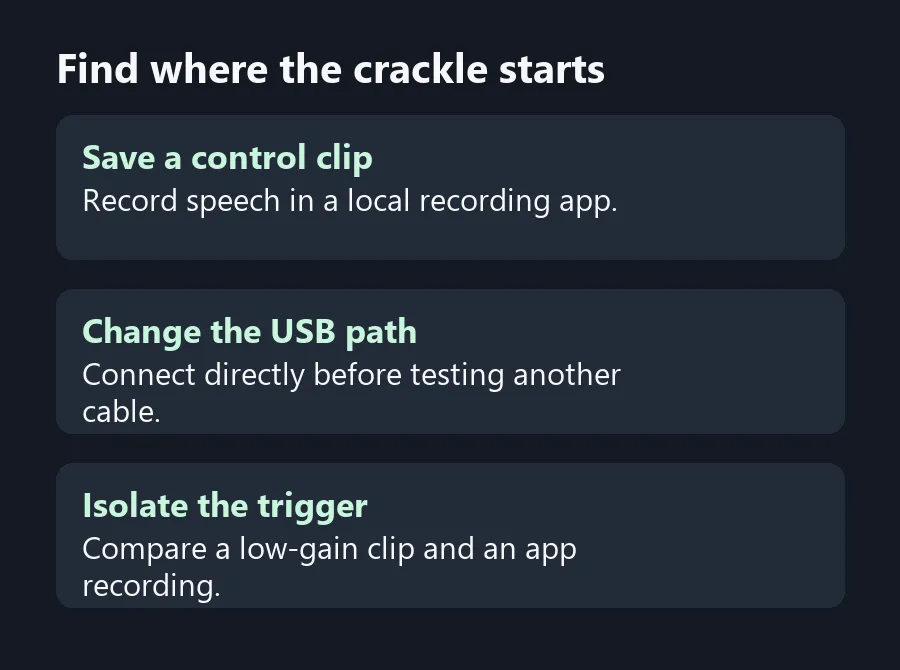
Use a local voice recording app and confirm it selects the USB microphone. Stand or sit where you normally record. Capture a few seconds of silence, say a sentence at speaking level and then say it louder. Save the clip before changing anything. Make sure you can find the file and replay it outside the recording app.
Listen through a second output if you have one. If the same click occurs at the same moment each time, it is likely in the recording. If different clicks come and go during repeated playback of the same file, investigate the output path as well. Wired headphones can help remove an extra wireless link during this comparison. Browse All Headsets if your setup needs a separate listening option, but use what you already have for the first test.
🎚️ Check when the crackle happens
Lower the gain and repeat the loud phrase at the same distance. If the distortion only occurs on louder syllables and falls away at lower gain, you have a useful lead. A peak that overloads the input can sound like a crack or harsh edge. Once the loud phrase sounds clean, check that your you can still hear your usual speaking level before returning to the call.
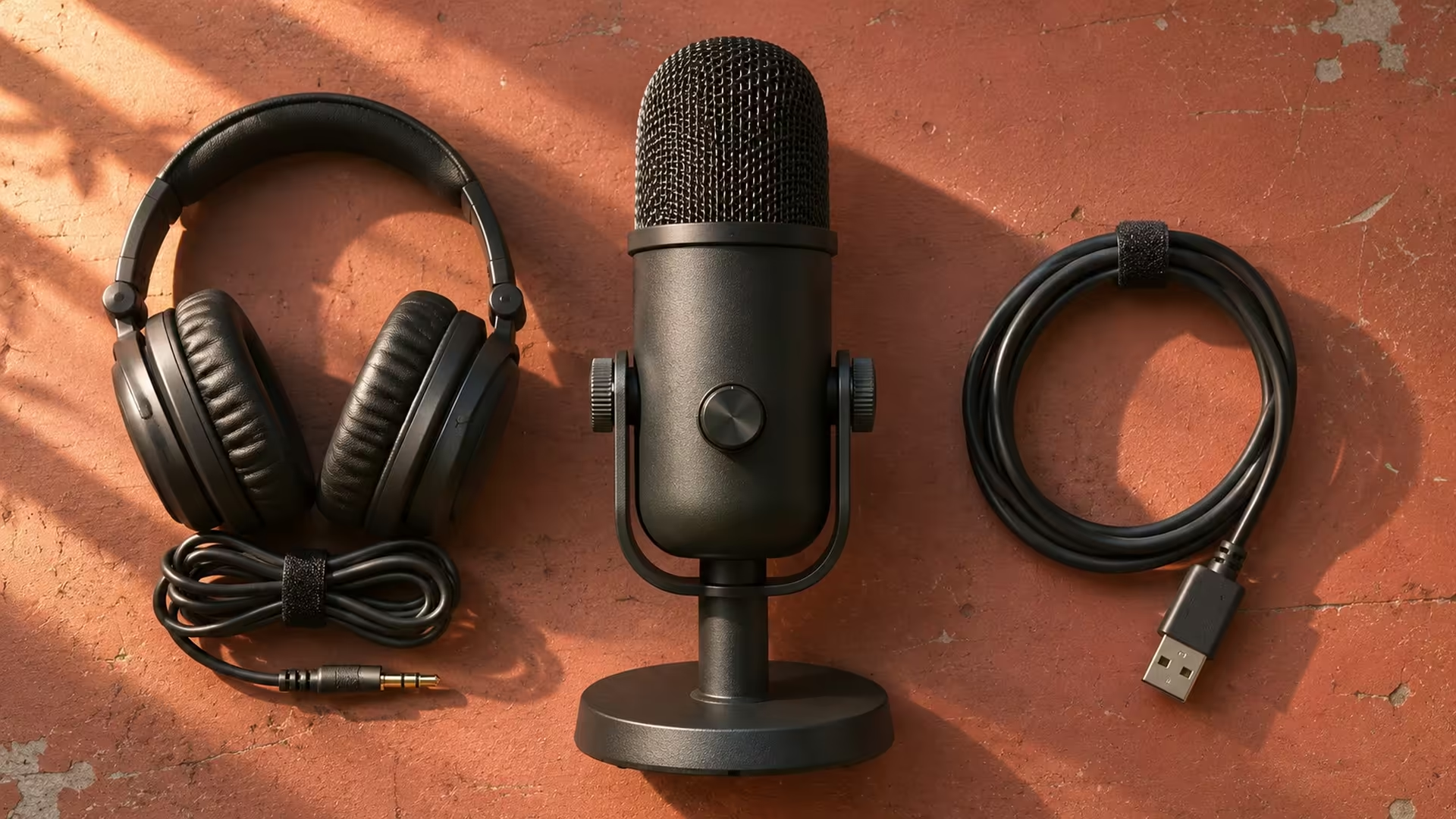
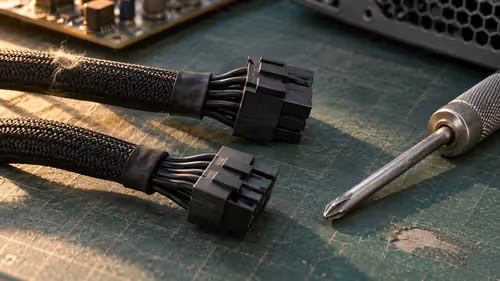
If the sound happens during silence or shows up at random, try another connection path. Put the microphone straight into a compatible port on your PC. If you usually go through a dock, remove it from the test. Try the supplied cable or a known working data cable supported by the mic. A cable that powers a device can still be unsuitable for sending audio.
🧪 Repeat on another app or PC
Check the call application's selected input. A laptop can have both the built-in microphone and USB device available at once. If the problem only happens in one app, save the clean local clip so you can compare its sound against an app recording. If every local recording has the same fault, try the mic on a second PC when you can.
If you hear the same crackle after swapping ports and a suitable cable on two computers, you have a clearer reason to investigate the unit itself. For a replacement from Microphone, check the supported USB connection and whether direct monitoring is available. Write down which tests failed so you can set up the next microphone without recreating the same dock or cable problem.
Frequently Asked Questions
Why does my mic crackle on louder words?
The input may be clipping. Reduce the gain and repeat the same phrase at the same distance to compare.
Can a USB dock cause audio problems?
It can complicate the connection. Test the microphone directly in a compatible PC port to rule the dock out.
Why is the saved clip clean but my call sounds bad?
Check the call app's chosen mic, its processing settings and call playback. The same mic made a clean local file.
Can I use any USB charging cable?
Use a supported cable that carries data. Some charging cables cannot carry the microphone's audio data.
Why should I listen on a second output?
A second output helps determine whether a click is in the recording or arises only during playback.
When does a hardware fault become more likely?
When the same crackle follows the mic across apps and computers after you swap the cable and connection.
Find where the crackle starts
Isolate the noise in a local recording before replacing a microphone.