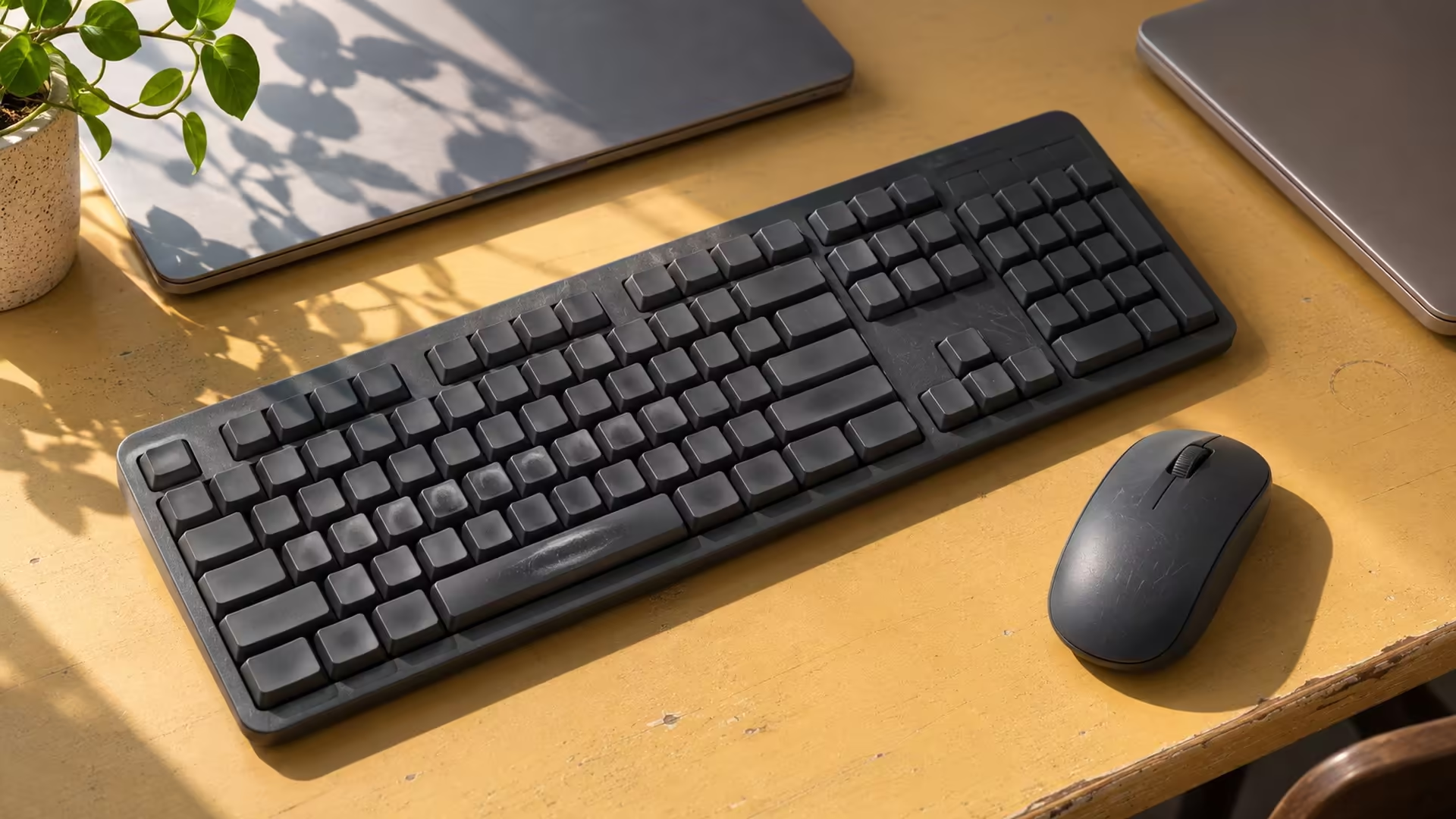
A wireless keyboard and mouse can free up space on a two-computer desk if both devices can follow you from a work laptop to a personal PC. Look for the switch on the keyboard and the switch on the mouse before you buy. A shared receiver that works beautifully on one computer does not guarantee an easy handover to the other.
Quick Answer
Choose a keyboard and mouse that each support two stored connections. You can check the manuals and test compatible gear for R0. See whether you must switch the devices separately, especially if your work laptop restricts installing the utility that synchronises them.
⌨️ Read the individual specifications
Start with the exact model numbers in the box. One USB receiver can connect both devices to the same computer. For a two-computer desk, look for a pairing or channel button on each device and a statement about how many hosts it remembers. Some keys have numbered channels, while a mouse may put its channel switch on the underside where you have to lift it.
The product photos and documentation for Keyboard & Mouse Combos can help you find the switches. If you type all day and only change computers twice, separate switches may suit you. If you move between machines several times an hour, try reaching both controls as part of your decision. You might prefer a keyboard and mouse that support a coordinated switch, depending on how the vendor implements it.
🖱️ Choose which computer gets which connection
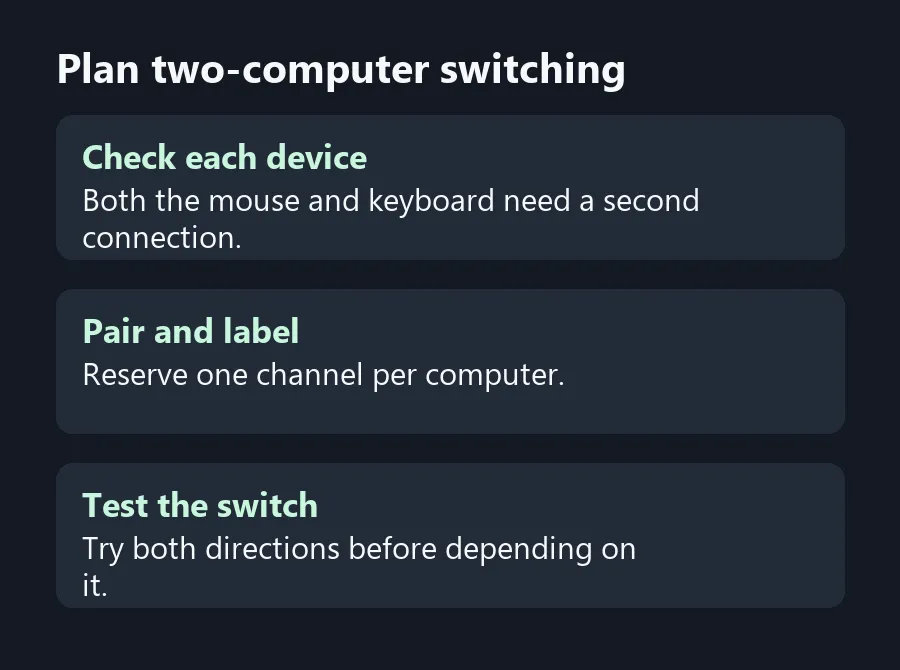
List what each machine accepts. One might have Bluetooth and the other a spare USB port. Check that the accessories support the combination you plan to use. Use the manufacturer instructions to store each machine on a separate channel. Label the channels on a sticky note near the screen until the switching becomes familiar.
If you rely on a switch that follows the keyboard automatically, read its list of compatible devices and connection modes. A feature that depends on a desktop app can fail a practical test on a work laptop where you cannot install that app. Pair and test each device by itself before assuming a combined feature will work on both machines.
🧪 Try the full handover
Type into a local text window on each computer and move the pointer. Switch the keyboard and mouse back while both computers remain awake. Testing both directions helps catch a mouse that still controls one device while the keyboard has moved. If you need the peripherals at a sign-in screen or through a dock, repeat your test there before relying on the setup.
If your existing mouse already handles both computers, you may only need one upgrade. Compare the supported hosts and switching controls in Office Keyboards and check you have a compatible connection on each computer. Try the switching controls with your normal grip and typing position.
Frequently Asked Questions
Can one receiver control the keyboard and mouse?
Yes when both devices are compatible with that receiver. A receiver plugged into one PC does not itself switch to the other PC.
Can I use Bluetooth on one computer and a receiver on the other?
Yes if the keyboard and mouse both support that combination and can store the connections.
Does switching the keyboard also move the mouse?
Only on supported setups. Otherwise you switch each device with its own controls.
What should I check on a work laptop?
Confirm which connection types you may use and whether you can install any utility required by the switching feature.
Can I keep my existing mouse?
Yes if it can connect to both machines and you are comfortable switching it independently.
Should I test both computers together?
Yes. A text window and a pointer test on both computers make it obvious if the keyboard and mouse land on different hosts.
Plan two-computer switching
Check how each device switches computers before buying a shared set.