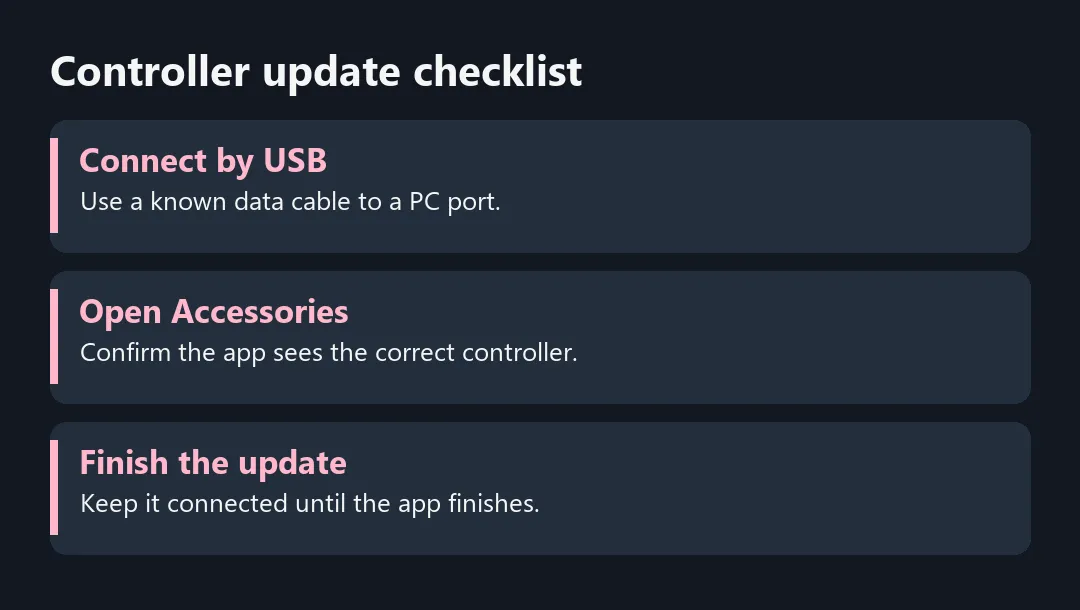
Your controller pairs with the PC and works in a game, yet the update app gives you nothing to install. The connection that carries button presses need not be the connection the update app expects. Start with a cable you know transfers data and connect directly to a port you can leave undisturbed until the process finishes.
Quick Answer
For an Xbox controller firmware update on PC, connect a supported Xbox pad with a USB data cable and open Xbox Accessories. If you own the cable, the test costs R0. Check that the app sees the controller and follow the firmware prompt if it offers one.
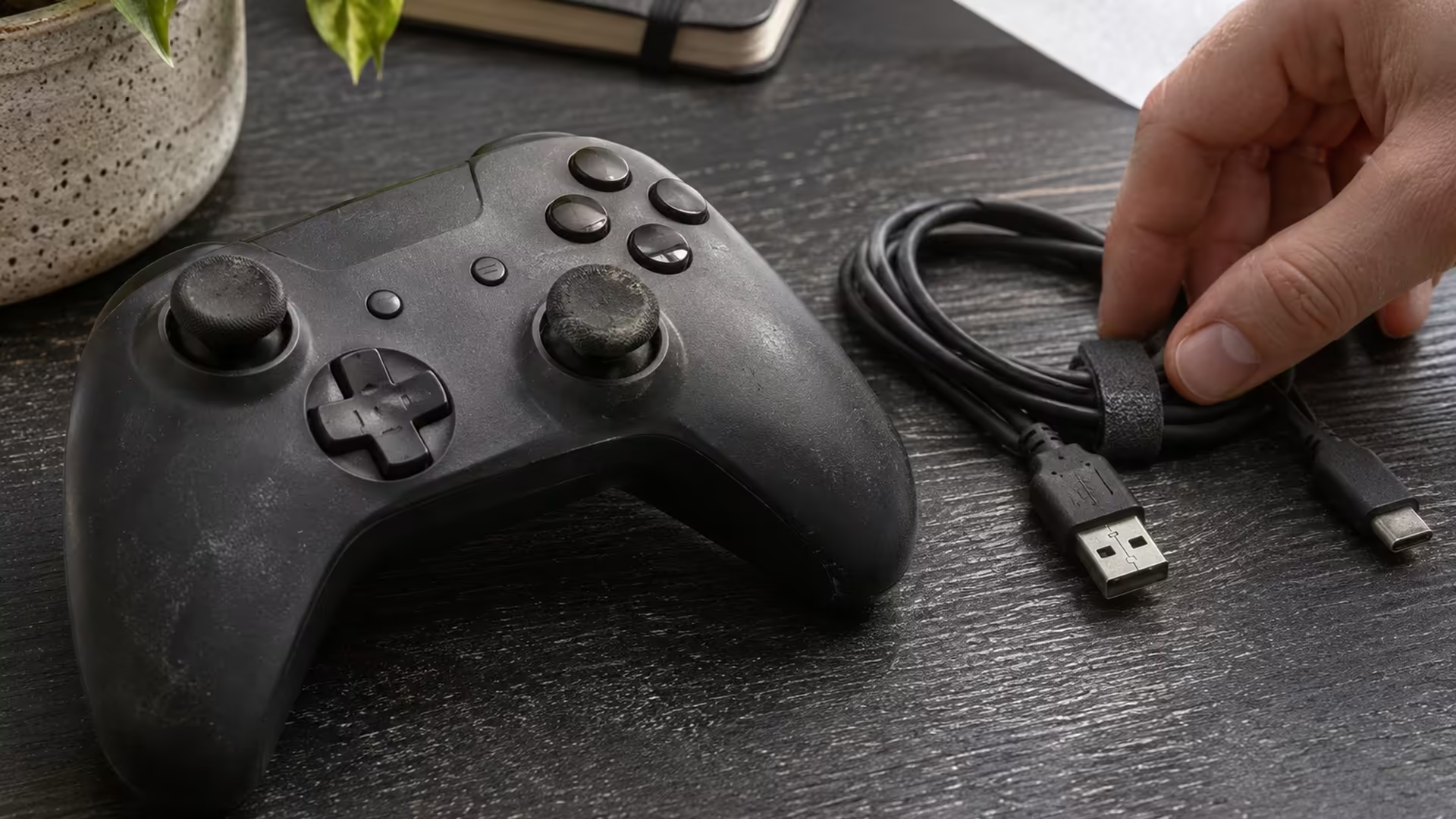
🔌 Check the cable before the software
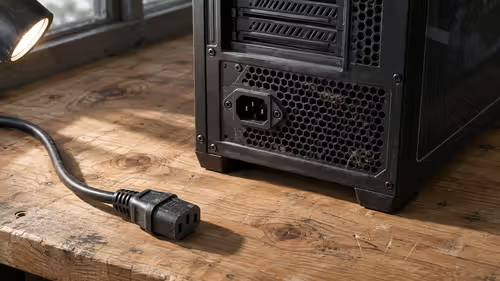
Pick a cord with the connector your controller uses. Use one you have already tested with a device that transfers data if you have a choice. A controller can light up from a cable that supplies power without carrying data. Reseat both ends and try another direct PC port if the app still shows no device.
Keep the physical connection stable. If the cable needs to bend around the edge of the desk, place the controller on a flat surface closer to the computer. Test whether the app discovers the pad with the lead lying slack.
🎮 Use the app for the right controller
Open Xbox Accessories with the controller connected. If several controllers appear, identify the one you want before changing anything. Look for the firmware information and proceed only when the app presents the appropriate update. Follow the app's progress and leave the cable plugged in until it reports completion.
Test buttons in the app or a familiar game afterwards. If you usually play wirelessly, you can reconnect that way after the update and compare it with the wired test. For an Xbox-compatible third-party pad, check the maker's software and support instructions for the exact model.
🛒 Decide whether anything needs replacing
If your controller works over a known data cable, keep that cord where you can find it before the next update. Explore Gaming Controllers when you have a repeatable fault or need a particular connection for your setup. Check Xbox Headsets if you plan to split controller and voice connections and need a compatible audio option. For a controller that works in games but fails to appear in the updater, testing a direct data connection is the first useful step.
Frequently Asked Questions
Which Windows app updates the controller?
Use Xbox Accessories for a supported Xbox controller.
Can I update it over Bluetooth on PC?
Use a USB data cable or the compatible Xbox Wireless Adapter for Windows where supported.
Why does my USB cable only power the controller?
It might be a charge-only cable. Try a known data cable.
What if the app offers no update?
Check that it detects the controller, then check the firmware information it shows.
Should I unplug it during the update?
Keep the connection in place until the app reports completion.
Do third-party Xbox-compatible pads use the same updater?
Check the controller maker's instructions for its own model.
Controller update checklist
Get the controller recognised in Xbox Accessories before trying a replacement. Compare compatible options at Evetech.