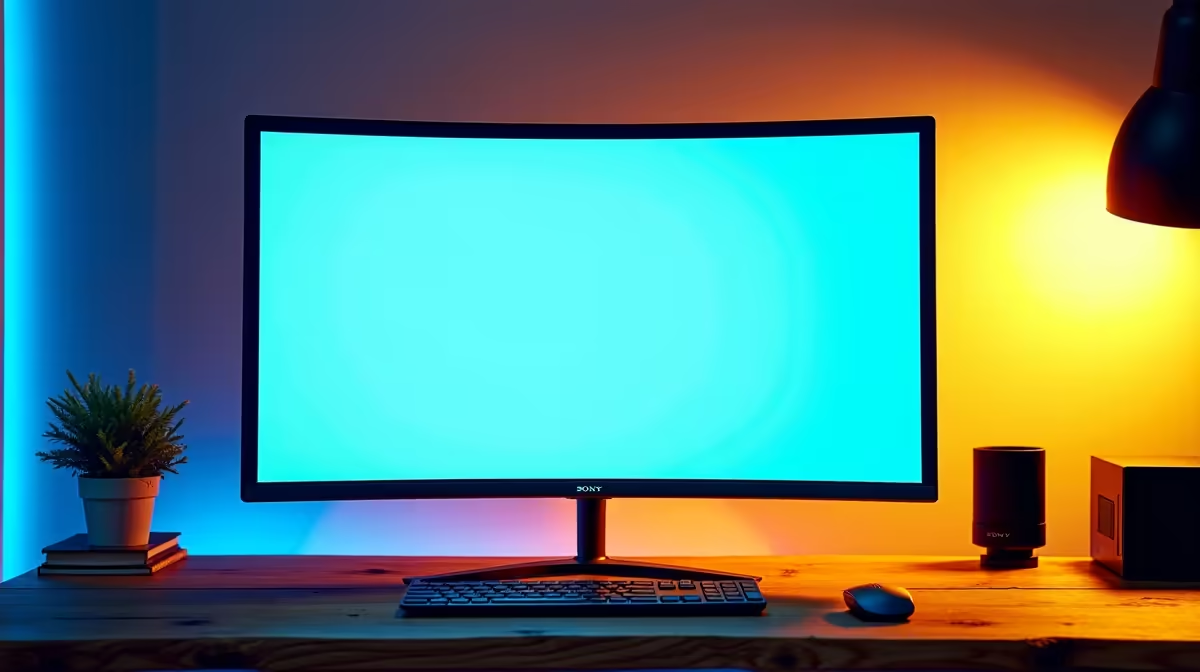
Jinne, that new 4K display looks incredible, right? Games are crisp, movies are stunning… but then you open a work PDF and suddenly you’re squinting. The text is tiny, the layout is weird, and your eyes are screaming for a break. Sound familiar? Knowing how to read PDFs on a 4K monitor without the headache is a must for any South African power user. It’s simpler than you think to get your screen looking perfect for work and play.
Why Text Can Cause Eye Strain on a 4K Monitor
The magic of a 4K monitor is its pixel density. It crams millions of pixels into the screen to create razor-sharp images. While this is brilliant for a high-fidelity gaming session, it can make text designed for lower-resolution screens appear incredibly small. Many applications, including older PDFs, don't automatically adjust for this, leaving you with minuscule letters that are a mission to read. Understanding this is the first step to finding the right balance across all the PC monitors in your setup.
Your Toolkit for Comfortable PDF Reading 🔧
You don't need to suffer through tiny text. A few smart adjustments in your software and hardware can completely transform your reading experience, eliminating that nagging 4K monitor eye strain.
Tweak Your Operating System's Scaling
This is your most powerful tool. Both Windows and macOS have built-in scaling features that enlarge text, icons, and apps to make them legible on high-resolution displays.
- For Windows: Right-click your desktop > Display settings > Under "Scale and layout," try setting the scaling to 150% or 175%.
- For macOS: Go to System Settings > Displays > Select a "Larger Text" option.
This single change will fix the problem for most of your applications, not just PDFs.
Pro Tip: Use ClearType
For Windows users, don't forget to run the ClearType Text Tuner. It's a built-in tool that optimises how fonts are rendered on your specific screen, making text noticeably sharper and easier on the eyes.
Use the Right Software and Settings
Your PDF reader itself has tools to help. Instead of just zooming in on the whole page (which can require constant scrolling), check the application’s preferences. Adobe Acrobat Reader, for example, has an "Accessibility" panel where you can set a minimum font size and even change document colours to a high-contrast mode like white text on a black background.
Optimise Your Monitor's On-Screen Display (OSD)
Finally, don't forget your monitor's physical settings. Lowering the brightness to match the light in your room is crucial. Most modern screens also have a "Reading Mode" or "Low Blue Light" setting that warms up the colour temperature, making long reading sessions far more comfortable. Pairing your screen with the right monitor accessories, like an adjustable arm, ensures you have the perfect viewing angle.
Does the Monitor Itself Make a Difference? ✨
Absolutely. While the tips above work on any display, the hardware itself plays a role. A larger 32-inch 4K screen has a lower pixel-per-inch (PPI) count than a 27-inch model, making text slightly bigger by default. Many of all our gaming monitors also come with flicker-free backlights and advanced low-blue-light technologies built-in, specifically to reduce eye fatigue.
For an even more ergonomic setup, many users find that curved monitors help by keeping the entire screen at a more consistent focal distance. Alternatively, adding one of our versatile portable monitors as a second screen dedicated to documents can be a brilliant workflow upgrade.
Ultimately, getting comfortable viewing documents on a 4K monitor comes down to that perfect mix of smart software settings and the right hardware. If your current screen is still giving you grief, it might be time for an upgrade. A great place to start is Evetech's curated selection of 4K and 5K monitors, built for both crystal-clear visuals and productive, comfortable work.
Ready to Banish Eye Strain for Good?
The perfect monitor makes all the difference, transforming squinting into seamless viewing. Check out the best PC monitor deals at Evetech and find your perfect screen today!