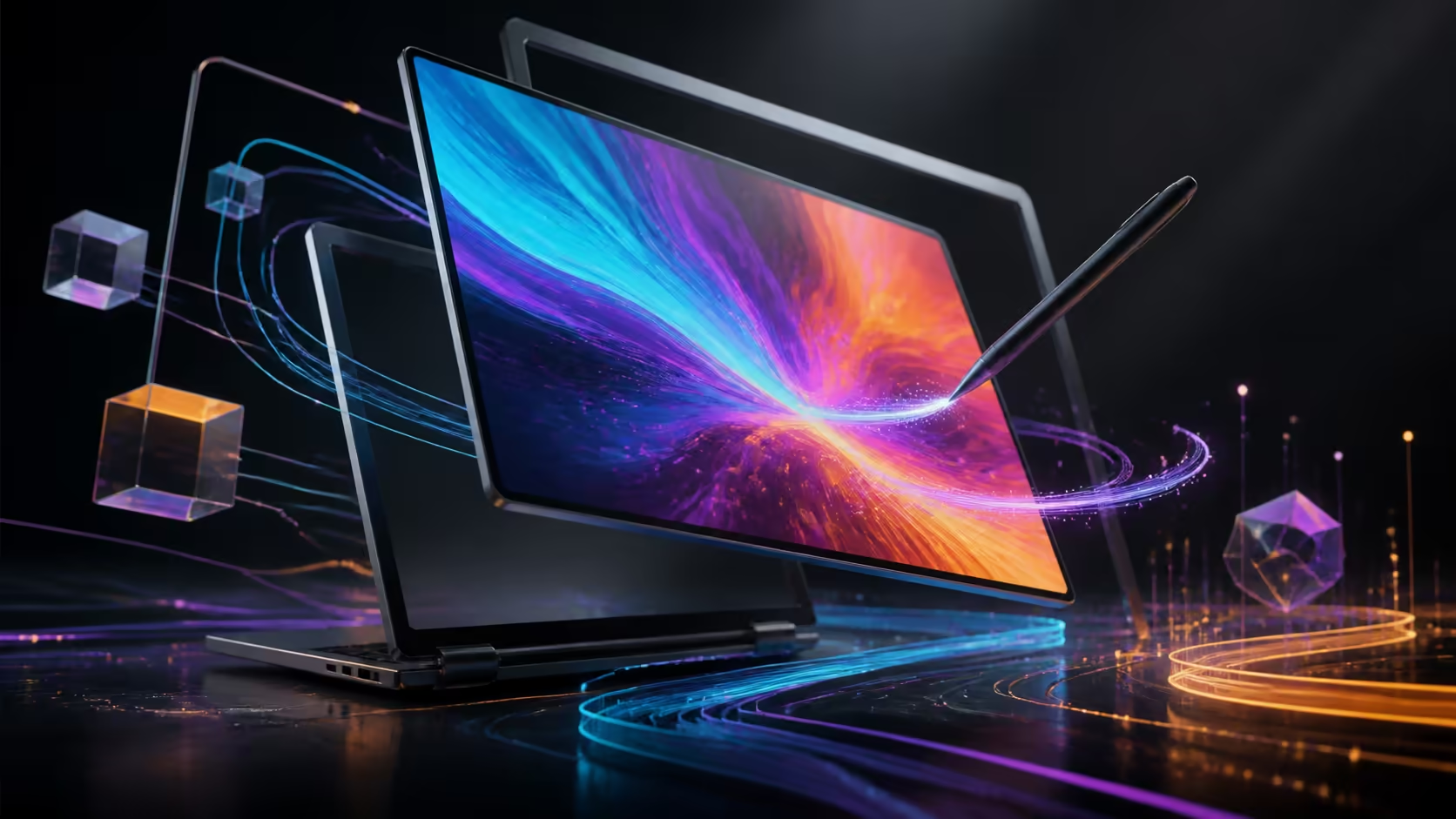
A premium convertible screen and a Thunderbolt desk connection solve different parts of a workflow. The 2.8K 120Hz OLED touchscreen and Thunderbolt 4 combination should be evaluated through internal display use, direct input, external devices and physical postures. The MSI Prestige 16 Flip AI+ brings these features together for R37,999.
Quick Answer
At R37,999, the Prestige presents a 16-inch OLED touchscreen with 2.8K detail and 120Hz motion. Its 2-in-1 body changes viewing posture, while Thunderbolt 4 serves a tested peripheral chain. Buyers must verify colour metrics, pen support, dock devices, cables, external display requirements and mobile measurements.
🧭 Configure the internal display for applications
Set Windows scaling while the key applications are open. Check text, tool palettes, system dialogues and multi-window layouts. A 2.8K resolution can provide detail and workspace, but poor scaling may reduce practical benefit.
Compare 120Hz with another available refresh setting using scrolling, animation and timeline motion. Keep the content and scaling fixed. Refresh preference is a user result, not a productivity ratio.
Measure OLED for the delivery standard
OLED describes the panel technology. Gamut, colour error, brightness and calibration remain separate. Creative work should use the measurement process required by the final medium.
Browse creator laptops at Evetech using the same internal-display requirements.
🧭 Separate touch from pen input
The screen supports finger touch. Test selection, zoom, scrolling and presentation control in the actual application. A convertible posture can improve access, but only if the hinge remains stable on the intended surface.
Active-pen support, protocol and inclusion must be verified independently. If handwriting, pressure or precision is mandatory, use the intended stylus in the exact software before signing off.
Preserve a known input setup
Record scaling, application zoom, orientation and the verified pen model where applicable. After an update or rotation issue, return to that baseline instead of changing several controls at once.
🧭 Build the Thunderbolt chain one device at a time
Thunderbolt 4 is included on the Prestige. List the required monitor resolution and refresh, storage device, dock, cable and power arrangement. Connect one component, test it, then add the next.
A cable that fits does not automatically meet every device requirement. Keep a direct laptop-to-device test for isolating a dock problem. Confirm wake, display recovery and sustained file access under the normal desk routine.
The MSI professional laptop selection can provide alternative configurations after the device chain is documented.
🧭 Reconcile docked flexibility with mobile use
Disconnect the desk and run the core applications from the internal screen. Check whether the 16-inch workspace, touch controls and local 1TB NVMe storage keep the project usable. The system also includes 32GB LPDDR5X for active work.
No weight, battery duration or packed-size result follows from the convertible design. Carry the laptop, charger and normal devices in the intended bag and run an unplugged session. The best docked setup still needs a reliable disconnect routine.
Finish with two acceptance sheets: one for internal mobile work and one for the Thunderbolt desk. Shared project files and outputs should open correctly in both, without relying on an unverified device.
Run a display hand-off exercise
Open a trusted reference on the internal panel, move the window to the intended external monitor and return it without altering the source. Record any change in scaling, tool placement, apparent colour or motion. The exercise is not a substitute for measurement; it reveals where two workspaces need separate profiles or where the external route disrupts the application layout.
Repeat after disconnecting and reconnecting the Thunderbolt chain. A usable desk should restore the expected screen arrangement without forcing a creative file to be adjusted for the wrong display.
Give every cable a job label
Mark the cable used for the dock, direct monitor or storage baseline and keep its role with the test notes. Similar connectors can hide different capabilities, and an unrecorded cable swap can turn a stable result into a confusing fault. Note which port, device order and power arrangement produced the accepted state.
When a problem appears, return to the shortest known path. Direct display or storage testing can show whether the laptop, peripheral, dock or cable needs attention before another setting is changed.
Separate mobile input from desk input
Build one input profile around the internal keyboard and finger touch, then another around the desk devices. If precision pen work is required away from the office, verify the exact pen and application as part of the mobile profile. Do not assume that a mouse, dock or large external monitor will always be present.
Rehearse a complete edit, save and review in both environments. The Prestige earns its flexible-screen value when work moves between those profiles without lost controls, inaccessible files or an untested input dependency.
Create a two-minute desk recovery card
Write the shortest safe sequence for returning from mobile use: place the laptop, connect the accepted cable, wait for device detection, confirm the display arrangement and open a known file from the required storage path. Add a direct connection fallback for the most important peripheral. The card should fit on one screen and avoid unexplained technical shorthand.
Ask another user to follow it without verbal help. Any ambiguous step reveals where port, cable or device labels need improvement. Time the recovery after sleep and after a full shutdown because the same chain may behave differently.
Keep input recovery beside it. Note the accepted scaling, orientation and verified pen model if one is part of the workflow. This small document turns a complicated Thunderbolt desk into a repeatable system rather than knowledge held by one person.
Review the chain after changing one component
Replacing a monitor, dock, cable or storage device creates a new arrangement even when Thunderbolt 4 remains constant. Repeat detection, wake, file access and the required display mode with the accepted sequence. Preserve the earlier setup as a fallback until the replacement has survived several normal sessions.
Do the same after a major application change that alters scaling or pen behaviour. Versioned notes turn subtle regressions into identifiable events instead of vague complaints about the complete laptop.
Frequently Asked Questions
Does 2.8K confirm colour accuracy?
No. It describes resolution. Colour coverage, error and calibration require separate measurements.
Can any stylus work on the OLED touchscreen?
No general compatibility should be assumed. Verify the required pen protocol and exact device.
Does Thunderbolt 4 guarantee 120Hz on an external monitor?
No complete display result follows from the port name. Monitor, dock, cable and required resolution must be checked together.
Is OLED related to Thunderbolt performance?
No. One describes the internal panel technology; the other is a connection standard. Test them independently.
What should a dock recovery test include?
Check wake, monitor detection, storage access and reconnection after the laptop returns from mobile use.
Ready to prove both the internal screen and the connected desk?
Compare Evetech creator and MSI laptops with display, input, cable and device acceptance sheets for each working environment.