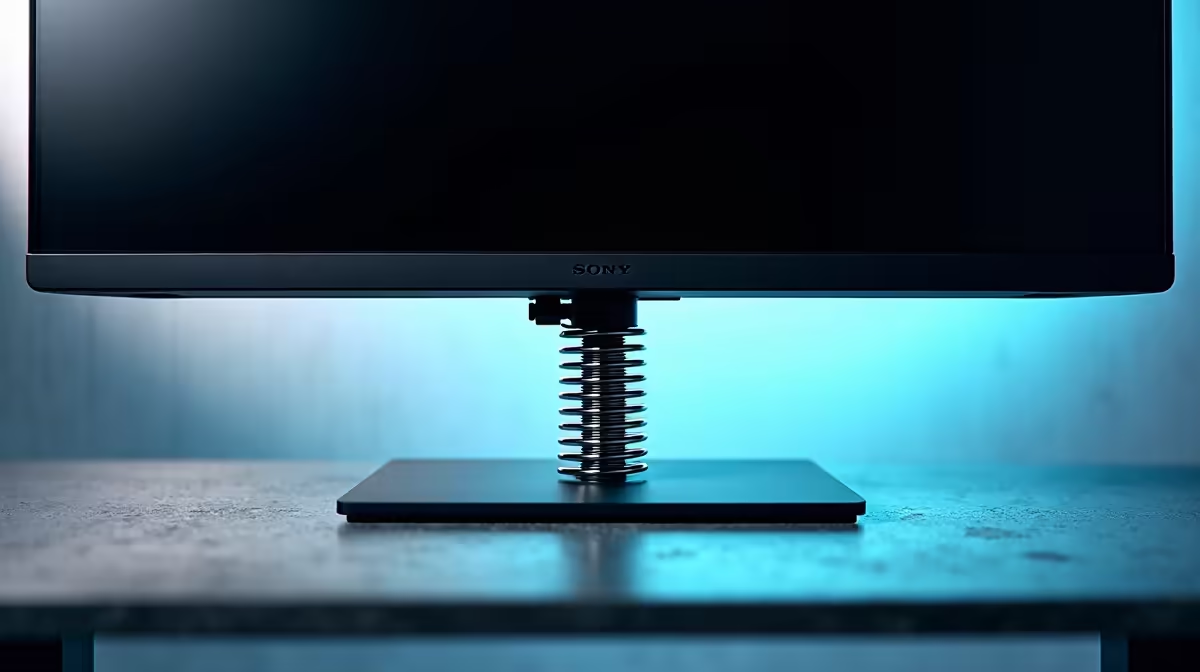
Is your monitor drooping like it’s had a long day at the office? Or maybe it’s so stiff you feel like you need a wrench just to tilt it? That perfect ergonomic setup feels miles away. The good news is, the fix is usually a simple tweak. Learning how to properly adjust a spring tension monitor stand can transform your desk from a literal pain in the neck into a comfortable, high-performance command centre. Let's get it sorted. 🔧
Why Your Monitor Stand's Spring Tension Matters
Before we start turning screws, let's quickly cover why this is so important. A gas spring or mechanical spring monitor arm is designed to perfectly counterbalance the weight of your screen. When the tension is correct, your monitor feels almost weightless. You can glide it into the perfect position with a single finger, and it will stay exactly where you put it.
Get it wrong, and you're fighting your own gear. Too loose, and the monitor sags. Too tight, and it springs up or refuses to lower. For long gaming sessions, getting this right is non-negotiable for comfort and focus, whether you're using one of the latest 4K monitors or a classic 1080p screen.
A Quick Guide to Adjust Your Spring Tension Monitor Stand
Ready to get that buttery-smooth movement? It’s usually a five-minute job. All you need is the Allen key that likely came with your stand.
Step 1: Locate the Tension Adjustment Screw
First, find the adjustment point. It's typically a hex screw located on the main part of the arm, often near the central pivot point. It will usually have a "+" and "-" symbol next to it, indicating which way to turn to increase or decrease the tension. If you're using a hefty screen, like some of the immersive curved monitors available, ensuring you have a stand that can handle the weight is the first step.
Step 2: Understand the "Lefty-Loosey, Righty-Tighty" Rule... Plus a Twist
Here’s how it generally works:
- Monitor Drooping Down? You need to increase the tension. Turn the screw clockwise (towards the "+"). This tightens the internal spring, giving it more strength to hold your monitor's weight.
- Monitor Won't Stay Down? You need to decrease the tension. Turn the screw anti-clockwise (towards the "-"). This loosens the spring, making it easier to lower the screen.
This simple adjustment is key to optimising your entire setup, from all gaming monitors to professional displays.
Pro Tip: Small Turns are Key!
Don't go full force from the start. Make a quarter or half-turn at a time, then test the arm's movement. This prevents you from over-tightening or loosening the mechanism. It’s a process of fine-tuning, not brute force!
Step 3: Test and Refine ✨
After each small adjustment, gently move the monitor up and down. Does it hold its position? Can you move it smoothly without too much effort? Keep making small tweaks until you find that perfect sweet spot where the monitor feels completely neutral and stays put wherever you leave it.
This level of customisation is why investing in good monitor accessories is just as important as the screen itself. It's the foundation of a truly ergonomic and comfortable PC experience. While this guide is for standard setups, it's good to know that even specialised screens like portable monitors have their own unique stand solutions.
Getting your setup just right doesn't have to cost a fortune. With some of the best PC monitor deals in South Africa, you can get a premium screen and a quality stand without breaking the bank.
Ready for the Perfect Setup?
A perfectly adjusted stand is only half the battle... you need a screen worthy of it. Browse our massive range of PC monitors and build the ultimate gaming or work setup today.