Quick Answer
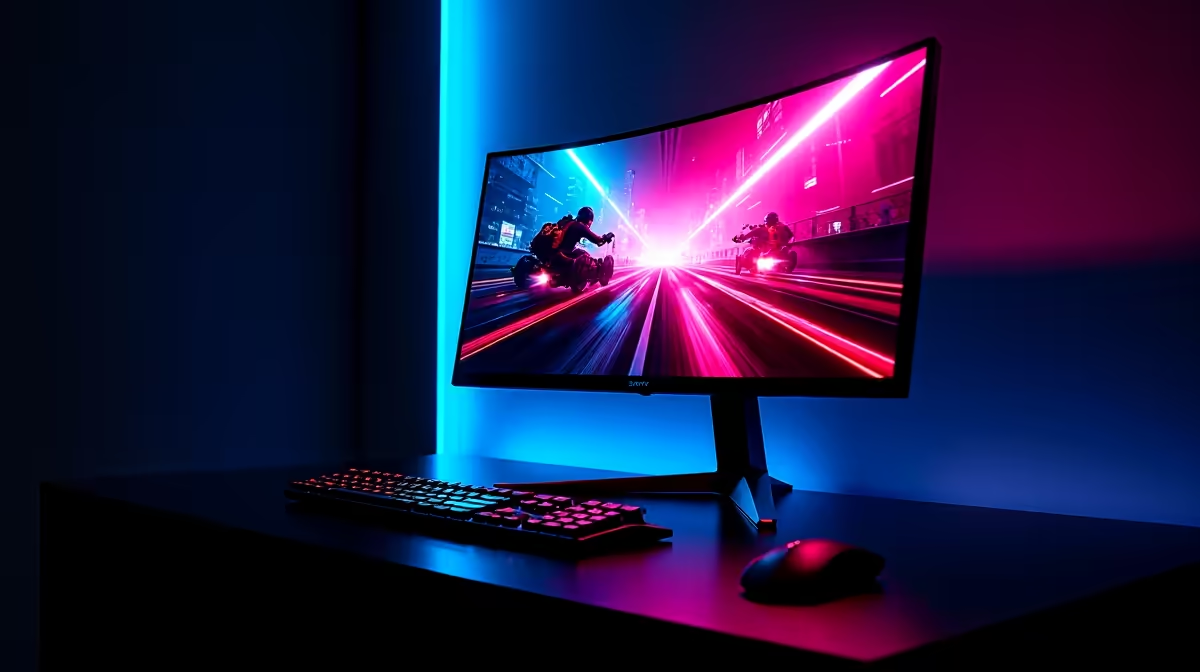
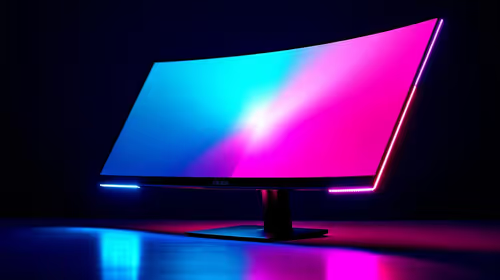
For Fourways buyers, the right 240Hz monitor is the one that matches the core spec, local stock status, and the way you use the setup every day. Expect roughly R4,500 to R12,000 depending on size and resolution; shortlist named options such as ASUS TUF VG279QM, AOC 25G3ZM, Samsung Odyssey G4, and MSI G274QPX before comparing styling or extras. A 240Hz monitor is best for competitive shooters and esports, where a PC can hold well above 180 fps; it is not the first upgrade for slow story games.
Shortlist The Right Tier
For remote work, give extra weight to comfort, low noise, desk ergonomics, and reliability during long calls or spreadsheet-heavy days. For this category, compare 240 Hz refresh, 1 ms-class response claims, DisplayPort, and a GPU that can push 200 to 240 fps in esports titles.
Local Fit For Fourways
Fourways buyers should add estate gate codes, reception details, or a pickup plan at checkout because secure estates and office parks can complicate delivery.
Specs That Decide The Buy
Choose 1080p 240Hz for maximum frame rate on mid-range GPUs, or 1440p 240Hz when you have an RTX 4070 Super, RX 7800 XT, or stronger card. The monitor only helps if the CPU, GPU, and settings can feed it enough frames.
Choose the model with the clearest compatibility notes and the least friction for your daily setup.
FAQ
Will 240Hz make me better at shooters?
It will not replace aim practice, but it reduces display delay and makes tracking smoother when the PC holds high fps. The benefit is easiest to feel in Valorant, CS2, Fortnite, Apex, and similar titles.
Is 1440p 240Hz worth the extra spend?
It is worth it for strong GPUs and players who want sharp text plus esports speed. If your PC sits closer to 120 fps, a 1440p 165Hz screen is usually better value.
What should remote workers check?
Check text clarity, height adjustment, and eye-comfort modes, not only refresh rate. A monitor used for eight work hours needs good ergonomics as much as fast gaming specs.
Buying check
Set Windows and the game menu to 240 Hz after plugging in; many systems stay on 60 Hz until you change the display setting.