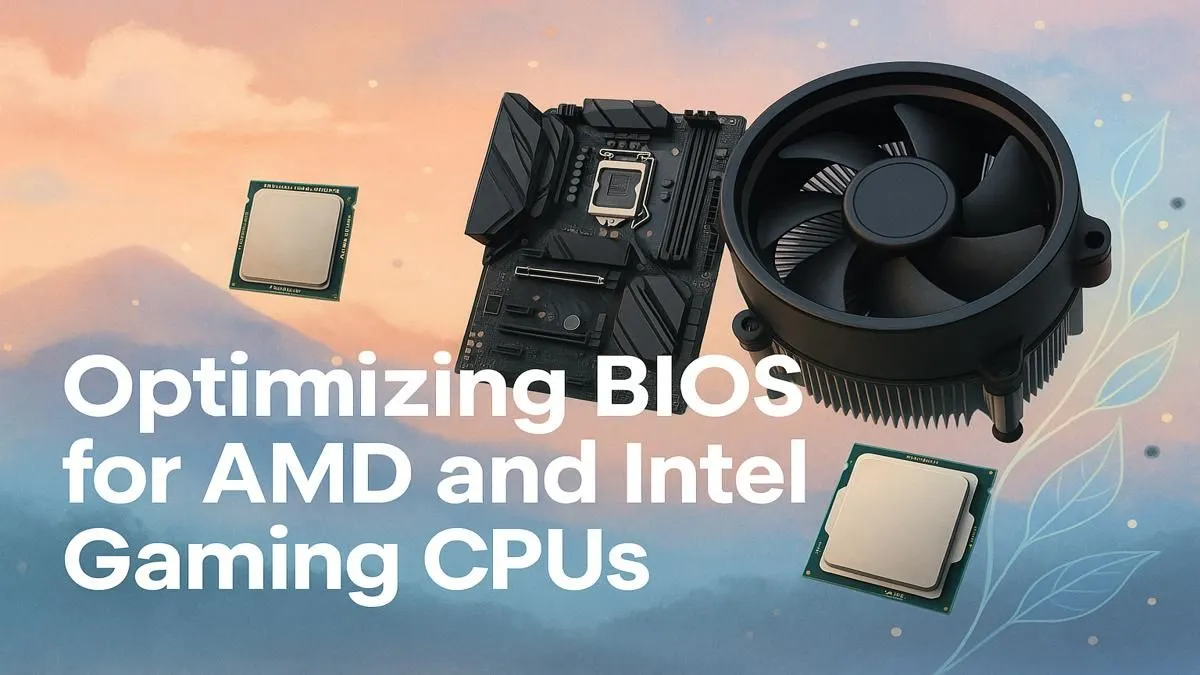
So you’ve just unboxed a brand new processor or built your dream gaming rig. Awesome! But before you jump into a 10-hour Elden Ring session, there's a crucial, often-overlooked step. Deep within your PC's motherboard lies the BIOS, a control panel that can unlock serious performance. This guide demystifies the best BIOS settings for gaming, helping you squeeze every drop of power from your AMD or Intel CPU, no complex overclocking needed. 🚀
First, What Is the BIOS (or UEFI)?
Think of the BIOS (Basic Input/Output System) as the very first program that runs when you turn on your PC. It's the low-level software that wakes up all your hardware—your CPU, RAM, and graphics card—before handing things over to Windows.
Modern PCs actually use UEFI (Unified Extensible Firmware Interface), a more advanced and user-friendly version of the classic BIOS. While we often use the terms interchangeably, UEFI is what you'll see on any new motherboard. It’s the key to optimising your hardware for peak gaming performance.
The Universal BIOS Settings Every Gamer Should Tweak
Regardless of whether you're on Team Red or Team Blue, certain settings offer a universal performance boost. To access your BIOS/UEFI, you typically press the Delete, F2, or F12 key right after powering on your PC.
Enable XMP, DOCP, or EXPO for Your RAM
This is the single most important setting to change. Your brand-new 3600MHz RAM won't actually run at that speed out of the box; it defaults to a much slower, safer speed. Enabling its profile is essential.
- XMP (Extreme Memory Profile): The standard for Intel platforms.
- DOCP (Direct Overclock Profile): ASUS's name for XMP on AMD boards.
- EXPO (Extended Profiles for Overclocking): AMD's new standard for DDR5 RAM.
Find this setting (usually on the main or "Tweaker" page), select the highest-rated profile, save, and reboot. You’ll instantly give your CPU the memory bandwidth it craves, which can lead to a significant FPS increase in games. ✨
Check Your QVL First! 🔧
Before enabling memory profiles, it's wise to check your motherboard's Qualified Vendor List (QVL) on the manufacturer's website. This list confirms which specific RAM kits have been tested and are guaranteed to work at their advertised speeds on your board. This simple check can save you hours of troubleshooting instability issues later on.
Activate Resizable BAR (or Smart Access Memory)
Resizable BAR is a feature that allows your CPU to access the entire pool of your graphics card's video memory (VRAM) at once, rather than in small chunks. This can improve performance by a few percentage points in many modern titles.
- On Intel systems, it's called Resizable BAR.
- On AMD systems, it's called Smart Access Memory (SAM).
You'll usually find this option in the PCI Subsystem Settings or Advanced menu. Just set it to "Enabled" or "Auto".
Set an Aggressive Fan Curve
Keeping your CPU cool is vital for maintaining high boost clocks. A hot CPU will "throttle" or slow itself down to prevent damage, tanking your in-game FPS. Dive into your BIOS's fan control section (often called Q-Fan, Smart Fan, or Hardware Monitor) and switch from the "Silent" profile to "Performance" or "Full Speed". For even better results, create a custom curve that ramps up the fan speed aggressively once the CPU hits around 60-70°C.
Platform-Specific Tweaks: AMD vs. Intel
While the settings above are universal, both platforms have unique features you can enable for an extra edge. Optimising your BIOS for gaming often comes down to these brand-specific options.
For AMD Ryzen CPUs
Modern AMD Ryzen CPUs are brilliant at managing their own performance. Your main job is to give them the thermal and power headroom to do their thing.
- Precision Boost Overdrive (PBO): Found in the AMD Overclocking section, PBO is a safe, automated overclocking feature. Setting it to "Enabled" or "Advanced" allows the CPU to boost higher and for longer, as long as your cooling can handle it. It's a fantastic way to get more performance with a single click.
For Intel Core CPUs
Intel motherboards often come with conservative power limits by default to fit a wide range of cooling solutions. If you have a decent cooler, you can unlock more power.
- Multi-Core Enhancement (MCE): This setting, often set to "Auto", tells the CPU to ignore Intel's official power duration limits (Tau) and run all cores at the maximum boost frequency indefinitely. Setting it to "Enabled" can provide a noticeable multi-core performance uplift, perfect for demanding games and applications. This is especially effective on the latest Intel Core processors with robust cooling.
Tweaking these settings is the key to ensuring you get every bit of performance you paid for. It transforms your PC from a machine running on "safe mode" to a finely-tuned gaming weapon. ⚡
Ready to Unlock Your CPU's True Potential?
Whether you're building a new rig or upgrading your current one, having the right processor is the first step. The best BIOS settings for gaming start with a great CPU. Explore our massive range of CPU processors and find the perfect heart for your gaming machine.