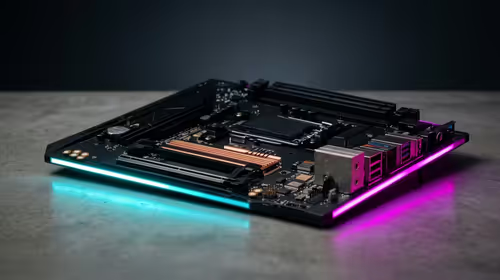
The thing that turns a Raspberry Pi 5 from a hobby board into a genuinely useful always-on home server is fast storage, and the Pi 5 finally exposes a PCIe lane to make that possible. Bolt on an NVMe HAT, drop in an SSD, and you swap the wheezing microSD card that fails at the worst moment for a drive that reads several times faster and lasts far longer under the constant small writes a server throws at it. For a tinkerer running a few self-hosted services at home, this combo is the upgrade that makes the whole thing feel solid.
Quick Answer
A Raspberry Pi 5 paired with an NVMe HAT and an SSD reaches roughly 400 to 900MB/s reads, against 20 to 90MB/s for a typical microSD card, a five to ten times jump that you feel most on databases and lots of small files. The official Raspberry Pi M.2 HAT+ is the simplest choice but only fits short 2230 and 2242 drives; third-party boards take full-size 2280 SSDs. Budget for the Pi, a HAT, a compatible SSD and a solid power supply.
Why the Pi 5 Changes the Home Server Maths
Earlier Pis booted from microSD and pushed all their storage through USB, which capped speed and, worse, wore the card out. A server writes constantly: logs, database journals, container layers. MicroSD cards are not built for that and tend to die after months of it. The Pi 5 exposes a single PCIe lane through a dedicated connector, and that lane is what an NVMe HAT taps into. Suddenly the same little board can hold a proper SSD with the endurance to run flat out for years.
The practical payoff is steadiness. A Pi 4 home server often felt fine until several things happened at once, then stuttered as the SD card became the bottleneck. On NVMe, the same workload, a media index here, a database query there, a backup running in the background, stays smooth because the storage is no longer the weak link.
Understanding the PCIe Speed Limit
Set expectations correctly. The Pi 5's lane is officially PCIe 2.0 x1, which works out to roughly 500MB/s of usable bandwidth. That is a fraction of what the same NVMe SSD would do in a desktop, and it is the ceiling no HAT can lift on its own. Many users enable PCIe Gen 3 with a config tweak and see speeds climb toward 800 to 900MB/s, and it is stable on most drives, but Raspberry Pi does not guarantee Gen 3, so treat it as a bonus rather than a promise.
Even at Gen 2 speeds, this is transformative against microSD. The point is not desktop-class throughput; it is consistent, durable storage that shrugs off the constant small writes that kill flash cards. For a home server that distinction matters far more than a benchmark headline.
Choosing the Right HAT and SSD
The HAT decides which drives fit, so pick the board around the SSD you want.
Form Factor Is the First Decision
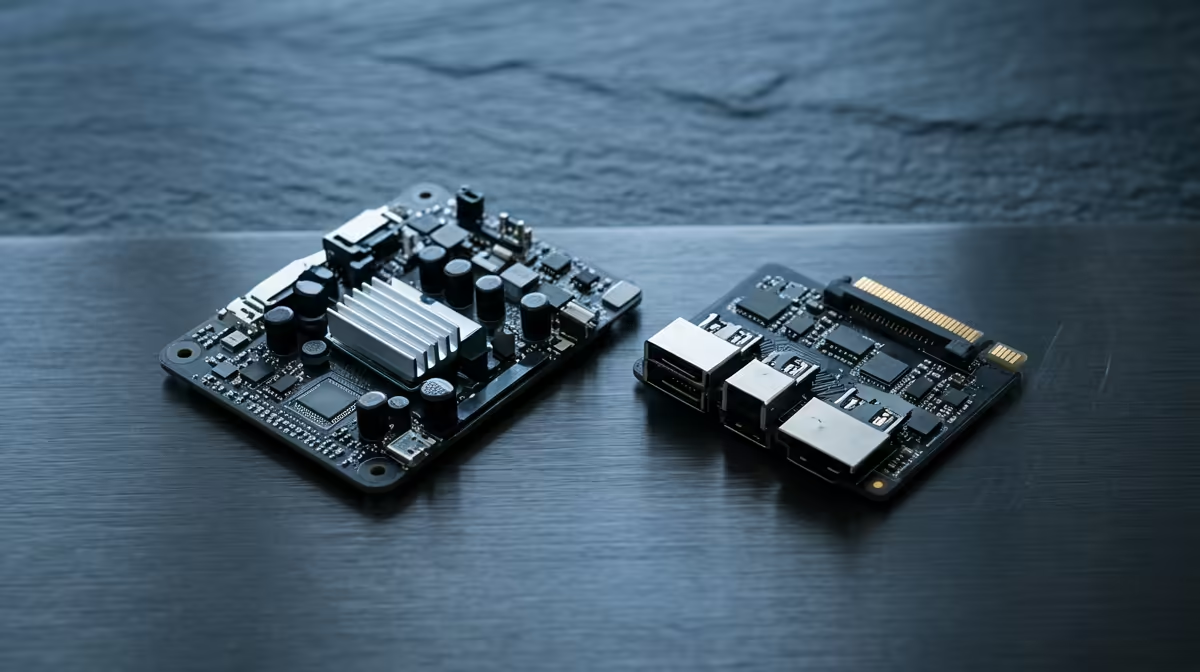
The official Raspberry Pi M.2 HAT+ mounts neatly on the GPIO header and connects to the PCIe port with a short ribbon cable, and it is the most foolproof option. Its catch is size: it only accepts short 2230 and 2242 SSDs, not the common 2280 desktop drives. If you already own a full-size 2280 SSD, or want the cheapest capacity per rand, you need a third-party HAT such as a Pimoroni or Waveshare board that supports 2280, or an all-in-one like the SupTronics X1208 that bundles a UPS with the M.2 slot for graceful shutdowns during power dips.
Match the SSD to the Job
You do not need a flagship drive; the Pi cannot use the speed anyway. A reliable mid-range NVMe SSD is the sweet spot, and capacity should follow the role. A 256GB or 512GB drive is plenty for boot plus light services, while a media or backup server wants 1TB or more. Endurance and steady performance matter more than peak numbers here, so a known-good drive beats the cheapest one you can find. The best-selling PCs at Evetech include compact builds where NVMe storage is now standard, a useful reference when choosing a drive tier for your Pi.
Do Not Skimp on Power
The Pi 5 wants its official 27W USB-C supply, and adding an SSD raises the draw further. An underpowered supply causes random reboots and storage errors that look like a faulty drive but are not. Budget for proper power up front.
What to Run on It
The build only matters because of what it lets you host. Common first projects for a tinkerer include a network-wide ad blocker such as Pi-hole, a personal cloud like Nextcloud for files and photos, Home Assistant for smart-home control, and a handful of small services in Docker containers. Each is light on CPU but leans on storage for its database, which is exactly where the NVMe upgrade earns its keep.
A Pi 5 with NVMe sips power, so it is cheap to leave running around the clock, an advantage on a South African electricity bill where an always-on full PC would cost noticeably more. If you outgrow it, the next step up is a small x86 box with more RAM and SATA bays, and our mini PC range covers that jump for when a single Pi is no longer enough. For most home labs, though, the Pi 5 and NVMe pairing is the right amount of machine.
Frequently Asked Questions
How much faster is an NVMe SSD than a microSD card on the Pi 5?
Roughly five to ten times in real use. Expect about 400 to 900MB/s reads on NVMe versus 20 to 90MB/s on a typical microSD card. The difference is most obvious with databases and large numbers of small files.
Can the Pi 5 boot directly from the NVMe drive?
Yes. After a firmware update you can set the NVMe drive as the boot device and run the Pi entirely from it, leaving the microSD slot empty. This is the recommended setup for a reliable always-on server.
Will any M.2 SSD fit the official HAT+?
No. The official M.2 HAT+ only accepts short 2230 and 2242 drives. For common full-size 2280 SSDs you need a third-party HAT designed for that length, such as a Pimoroni or Waveshare board.
Is PCIe Gen 3 safe to enable on the Pi 5?
It works on most drives and many users run it stably for the extra speed, but Raspberry Pi only officially rates the lane at Gen 2. Treat Gen 3 as an unsupported bonus and fall back to Gen 2 if you see errors.
Do I need a special power supply for a Pi 5 with an SSD?
Yes, use the official 27W USB-C supply or better. An SSD adds to the power draw, and an underpowered supply causes reboots and storage errors that are easy to mistake for hardware faults.