



80+ Gold vs 80+ Platinum for Couch co-op gaming in SA
80+ Gold vs 80+ Platinum for couch co-op gaming is about PSU efficiency, heat, fan behaviour, quality, and wattage headroom, not direct FPS. SA buyers should compare the whole build.
Read moreStruggling with a blue screen error on your ASUS gaming laptop? Don't panic! 💻 This guide walks you through common causes, from driver issues to hardware conflicts, and provides step-by-step solutions to get you back in the game fast. Stop the crashes and restore stability. ✅
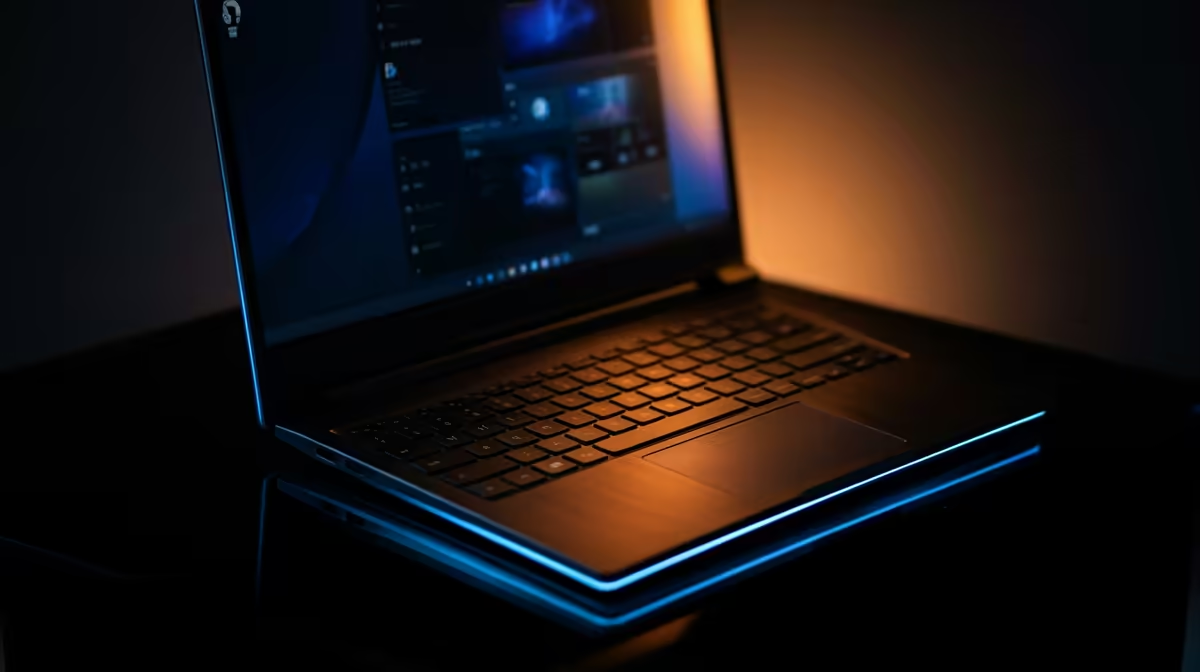
You’re deep in a ranked match, the final circle is closing, and your squad is counting on you. Then, without warning… bam. Your screen flashes an angry blue, filled with cryptic white text. The infamous Blue Screen of Death (BSOD) just cost you the game. A blue screen error on your ASUS gaming laptop is more than just frustrating; it’s a session-ender. But don’t panic. We’re here to help you diagnose the cause and get you back in the game.
That dreaded blue screen, officially a "Windows stop error," is your PC's emergency brake. It happens when Windows encounters a problem so critical it has to shut down to prevent damage. For high-performance machines like ASUS gaming laptops, the causes often boil down to a few key culprits.
Understanding the root of the blue screen error on your ASUS gaming laptop is the first step to a lasting fix. Here are the most common reasons you might be seeing it:
Ready to get your hands dirty? Follow these steps, starting with the easiest fixes. Don't skip any… sometimes the simplest solution is the right one.
Before diving into complex diagnostics, let's cover the basics. An outdated system is often an unstable one.
Settings > Update & Security > Windows Update and click "Check for updates." Install everything, including optional updates, as they often contain important stability fixes.Windows has powerful built-in tools to find and fix problems. Let's use them to check your system's integrity.
sfc /scannow, then press Enter. This tool will scan for and repair corrupt Windows files.The blue screen itself often gives you a "Stop Code" (e.g., IRQL_NOT_LESS_OR_EQUAL). Note this down! You can also find detailed error logs in the Windows Event Viewer. Go to Event Viewer > Windows Logs > System and look for "Critical" errors around the time of the crash. This code is your best clue for googling a specific solution.
If your laptop feels hotter than a Durban summer day, you might have found your problem. Lift your laptop to ensure the air vents underneath aren't blocked. Use a can of compressed air to carefully clean out any dust from the fans and heatsinks. A cooling pad can also make a huge difference during long gaming marathons, especially for the ultra-powerful Republic of Gamers (ROG) series.
If you’ve tried all the fixes above and the blue screens keep coming, it might be a sign of a deeper hardware issue. If your laptop is several years old and struggling to run new titles, the constant crashes could be its way of telling you it’s time for a rest. Constant hardware stress can lead to component failure, and repairs can become costly.
Sometimes, the most effective fix for a persistent blue screen error on an older ASUS gaming laptop is an upgrade. Newer models, like the sleek and powerful ROG Zephyrus gaming laptops, come with vastly improved cooling technology, more stable components, and the power to handle modern games without breaking a sweat.
Tired of Crashing? Time for an Upgrade. A reliable gaming rig is essential. If your old laptop is spending more time on the blue screen than the victory screen, it might be time for a change. Explore our massive range of ASUS gaming laptop deals and find a machine built to win.
Common causes include outdated drivers (especially for the GPU), corrupted system files, hardware conflicts, or overheating. Running a system file check can help diagnose it.
Yes, faulty or outdated graphics and chipset drivers are a primary cause of the Blue Screen of Death (BSOD) on gaming laptops. Always update drivers from official sources.
To fix a blue screen loop, try booting into Safe Mode. From there, you can uninstall recent software, roll back driver updates, or use System Restore to revert to a stable state.
Error codes like 'DRIVER_IRQL_NOT_LESS_OR_EQUAL' or 'VIDEO_TDR_FAILURE' are common on gaming laptops, often pointing directly to graphics card driver or hardware issues.
An outdated BIOS can cause instability. Updating it can resolve compatibility issues that lead to blue screens, but it should be done carefully following ASUS's instructions.
Absolutely. Intense gaming can cause components like the CPU and GPU to overheat, triggering a thermal shutdown that presents as a blue screen to protect the hardware.
Use the System File Checker. Open Command Prompt as an administrator and type 'sfc /scannow'. This will scan for and attempt to repair any corrupted Windows system files.
80+ Gold vs 80+ Platinum for couch co-op gaming is about PSU efficiency, heat, fan behaviour, quality, and wattage headroom, not direct FPS. SA buyers should compare the whole build.
Read more
80+ Platinum or 80+ Titanium for competitive should be shortlisted around the job it must do. South African buyers should compare fit, performance, compatibility, and upgrade room, warranty path, and upgrade room before treating any pick as best.
Read more
The real world difference between IPS and OLED for AAA single-player gaming is immersion versus versatility. OLED lifts contrast and dark scenes, while IPS can suit bright rooms, mixed PC use, and SA buyers watching total setup cost.
Read more
HDMI 2.1 vs HDMI 2.0 for SA MMO needs a workload-first comparison. For SA buyers, judge real performance, platform fit, warranty path, power needs, and upgrade timing before choosing either side.
Read more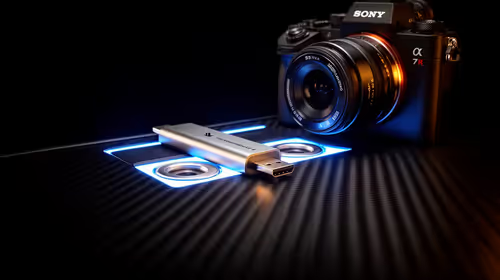
USB4 and Thunderbolt 4 differ for competitive esports through dock, display, and capture consistency. Use this real world difference between usb4 and thunderbolt 4 for competitive guide to keep SA tournament desks tidy without assuming better ping.
Read more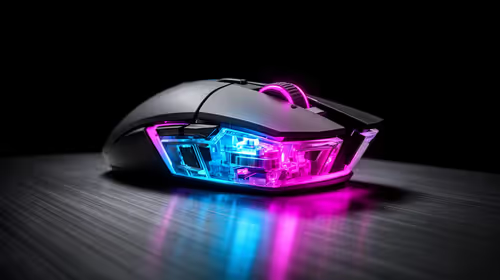
Magnetic switches vs Mechanical switches depends on Competitive esports needs, platform limits, and budget fit. Compare compatibility, latency, upgrade path, and real setup constraints before choosing for an SA build.
Read more
NVIDIA lists 550W required system power for the RTX 5060 reference specification, based on a high-end test system. A quality 550W unit can be enough, but CPU draw, transient load, connectors and ageing decide real headroom.
80+ Gold vs 80+ Platinum for couch co-op gaming is about PSU efficiency, heat, fan behaviour, quality, and wattage headroom, not direct FPS. SA buyers should compare the whole build.

Upgrade your setup with the best USB-C hubs for creators. Discover why high-capacity card readers and dual 4K output are essential for professional South African content production. 🚀💻

B850 motherboard FPS drops needs a methodical troubleshooting pass. Review drivers, thermals, power settings, background apps, cables and game settings before replacing parts in an SA gaming setup.
NVIDIA lists 550W required system power for the RTX 5060 reference specification, based on a high-end test system. A quality 550W unit can be enough, but CPU draw, transient load, connectors and ageing decide real headroom.

OpenRGB's master branch now carries changes labelled for 1.0 final, including translation and platform work, but the official tags page still lists 1.0rc3.1 as the newest packaged release. Stable users should wait for the signed release channel.

A motherboard can remain useful for many years when power, cooling and connectors stay healthy. Replace it for confirmed faults, damaged power delivery or a blocked platform need, not simply because the calendar reaches a fixed age.

The VAIO T combines a 13.3-inch display with a multi-flip mechanism for laptop, tablet and outward-facing viewing modes. Orders begin in Japan on 18 September; South African availability is unconfirmed.
NVIDIA lists 550W required system power for the RTX 5060 reference specification, based on a high-end test system. A quality 550W unit can be enough, but CPU draw, transient load, connectors and ageing decide real headroom.
The VAIO T combines a 13.3-inch display with a multi-flip mechanism for laptop, tablet and outward-facing viewing modes. Orders begin in Japan on 18 September; South African availability is unconfirmed.
OpenRGB's master branch now carries changes labelled for 1.0 final, including translation and platform work, but the official tags page still lists 1.0rc3.1 as the newest packaged release. Stable users should wait for the signed release channel.
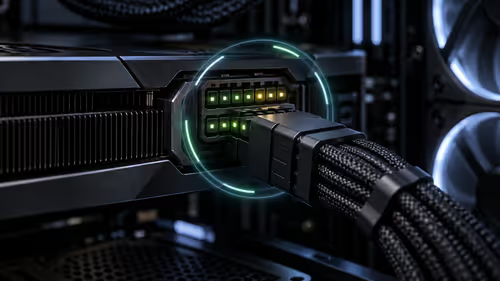
The Cooler Master GPU Shield Adapter monitors current on individual 12+4-pin contacts, adds visual and audible warnings, and can reduce system power during a severe abnormality. Local availability is unconfirmed.