



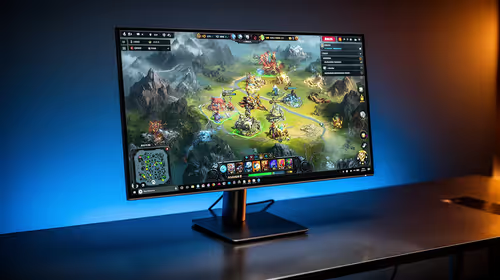
IPS vs VA for Strategy and Sim Games in SA
IPS vs VA for strategy and sim games should be judged by fit, not a single winner. Compare compatibility, latency, capacity, upgrade path, cost planning, and South African setup needs.
Read moreLearn how to clean your Lenovo gaming laptop to prevent overheating and boost performance. Our ultimate guide covers everything from cleaning fans and keyboards to optimizing software for a flawless gaming experience. Keep your rig pristine and powerful! 💻✨
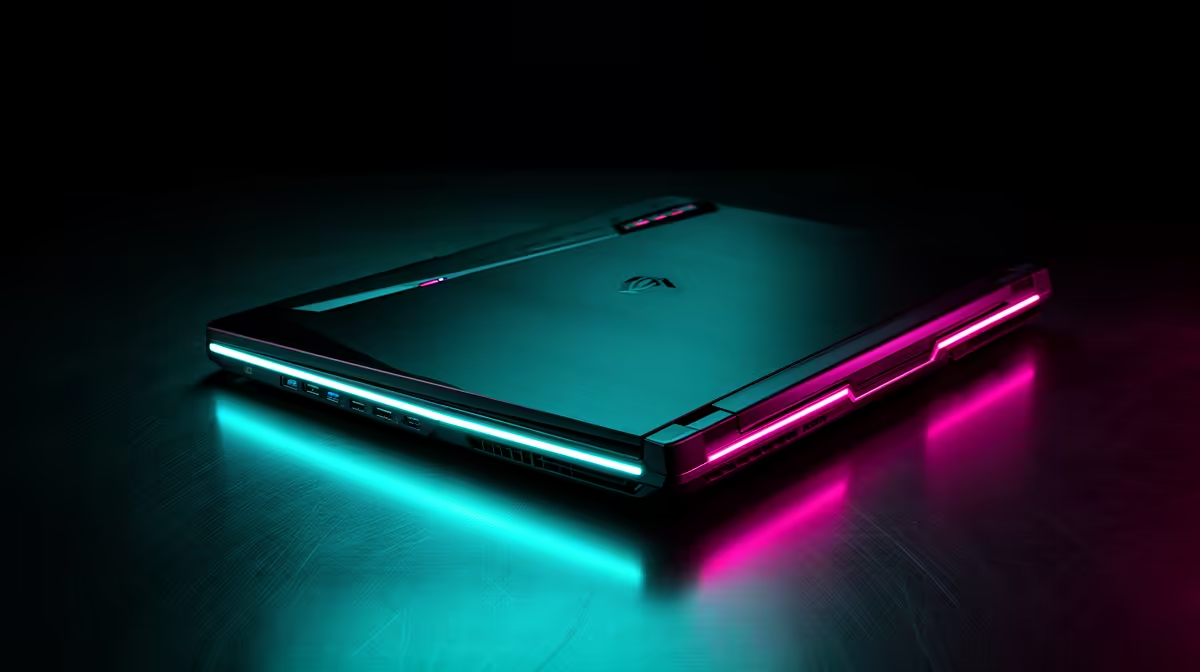
Is your Lenovo gaming laptop starting to sound more like a jet engine than a high-performance machine? Dust, grime, and fingerprints don't just look bad; they can seriously throttle your performance, turning your beastly rig into a laggy mess. Before you lose another round of Apex to thermal throttling, this ultimate guide will show you exactly how to clean your Lenovo gaming laptop safely, restoring its power and keeping it running like new. ✨
Let's be honest, dust is the ultimate enemy of performance. Over time, it clogs up the cooling fans and heatsinks inside your laptop. When airflow is restricted, heat gets trapped. Your laptop's components, like the CPU and GPU, then automatically slow down to prevent damage—a process called thermal throttling.
The result? Lower frame rates, system stutters, and a much shorter lifespan for your beloved gaming companion. A regular cleaning schedule is the single best thing you can do to ensure you get the peak performance you paid for.
You don't need a high-tech lab to get this done. A simple, effective clean requires just a few essential items.
Ready to get started? We'll break this down into simple, safe steps. First things first: power down your laptop completely, unplug it from the wall, and if your model has a removable battery, take it out.
This is the easy part that makes the biggest visual difference. Lightly dampen a microfibre cloth with a 50/50 mix of isopropyl alcohol and water. Never spray liquid directly onto the laptop!
Wring out the cloth so it's barely damp, then gently wipe down the lid, palm rest, and bottom panel. Use your soft brush to gently sweep out any crumbs or dust from the keyboard. This simple maintenance is crucial for keeping machines like the popular Lenovo IdeaPad 3 Gaming laptops in top condition. For the screen, use a dedicated screen cleaner or a cloth lightly dampened with just distilled water.
This is where your compressed air comes in. Your laptop's vents are its lungs, and they need to be clear. Hold the can upright and use short, controlled bursts to blow dust out of the intake and exhaust vents. Do the same for all your USB, HDMI, and audio ports. This is especially important for high-performance machines with advanced cooling, like those found in our Lenovo Legion gaming laptop deals, as their cooling systems are designed for maximum airflow.
Disclaimer: Opening your laptop may void your warranty. Always check your warranty terms first. If you're not comfortable, stick to cleaning the external vents.
For those ready to go deeper, place your laptop on a clean, static-free surface. Carefully unscrew the bottom panel. Once inside, you'll see the cooling fans. Use the soft brush to gently loosen any caked-on dust from the fan blades. Then, use short bursts of compressed air to blow the dust out and away from the components. Whether you own one of the latest Lenovo LOQ gaming laptops or an older model, a clean fan is key to longevity.
Always hold the can of compressed air upright. Tilting it can cause the liquid propellant to spray out, which can freeze and damage sensitive electronic components. Use short, controlled bursts from about 15cm away and hold the fan blades gently in place with a finger to prevent them from over-spinning.
Now that your machine is spotless, how do you keep it that way?
Keeping your workspace clean and avoiding eating over your laptop goes a long way. A little regular care ensures all Lenovo gaming laptops deliver the performance you expect, day in and day out. 💻
Ready for an Upgrade or Your First Rig? A clean laptop runs faster, but nothing beats the power of new hardware. If your current machine is still struggling, it might be time for something new. Explore our massive range of laptop specials and find the perfect Lenovo to conquer your world.
For optimal performance, a light cleaning of the exterior and keyboard should be done weekly. A deeper clean, including the internal fans, is recommended every 3 to 6 months.
Yes, but carefully. Use short bursts of compressed air to clear dust from fans and vents. Hold the can upright and never spray too close to avoid moisture or component damage.
The best way to clean a laptop keyboard is with compressed air for debris, a soft brush for crevices, and a microfiber cloth lightly dampened with isopropyl alcohol for the keycaps.
To safely clean your laptop screen, use a clean microfiber cloth and a screen-safe cleaning solution. Spray the solution onto the cloth, not the screen, and wipe gently.
Yes, cleaning dust from your laptop's fans and heat sinks is a critical step in fixing overheating issues. This improves airflow and allows the cooling system to work efficiently.
For a deep clean, you'll need a precision screwdriver set, microfiber cloths, isopropyl alcohol, compressed air, and soft brushes. An anti-static wrist strap is also recommended.
IPS vs VA for strategy and sim games should be judged by fit, not a single winner. Compare compatibility, latency, capacity, upgrade path, cost planning, and South African setup needs.
Read more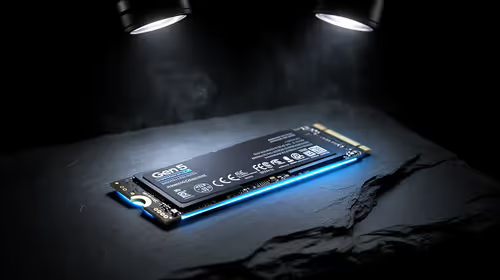
Gen 5 NVMe SSD guide for Bloemfontein gamers should be shortlisted around the job it must do. South African buyers should compare capacity, speed, thermals, and motherboard support, warranty path, and upgrade room before treating any pick as best.
Read more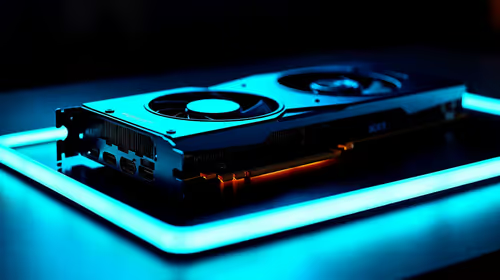
Skip the RTX 5070 if your first-time builder budget needs better balance. Better SA picks can free room for the right CPU, PSU, case, monitor, storage, and cooling while still giving a strong first gaming PC experience this year in South Africa.
Read more
RTX 5080: weighing the pros and cons for SA should be shortlisted around the job it must do. South African buyers should compare GPU tier, VRAM, cooling, and PSU headroom, warranty path, and upgrade room before treating any pick as best.
Read more
Core i5-13400F gives South African PC builders a capable mid-range CPU choice with clear limits. Check its gaming fit, discrete GPU requirement, LGA1700 platform costs, and upgrade path before locking in your parts list.
Read more
Pros and cons of the Wi-Fi 7 routers for SA should be shortlisted around the job it must do. South African buyers should compare WiFi standard, coverage, latency, and device support, warranty path, and upgrade room before treating any pick as best.
Read more
Steam content servers unreachable needs a download-path check, not an immediate reinstall of every game. Restart the client, inspect download settings and compare another connection when practical. Clearing the download cache is separate from deleting installed games.

Keychron G6 HE has built-in and swappable battery versions with different weights. The product brief lists 42g and 46g respectively, each with a 3g tolerance. Choose by grip and battery preference before treating one headline weight as universal.

Corsair HS80 v2 MAX supports 2.4GHz wireless and Bluetooth. Its maximum battery figures use RGB-off conditions and differ by connection. Check microphone routing, comfort and the exact device support before assuming every wireless mode behaves alike.

Windows taskbar notification badges can be shown or hidden in Taskbar behaviours. This changes the small app indicators, not the underlying messages. Choose a calmer desktop while keeping a deliberate routine for checking important conversations and app updates.

Windows title bar window shake can minimise other open windows when you shake the active window by its title bar. Inspect the Multitasking setting and switch it off if that gesture interrupts your work. The preference costs R0 and does not require new hardware.

Windows Print Screen opens Snipping Tool when its keyboard preference is enabled. Change the option under Accessibility, Keyboard to choose another workflow. Test whether you need a clipboard image or a saved file.

Windows desktop icons missing may be a visibility setting. Right-click the desktop, choose View and inspect Show desktop icons. If only system icons are absent, use Desktop icon settings. Check the Desktop folder before assuming files were deleted.

Windows set time zone automatically greyed out calls for a location and device-policy check. Automatic time-zone selection relies on location services. A manual time-zone choice is separate from synchronising the clock; check both before replacing hardware.
Windows title bar window shake can minimise other open windows when you shake the active window by its title bar. Inspect the Multitasking setting and switch it off if that gesture interrupts your work. The preference costs R0 and does not require new hardware.
Windows Print Screen opens Snipping Tool when its keyboard preference is enabled. Change the option under Accessibility, Keyboard to choose another workflow. Test whether you need a clipboard image or a saved file.
Windows desktop icons missing may be a visibility setting. Right-click the desktop, choose View and inspect Show desktop icons. If only system icons are absent, use Desktop icon settings. Check the Desktop folder before assuming files were deleted.
Windows set time zone automatically greyed out calls for a location and device-policy check. Automatic time-zone selection relies on location services. A manual time-zone choice is separate from synchronising the clock; check both before replacing hardware.