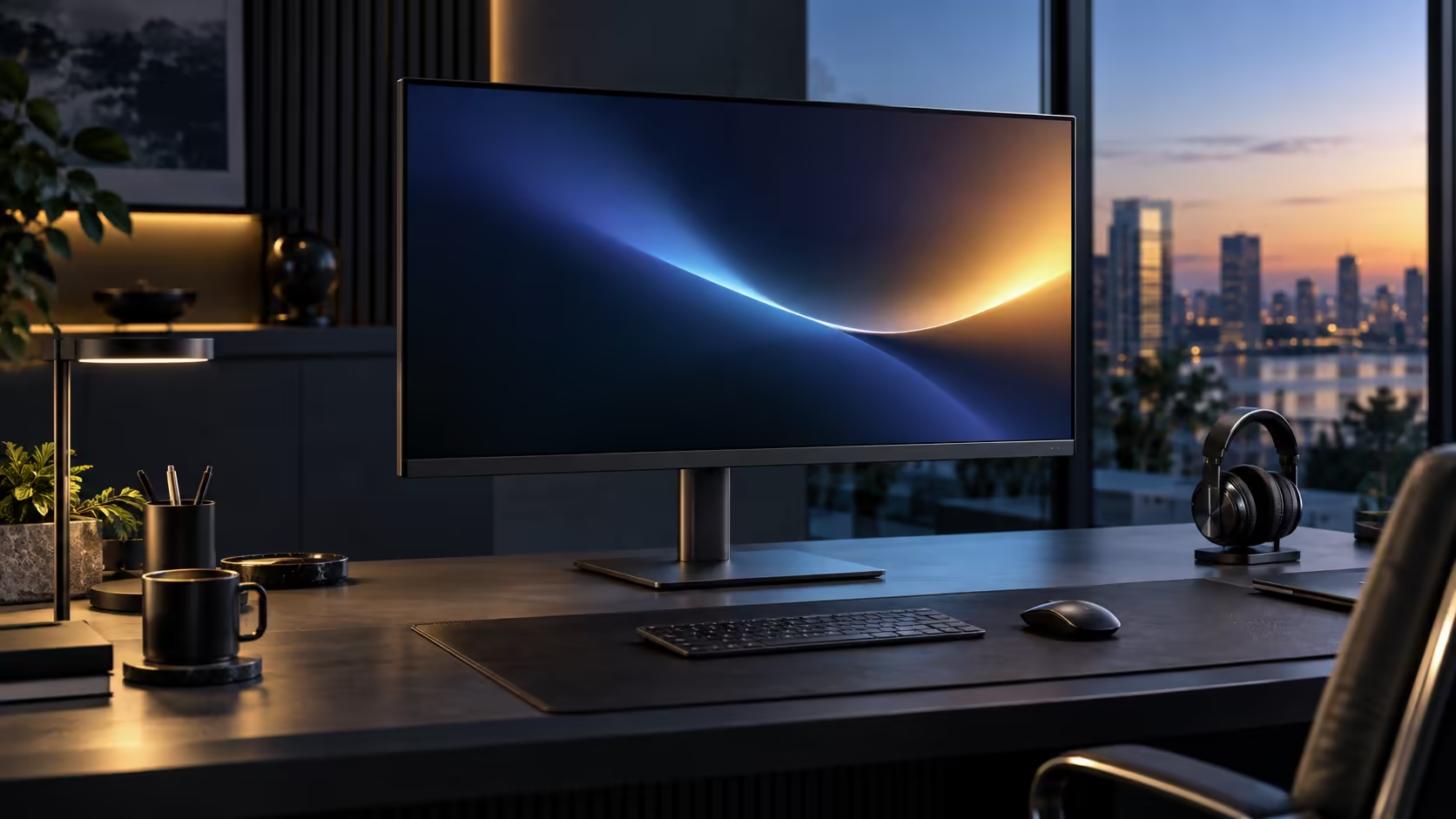
One cable leaving the laptop and two screens showing up on the desk sounds like it needs specialist hardware, but DisplayPort MST daisy chaining does this with a feature already built into many current laptops and monitors, waiting on one menu setting to switch on. The Dell Pro 32 Plus P3225DE carrying this feature is R8,799.
Quick Answer
MST lets one output carry several display streams, which the first screen separates before passing the remainder along. Switch it on in the monitor menu or the second panel simply mirrors the first. R8,799 is the asking price of Dell's 31.5-inch Pro 32 Plus.
🔀 What Multi-Stream Transport actually does
Understanding the mechanism clears up why this needs a specific setting rather than working automatically the moment two monitors are connected.
Multi-Stream Transport is a DisplayPort capability that packages more than one independent video stream into a single connection. The laptop sends both streams down one cable to the first monitor, which reads the packaged signal, keeps the stream addressed to it, and pushes the remaining stream back out, untouched, toward the next screen in line. Without MST switched on, the first monitor simply displays the single stream it receives and has no mechanism to separate or pass anything further along, which is why the second screen either shows nothing or mirrors the first rather than extending the desktop.
🎛️ Why this setting sits in the monitor's own menu
The location of this setting surprises people who expect it to live in Windows instead.
MST is a hardware-level function of the monitor's own DisplayPort controller, not a Windows setting, which is why it has to be switched on through the monitor's physical on-screen menu, typically accessed through buttons or a joystick on the bezel, rather than through Settings on the laptop. Manufacturers frequently ship this switched off by default, since the majority of buyers run a single monitor and never need it, which is exactly why so many people trying daisy chaining for the first time find their second screen not appearing until they specifically hunt down and enable this one setting.
🖥️ What happens without MST switched on
Seeing the actual symptom helps confirm this is indeed the cause before assuming a hardware fault.
With MST switched off, connecting a second monitor via DisplayPort Out from the first typically results in either no picture at all on the second screen, or a simple mirror of the first screen's display rather than an extension of the desktop. Neither of these outcomes indicates broken hardware; both are the expected result of the setting being disabled, and switching it on and power-cycling both monitors resolves the majority of cases immediately.
🔌 Setting up a one-cable dual-monitor desk end to end
Bringing the setting into the full setup sequence makes the whole process straightforward from laptop to second screen.
Start with the laptop joined to the first monitor exactly as it would be for a single-screen desk. From there, a properly rated lead bridges that monitor's output socket to the second screen's input, the chaining setting gets switched on wherever this brand buries it in the first monitor's menu, and both panels get power-cycled together. The laptop should then list two independent displays under Settings, System, Display, ready to be dragged into whatever order matches the desk in front of you. Panels confirmed to support this sit in the office monitor range, the monitor category is where a second screen would come from, and the docking station range is the fallback if your laptop's own output turns out not to support MST at all.
🔌 What to do if your laptop cannot chain monitors this way
Not every laptop supports MST at its video output, and it is worth knowing the alternative before assuming daisy chaining is the only route to two screens.
A USB-C dock offering genuinely independent video outputs achieves the same two-monitor result without relying on MST at all, since each output carries its own separate signal rather than splitting one connection into two streams. This is a reasonable alternative for a laptop confirmed not to support MST, and it is worth checking your laptop's own specification page for this detail before buying a second monitor expecting a daisy chain to work.
Frequently Asked Questions
Where exactly do I find the MST setting?
In the first monitor's own on-screen menu, typically accessed through physical buttons or a joystick on the bezel, not through Windows Settings on the laptop.
What does it look like when MST is switched off but two monitors are connected?
The second screen typically shows no picture at all, or simply mirrors the first monitor's display rather than extending the desktop.
Is MST a Windows feature or a monitor feature?
It is a hardware-level DisplayPort feature controlled through the monitor's own menu, separate from Windows display settings.
Does switching MST on affect the first monitor's own picture quality?
No. Enabling MST changes how the signal is handled for daisy chaining a second screen; it has no effect on the first monitor's own display quality.
Can I disable MST again later if I stop using a second monitor?
Yes, the setting can be switched off in the same on-screen menu at any time, returning the first monitor to standard single-display behaviour without needing to reconnect anything.
🖇️ How this differs from simply plugging in a second monitor directly
It is worth being clear about why daisy chaining exists at all, given that plugging a second monitor directly into a laptop's own second video output is also possible on many machines.
A laptop with only one video-capable USB-C or DisplayPort output has no second port to plug a second monitor into directly, which is exactly the gap daisy chaining fills by splitting one output into two destinations. A laptop with two genuinely separate video outputs does not need MST at all, since each monitor can simply connect straight to its own port. Checking how many independent video outputs your specific laptop actually has, before assuming daisy chaining is necessary, avoids adding unnecessary complexity to a setup that a laptop with two ports could handle more simply.
🧰 A short troubleshooting reminder if the second screen still will not appear
Even with MST correctly enabled, a small number of setups need one more check before everything works.
Confirm the DisplayPort cable between the two monitors is a genuine DisplayPort cable rather than an HDMI adapter lead, and confirm the second monitor is set to its DisplayPort input specifically. These two checks, alongside MST itself, resolve the large majority of daisy chain setups that do not work on the very first attempt.
Ready to get a second screen running off one cable?
Find the MST setting in your first monitor's own menu before assuming anything is broken.