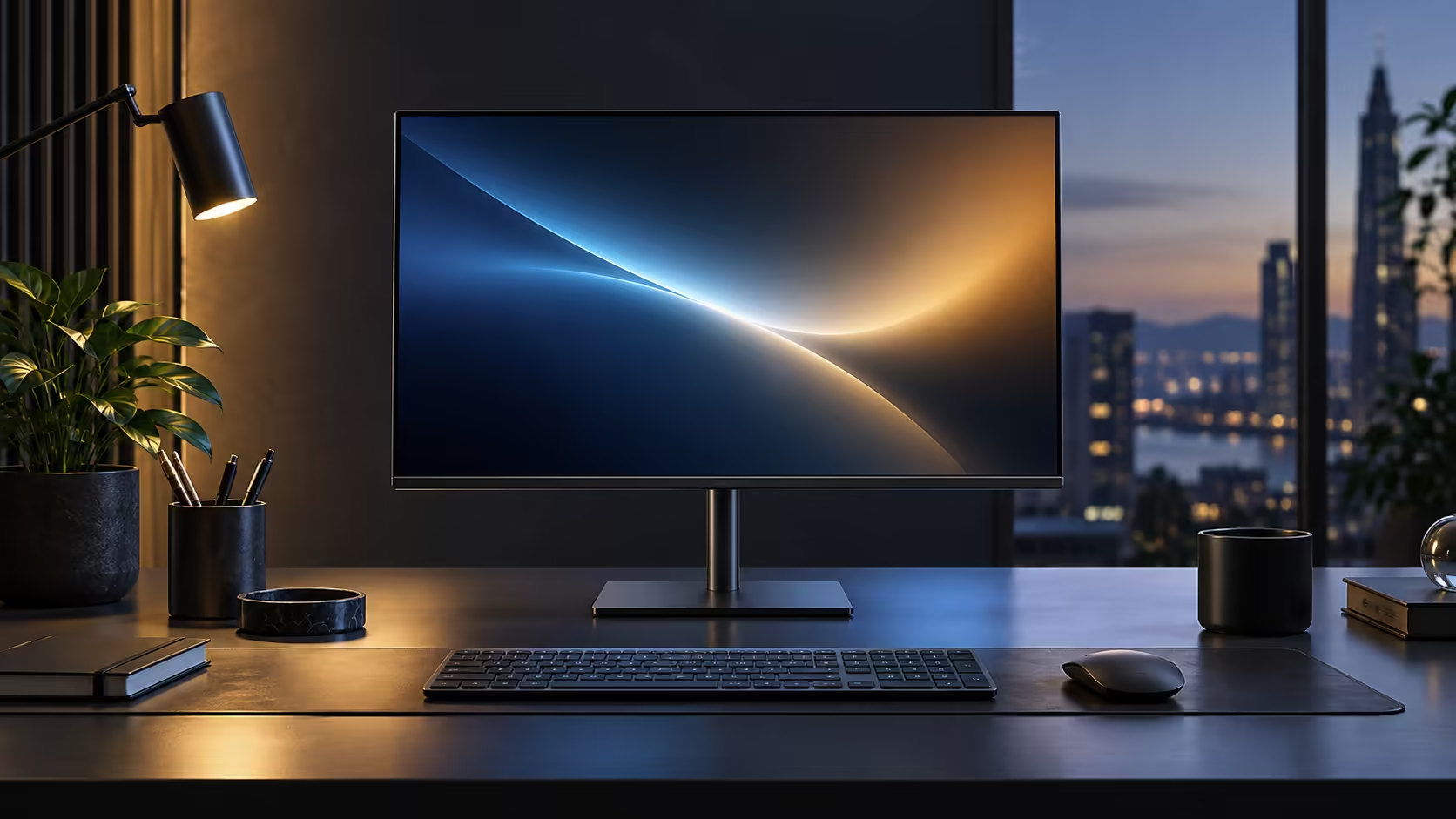
Four words cover almost everything a good monitor stand can do, and most people only ever use one of them. Understanding what height, tilt, swivel and pivot each solve makes the other three worth actually using instead of leaving the stand exactly where it arrived. The Dell Pro 24 Plus P2425DE's stand at R6,099 adjusts across all four.
Quick Answer
Four movements cover almost every stand: height, tilt, swivel and pivot. Height decides your posture, tilt handles reflections, swivel shares the screen and pivot suits long documents. The R6,099 Dell here adjusts for all four.
📏 Height: the one adjustment that matters most
If you only fix one thing about your monitor setup, this is it.
Height adjustment moves the whole screen up or down on the stand's column, typically a range of 100 to 130mm. The goal is having the top third of the screen sit level with your eyes when seated normally, which keeps your neck in a neutral position rather than tilted down or craned up for hours at a time. A reliable way to find it: settle into a normal seated posture, shut your eyes for a second, then open them and nudge the screen until it sits exactly where your gaze already landed.
🔄 Tilt: fixing reflections without moving the whole monitor
Tilt is the adjustment people notice they need only once glare becomes a genuine annoyance.
Tilting the top of the screen back a few degrees redirects reflections from overhead lighting or a window away from your eyes rather than straight back at them. It is a small angle, usually a range of only 20 to 30 degrees total, but it makes a real difference on a desk positioned under direct ceiling lighting or facing a bright window.
↔️ Swivel: turning the whole picture toward someone else
Swivel rotates the entire panel left or right on its base without changing height or tilt.
This matters most on a desk that occasionally hosts a second person, whether that is a colleague reviewing a document together or a quick screen-share moment that does not warrant setting up a proper video call. Rather than both people crowding around a fixed screen, swiveling the monitor briefly toward whoever needs to see it, then swiveling it back, solves the problem in under 5 seconds.
🔃 Pivot: rotating the whole screen into portrait mode
Pivot is the adjustment with the narrowest but most valuable use case of the four.
Rotating the panel 90 degrees into portrait orientation suits reading long documents, reviewing code, or working with a tall spreadsheet where landscape orientation wastes width and runs out of vertical room quickly. After physically rotating the screen, Windows needs telling too: open Display settings from the desktop's context menu and switch the orientation dropdown over to Portrait to match. The office monitor range lists stands offering this full set of movements, a VESA arm from monitor accessories adds further travel if the bundled height range falls short, and a desk mat rounds out the desk.
Frequently Asked Questions
Which of the four adjustments should I set up first?
Height, since it has the biggest impact on posture and neck strain, and it establishes the baseline the other three adjustments build on.
Do I need to use tilt, swivel and pivot regularly, or are they one-time settings?
Height and tilt are usually set once and left alone. Swivel and pivot are more often used situationally, for a shared moment at the desk or a specific document type.
Why does my screen appear sideways after I physically rotate it to portrait?
Windows needs a separate setting change. Right-click the desktop, open Display settings, and change the orientation dropdown to match the physical rotation.
Can all four adjustments be locked in place once set?
Most stands allow free movement rather than locking, though the mechanism is generally firm enough to hold position without drifting during normal use.
Do cheaper monitors usually offer all four adjustments?
No. Height adjustment is the most commonly cut feature on budget stands, followed by pivot, since both add mechanical complexity that tilt and swivel alone do not require.
Is it worth buying a separate monitor arm if my stand already has all four adjustments?
Generally not, unless you specifically need a longer height range or the ability to mount the monitor away from a desk surface, such as on a wall or a shared bench, since a bundled stand with all four movements already covers most ergonomic needs.
Does using pivot mode wear out the stand faster than the other adjustments?
No. All four adjustments are built into the same mechanism and rated for repeated everyday use, so switching to portrait mode occasionally causes no more wear than adjusting height or tilt.
Can I adjust the stand while the monitor is powered on?
Yes. None of the four adjustments require powering the screen off first, so you can fine-tune height, tilt, swivel or pivot while actively working.
🔩 Why these four movements are usually enough on their own
It is worth being clear about what these adjustments do not need to be supplemented with for the vast majority of desks, even on a stand built around the common 100 x 100mm VESA mounting pattern.
Depth adjustment, moving the screen closer or further from you along the desk, is rarely built into a stand, since simply sliding the whole monitor and stand along the desk surface achieves the same result without added mechanical complexity or cost. Rotation around a vertical axis beyond swivel's range, or tilting sideways rather than back and forth, are movements almost nobody actually needs for office work, which is why manufacturers settle on these four as the standard set rather than building in additional axes of movement.
🧰 What to check before assuming a monitor has full adjustment
Product listings do not always spell out the stand's capabilities clearly, so a specific check avoids disappointment after delivery.
Look for "height adjustable," "tilt," "swivel" and "pivot" spelled out individually in a monitor's specification list, rather than a vague phrase like "ergonomic stand" that could mean any single one of them or none at all. Where a range is given for height adjustment, typically 100 to 130mm, compare it against your own desk and chair combination to confirm it actually reaches the eye level your setup needs, since a stand advertised as height adjustable can still have a shorter range than your desk requires.
Ready to actually use the stand you already have?
Set height first using the eyes-closed test, then explore tilt, swivel and pivot as your day requires them.