Quick Answer
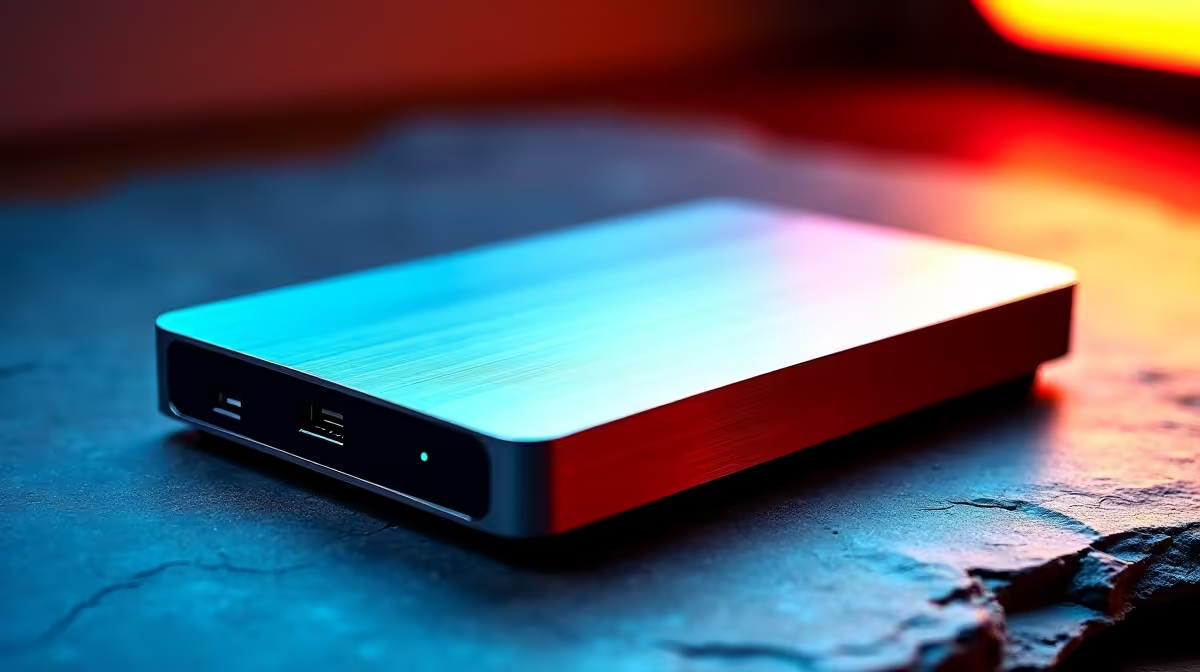
Installing an external SSD is straightforward: plug it into a USB port on your PC, wait for Windows to detect it, then format and assign a drive letter if it's a new drive. No tools or technical skills required for most USB external SSDs - the whole process takes under five minutes.
External SSDs are one of the easiest upgrades you can add to any PC. Whether you've just bought a portable SSD for backup, gaming, or extra workspace, getting it running on your Windows machine is a simple process. South African gamers often use external SSDs to move game libraries between systems or expand storage without opening their case - and the plug-and-play nature of modern USB SSDs makes this surprisingly painless.
Connecting Your External SSD for the First Time
Start by identifying the correct cable for your drive. Most external SSDs ship with a USB-C to USB-A cable. Connect one end to the SSD and the other to a USB port on your PC. For best performance, use a USB 3.0 or USB 3.1 port - these are typically marked with a blue plastic insert inside the port or labeled SS (SuperSpeed) on the chassis. Avoid using front panel USB ports on older cases if possible, as they sometimes run at lower speeds due to the internal header connection.
Once plugged in, Windows will make a sound and the drive should appear in File Explorer within a few seconds if it's been previously formatted. If nothing appears, give it 30 seconds and check again.
Formatting a New External SSD in Windows
If your external SSD is brand new or was previously used on a Mac or Linux system, it may not appear immediately in File Explorer. Don't panic - it's there, just not formatted or assigned a drive letter yet.
Right-click the Start button and select Disk Management. Look in the bottom panel for a disk listed as Unallocated or with a different file system like HFS+. Right-click that partition and select New Simple Volume. The wizard walks you through assigning a drive letter and choosing a file system - select NTFS for Windows-only use, or exFAT if you need to use the drive with both Windows and a PlayStation or Mac.
Give the volume a label (something like External SSD or Games Drive), confirm the format, and click Finish. The drive will appear in File Explorer within seconds.
Optimising External SSD Performance on Your PC
Once connected, you can improve performance with one setting. In Device Manager, find your external SSD under Disk Drives, right-click it, select Properties, then go to the Policies tab. Switch from Quick removal to Better performance and enable write caching. This boosts transfer speeds but means you must safely eject the drive before unplugging to avoid data corruption.
For gaming, external SSDs work best over USB 3.2 Gen 2 or Thunderbolt connections. If your PC has a Thunderbolt port and your SSD supports it, speeds can rival internal NVMe drives. Standard USB 3.0 external SSDs still offer 400-500 MB/s, which is fast enough for most games to load and run without noticeable penalty compared to internal SATA SSDs.
Frequently Asked Questions
Q: Do I need to install drivers for an external SSD on Windows?
A: No. Modern external SSDs use standard USB mass storage drivers built into Windows. They are fully plug-and-play and require no additional driver installation.
Q: Can I run games directly from an external SSD?
A: Yes. Steam, Epic Games Launcher, and other platforms allow you to install and run games from external drives. Performance depends on your USB connection speed, but USB 3.1+ external SSDs handle most games without issues.
Q: Why is my external SSD not showing up in File Explorer?
A: It likely needs to be initialized and formatted. Open Disk Management (right-click Start, then select Disk Management) and look for the drive in the lower panel. If it shows as unallocated, right-click and create a new simple volume to format it and assign a drive letter.