You’re lining up a perfect headshot, the final player in a tense CS2 match, and suddenly… your mouse stutters. Or maybe your headset cuts out mid-briefing in Warzone. We’ve all been there. Frustrating peripheral connectivity issues can instantly ruin a great gaming session, turning a potential win into a rage-quit. But before you throw your gear across the room, take a deep breath. This PC troubleshooting guide is here to help you diagnose and fix those pesky connection problems.
Start with the Basics: Simple Fixes for Peripheral Problems
Before diving into complex software settings, let's cover the physical culprits. More often than not, a simple physical check can resolve your peripheral connectivity issues. It sounds obvious, but you’d be surprised how often a loose cable is the villain.
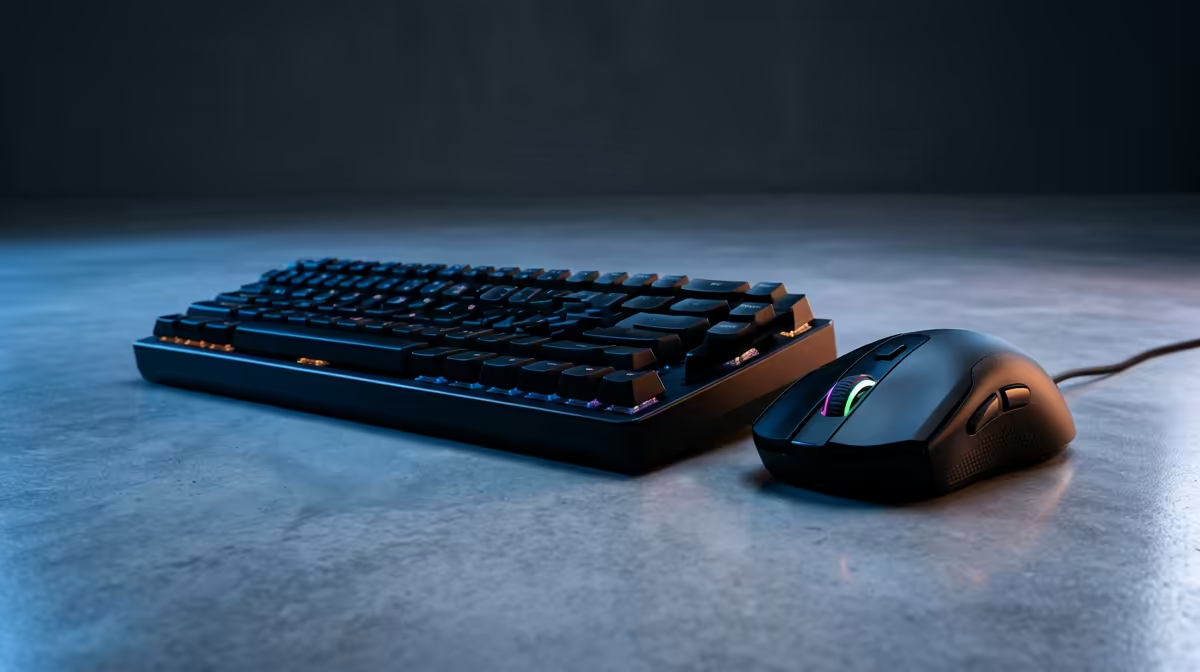
Start by unplugging the problematic device and plugging it back in firmly. No luck? Try a different USB port. Sometimes, a single port on your motherboard or case can fail. Test the peripheral on another computer if possible. If it works there, you know the problem lies with your PC, not the device. Also, inspect your cables for any visible damage—a frayed wire is a clear sign you need a replacement. For fast-paced titles, you need gear that can keep up without any connection hiccups.
Dive into Software: Driver and OS Troubleshooting 🔧
If the physical checks don't solve your connection woes, it's time to look at the software side. Outdated or corrupt drivers are a primary cause of peripheral connectivity issues.
Check Your Drivers and Windows Updates
First, head to your peripheral manufacturer's website (e.g., Logitech, Razer, Corsair) and download the latest drivers for your specific model. Don't just rely on Windows Update. While you're at it, ensure Windows itself is fully updated, as these updates often include critical bug fixes for USB controllers and Bluetooth stability.
Sometimes, a recent update is the problem. You can roll back a driver via the Device Manager if you suspect a new update caused the issue. This is especially true for complex setups, like those needed for a smooth experience on a Microsoft Flight Simulator gaming PC, where multiple devices need to work in harmony.
Power Management Pro Tip ⚡
Windows sometimes tries to save power by disabling USB ports, causing devices to disconnect randomly. To prevent this, open Device Manager, find your USB Root Hub devices under "Universal Serial Bus controllers," right-click each one, go to Properties > Power Management, and uncheck "Allow the computer to turn off this device to save power."
Advanced Diagnostics for Stubborn Connectivity Issues
Still having trouble? Let's dig deeper. Some peripheral connectivity issues stem from more fundamental hardware or power limitations. If you're using a USB hub, especially for power-hungry devices like webcams or external drives, it might not be supplying enough juice. Try plugging the device directly into a motherboard port.
For graphically intense games that push your whole system, like on a powerful Cyberpunk 2077 gaming PC, an underpowered or failing Power Supply Unit (PSU) can cause instability across all components, including USB ports. While it's less common, it's a possibility for persistent problems. Even in less demanding games, a stable system is key, which is why a well-built Minecraft gaming PC focuses on reliability.
When Is It Time to Upgrade?
You've followed every step in this PC troubleshooting guide, but your gear still drops out. Sometimes, the hard truth is that your hardware is simply reaching the end of its life. An aging motherboard can develop faulty ports, and older peripherals can fail internally. If you’re spending more time fixing peripheral connectivity issues than playing, it might be a sign.
A new, modern PC provides more than just FPS. It offers a stable platform with the latest connectivity standards, robust power delivery, and clean software. A solid foundation ensures that whether you're in the final circle on a PUBG gaming PC, coordinating with your team on a machine built for Overwatch 2, or just cruising the streets on a GTA V gaming PC, your gear will perform flawlessly. ✨
Tired of Troubleshooting? Upgrade Your Core.
While this guide can solve many problems, sometimes the issue is an aging motherboard or a struggling power supply. A new rig isn't just about speed; it's about stability. Explore our range of custom gaming PCs and build a rock-solid foundation for your peripherals.