



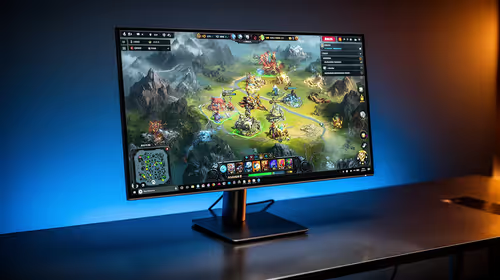
IPS vs VA for Strategy and Sim Games in SA
IPS vs VA for strategy and sim games should be judged by fit, not a single winner. Compare compatibility, latency, capacity, upgrade path, cost planning, and South African setup needs.
Read moreYour handheld gaming pc won't turn on and you're stuck on a black screen? Don't panic! 😨 This expert guide provides simple, step-by-step solutions to diagnose and fix common boot-up issues, from battery problems to software glitches, getting you back in the game fast. 🚀
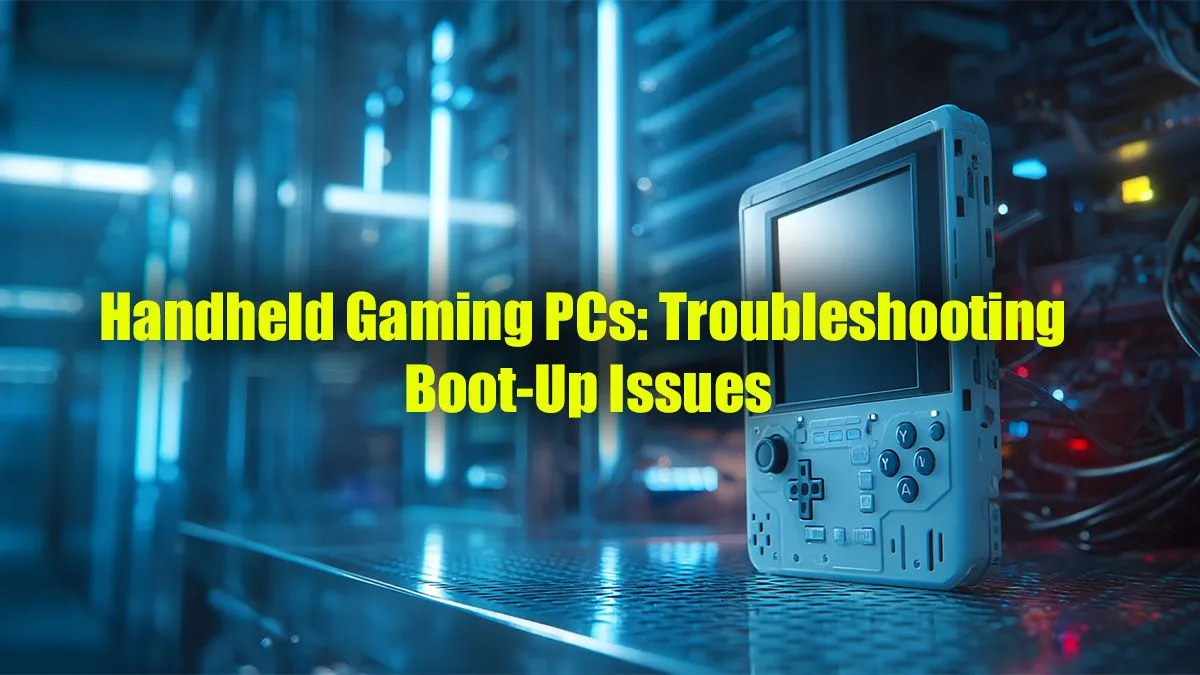
That gut-wrenching moment. You reach for your Steam Deck, ROG Ally, or Legion Go, press the power button... and nothing. Just a black screen staring back. Before you panic, take a deep breath. That powerful portable rig is likely not a paperweight just yet. When your handheld gaming PC won't turn on, it's usually due to a handful of common issues you can fix yourself. This guide will walk you through the troubleshooting steps, from the dead simple to the slightly more advanced. 🚀
Before diving into the device's internals, let's cover the basics. More often than not, one of these simple checks will solve the problem when your handheld gaming PC won't turn on.
It sounds obvious, but you'd be surprised how often the culprit is power-related.
If power isn't the issue, a software glitch might be preventing your device from booting. A hard reset is your next best friend.
This forces a complete power cycle and can clear temporary firmware issues that cause a black screen.
To prolong your handheld's battery life, avoid leaving it fully charged or completely empty for long periods. If you're not using it for a while, aim to store it with around 50-60% charge. This reduces stress on the battery cells and keeps it healthier for longer.
If the simple fixes didn't work, it's time to dig a little deeper. If your handheld PC is not starting, these next steps can help you diagnose the root cause. Don't worry, you won't need a soldering iron... yet.
Even with a black screen, your device might be trying to tell you something.
To properly listen for faint fan sounds, a quiet room is essential. If you need to block out background noise, a good pair of noise-isolating headphones from our best gaming headset deals can be surprisingly helpful for this diagnostic step.
It's possible your handheld is turning on, but the built-in display is not. This is a common point of failure. Grab a USB-C to HDMI adapter or a compatible docking station and connect your device to an external monitor or TV. If an image appears, you've found your problem! This is where having the right kit comes in handy; a versatile hub from our gaming accessories deals can make tasks like this a breeze.
If your handheld gaming PC still won't turn on after all that, the issue might be internal. Proceeding with these steps could void your warranty, so check your device's warranty status first. If you're out of warranty and feeling brave, let's pop the hood.
Sometimes, a good bump or drop can slightly dislodge an internal component like the battery connector or the SSD.
A dead SSD can absolutely prevent a device from booting. If you suspect the drive has failed, replacing it is a viable fix. Upgrading while you're at it can give your machine a new lease on life with more space and speed. Check out our best SSD deals for some excellent high-speed options.
If you've tried everything and are still met with a black screen, it might be time to contact the manufacturer's support or a professional repair shop. A critical hardware failure, like a motherboard issue, is best left to the experts. ✨
Ready for an Unbeatable Gaming Experience? Whether you're fixing your trusty handheld or looking for a powerful new rig, Evetech has your back. From high-performance components to the latest gaming PCs, we've got the gear to keep you in the game. Explore our incredible gaming specials and build your ultimate setup today.
Common causes include a completely drained battery, a faulty charger or cable, a software crash, or a hardware failure. Start by charging it for at least 30 minutes.
Most devices like the Steam Deck or ROG Ally can be force-restarted. Press and hold the power button for 10-15 seconds until the device fully powers down and reboots.
A boot loop is when your device tries to start, shows the logo, and then restarts repeatedly. This often points to a corrupted operating system file or a driver conflict.
First, perform a hard reset by holding the power button for 15 seconds. If that fails, connect the original charger, check the charging light, and let it charge.
Yes. If a battery is deeply discharged, the device may require several minutes of charging before it has enough power to boot, even while connected to an outlet.
The method varies. For Windows handhelds, you often interrupt the boot process three times. For Steam Deck, hold 'Volume Down' and press the power button to enter the boot menu.
IPS vs VA for strategy and sim games should be judged by fit, not a single winner. Compare compatibility, latency, capacity, upgrade path, cost planning, and South African setup needs.
Read more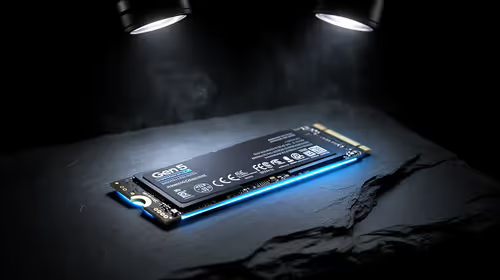
Gen 5 NVMe SSD guide for Bloemfontein gamers should be shortlisted around the job it must do. South African buyers should compare capacity, speed, thermals, and motherboard support, warranty path, and upgrade room before treating any pick as best.
Read more
Skip the RTX 5070 if your first-time builder budget needs better balance. Better SA picks can free room for the right CPU, PSU, case, monitor, storage, and cooling while still giving a strong first gaming PC experience this year in South Africa.
Read more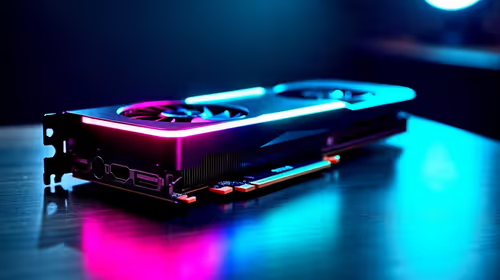
RTX 5080: weighing the pros and cons for SA should be shortlisted around the job it must do. South African buyers should compare GPU tier, VRAM, cooling, and PSU headroom, warranty path, and upgrade room before treating any pick as best.
Read more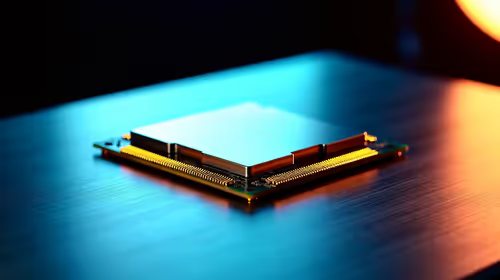
Core i5-13400F gives South African PC builders a capable mid-range CPU choice with clear limits. Check its gaming fit, discrete GPU requirement, LGA1700 platform costs, and upgrade path before locking in your parts list.
Read more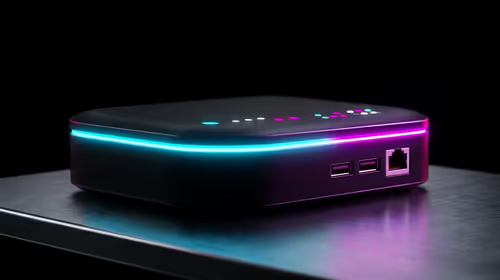
Pros and cons of the Wi-Fi 7 routers for SA should be shortlisted around the job it must do. South African buyers should compare WiFi standard, coverage, latency, and device support, warranty path, and upgrade room before treating any pick as best.
Read more
Steam content servers unreachable needs a download-path check, not an immediate reinstall of every game. Restart the client, inspect download settings and compare another connection when practical. Clearing the download cache is separate from deleting installed games.

Keychron G6 HE has built-in and swappable battery versions with different weights. The product brief lists 42g and 46g respectively, each with a 3g tolerance. Choose by grip and battery preference before treating one headline weight as universal.

Corsair HS80 v2 MAX supports 2.4GHz wireless and Bluetooth. Its maximum battery figures use RGB-off conditions and differ by connection. Check microphone routing, comfort and the exact device support before assuming every wireless mode behaves alike.

Windows taskbar notification badges can be shown or hidden in Taskbar behaviours. This changes the small app indicators, not the underlying messages. Choose a calmer desktop while keeping a deliberate routine for checking important conversations and app updates.

Windows title bar window shake can minimise other open windows when you shake the active window by its title bar. Inspect the Multitasking setting and switch it off if that gesture interrupts your work. The preference costs R0 and does not require new hardware.

Windows Print Screen opens Snipping Tool when its keyboard preference is enabled. Change the option under Accessibility, Keyboard to choose another workflow. Test whether you need a clipboard image or a saved file.

Windows desktop icons missing may be a visibility setting. Right-click the desktop, choose View and inspect Show desktop icons. If only system icons are absent, use Desktop icon settings. Check the Desktop folder before assuming files were deleted.

Windows set time zone automatically greyed out calls for a location and device-policy check. Automatic time-zone selection relies on location services. A manual time-zone choice is separate from synchronising the clock; check both before replacing hardware.
Windows title bar window shake can minimise other open windows when you shake the active window by its title bar. Inspect the Multitasking setting and switch it off if that gesture interrupts your work. The preference costs R0 and does not require new hardware.
Windows Print Screen opens Snipping Tool when its keyboard preference is enabled. Change the option under Accessibility, Keyboard to choose another workflow. Test whether you need a clipboard image or a saved file.
Windows desktop icons missing may be a visibility setting. Right-click the desktop, choose View and inspect Show desktop icons. If only system icons are absent, use Desktop icon settings. Check the Desktop folder before assuming files were deleted.
Windows set time zone automatically greyed out calls for a location and device-policy check. Automatic time-zone selection relies on location services. A manual time-zone choice is separate from synchronising the clock; check both before replacing hardware.