Quick Answer
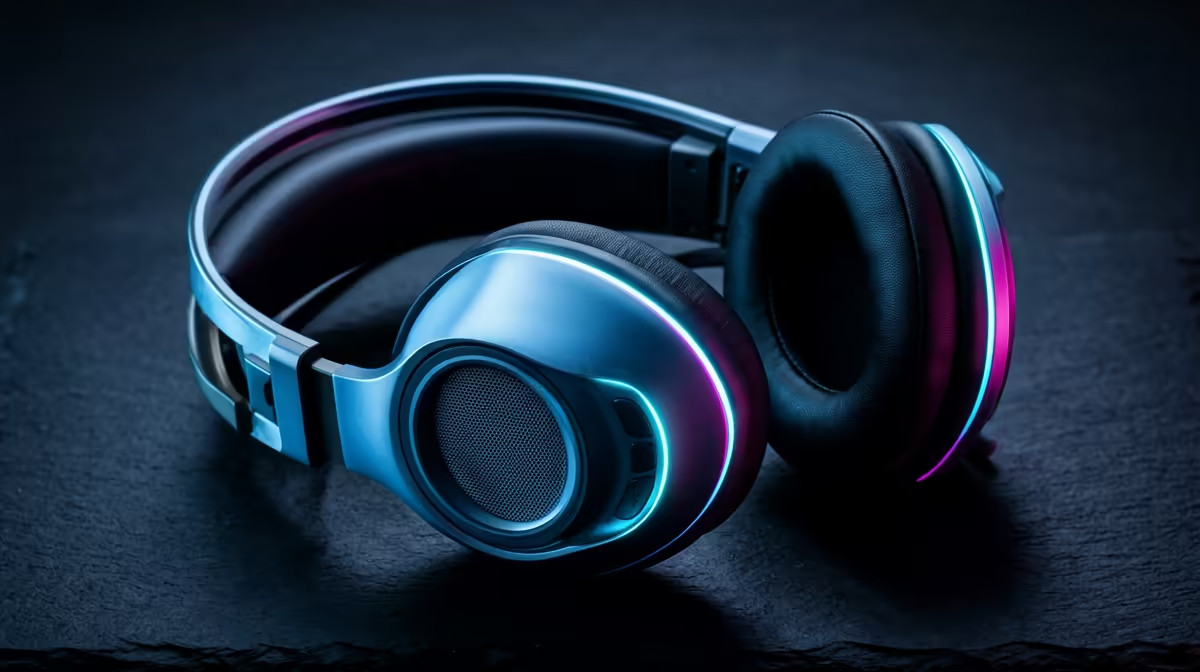
Setting up a dual wireless gaming headset across PC, console, and mobile takes three steps: plug the USB dongle into your PC or PS5 and allow it to auto-connect, hold the Bluetooth pairing button until it flashes and pair to your phone, then for Xbox or Switch connect a 3.5mm cable to the controller or handheld port. The entire process takes under 10 minutes and requires no software for basic operation.
PC Setup: Dongle Installation and Windows Configuration 🖥️
Plug the USB dongle into a rear motherboard USB port for the best signal stability. Windows 11 installs the audio driver automatically; the headset appears in Sound Settings within 30 seconds. Right-click the headset and set it as both Default Playback Device and Default Communications Device. This prevents Windows from routing Discord microphone input through a different path when a call starts. Install the companion app to access EQ profiles, microphone sensitivity, and battery monitoring. Power on the headset; it connects to the dongle automatically without any Bluetooth pairing required.
Console Setup: PS5, Xbox, and Nintendo Switch 🎮
For PS5, plug the USB dongle into the PS5's rear USB-A port. Navigate to Settings then Sound then Audio Output and select the headset as the output device. Enable chat audio mixing in Accessories settings if available. Xbox does not support third-party 2.4GHz wireless; connect using the 3.5mm cable to the Xbox controller's headphone jack for combined game and chat audio. On Nintendo Switch in docked mode, plug the dongle into the dock's USB-A port; in handheld mode use the 3.5mm jack to the Switch headphone port. Update headset firmware before the first PS5 connection, as some models require a firmware update for PS5 chat mixer support.
Mobile Bluetooth Pairing and Simultaneous Use 📱
With the PC dongle connected, hold the Bluetooth button on the headset for 3 seconds until the LED flashes rapidly. Open Bluetooth settings on your Android or iOS phone and select the headset from the available devices. After pairing, the headset maintains both the 2.4GHz connection to the PC and the Bluetooth connection to the phone simultaneously. Incoming WhatsApp calls on the phone route directly to the headset while game audio continues over 2.4GHz. For South African gamers who receive WhatsApp calls regularly during gaming sessions, this simultaneous connection means you never miss a call without leaving the game. The Bluetooth pairing persists across power cycles; you only pair once.
Factory Reset If Connections Misbehave ⚡
If the headset fails to connect to the dongle after a Windows reinstall, hold the power button for 10 to 15 seconds to factory reset the wireless pairing. Then re-sync the dongle by pressing the sync buttons on both the dongle and headset simultaneously. This resolves the majority of persistent connection problems without contacting support.
FAQ
Do I need to re-pair Bluetooth every time I turn the headset on?
No. Once paired, Bluetooth devices reconnect automatically when the headset powers on and the phone is in range. Some headsets connect to the last-paired Bluetooth device on power-up; others wait for a manual button press. Check the quickstart guide for the reconnect behaviour of your specific model.
Can I use a dual wireless headset on a MacBook as well as a Windows PC?
Yes. The USB dongle functions as a standard USB HID audio device on macOS without drivers. Razer Synapse is not available on macOS, so EQ settings configured on Windows are stored in the headset's onboard memory and remain active. Audio input and output work correctly for gaming on macOS and for video calls.
What if the 3.5mm cable is missing from the box?
A standard 3.5mm TRRS cable (4-pole) available for under R80 at local electronics stores works as a replacement for Xbox and Switch connections.
Setting up your new dual wireless headset for every device in your setup?
Browse Evetech's range of dual wireless gaming headsets with full setup guides and South African technical support.