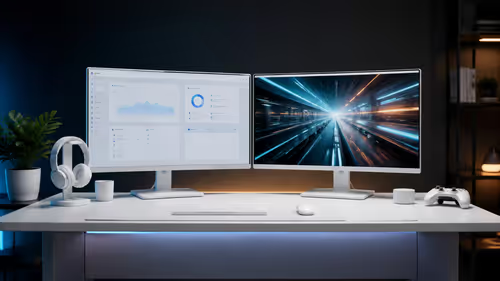
Tired of that snake pit of cables sprawling across your desk every time you plug in your laptop? One for the monitor, another for the keyboard, one for the charger... it's a mess. A laptop docking station transforms that chaos into a clean, one-cable command centre 🔌. This user-backed buyer's guide is your roadmap to finding the perfect hub for your setup in South Africa, boosting your productivity and reclaiming your desk space for good.
Why a Docking Station is Your Setup's Unsung Hero
Let's be honest, the "one-port-to-rule-them-all" dream sold with modern laptops often means you're left juggling dongles. A docking station is the elegant solution. It acts as a central hub, allowing you to connect your monitors, keyboard, mouse, network cable, and other peripherals to the dock itself.
Then, you connect your laptop with a single USB-C or Thunderbolt cable. That's it. You get a full desktop experience instantly, with the freedom to grab your laptop and go whenever you need to. It's the ultimate blend of portability and power.
The Ultimate Laptop Docking Station Buyer's Guide
Choosing the right docking station can feel tricky, but it boils down to matching the hardware to your specific needs. Follow this simple buyer's guide to make the perfect choice.
Port Authority: What Connections Do You Actually Need?
Start by listing your essentials. How many USB devices do you use? Do you need a wired internet connection (Ethernet)? What about an SD card reader for your camera?
- USB-A: For your keyboard, mouse, webcam, and older devices.
- USB-C/Thunderbolt: For modern SSDs, smartphones, or even daisy-chaining other hubs.
- HDMI/DisplayPort: For connecting external monitors. Check what ports your monitors have!
- Ethernet (RJ45): For a stable, faster internet connection than Wi-Fi.
- Audio Jack: For headphones or speakers.
Look for a dock that covers your daily drivers without paying for ports you'll never use. Reputable manufacturers offer various configurations, so it's worth checking out collections from trusted brands like Promate to see the different layouts available.
Pro Tip: Check Your Laptop's Port!
Not all USB-C ports are created equal. For a dock to work fully, your laptop's USB-C port needs to support 'DisplayPort Alternate Mode' for video and 'Power Delivery' for charging. Look for a small 'DP' or lightning bolt ⚡ symbol next to the port.
Power Up: Understanding Power Delivery (PD)
One of the best features of a modern docking station is Power Delivery. This means the dock can charge your laptop through the same single USB-C cable it uses for data and video. No more digging out your original charger!
Check your laptop's power requirements (usually printed on the bottom or on its power brick) and choose a dock that meets or exceeds that wattage. For most ultrabooks, 65W is plenty, while gaming laptops might need 90W or more. You can find excellent options delivering 65W or more under R2000, making it an affordable upgrade.
Display Dreams 🖥️: Driving Your Monitors
Your visual setup is crucial. Before buying, ask yourself:
- How many monitors do I want to connect?
- What resolution and refresh rate do they run at? (e.g., 1080p @ 144Hz, 4K @ 60Hz)
A simple dock might support a single 4K monitor, while a more advanced Thunderbolt dock could handle dual 4K displays or even an 8K screen. Always check the dock's specifications to ensure it can drive your specific monitor setup without compromising on refresh rate, which is especially important for a smooth gaming experience.
Finding the Sweet Spot: Budget and Build
You don't need to break the bank to declutter your desk. The key is to pay for the features you need. If you only need to connect a single monitor and a few USB devices, there are many perfectly capable hubs for under R1000 that will get the job done reliably. Investing in a quality dock is investing in a smoother, more organised workflow for years to come.