



80+ Gold vs 80+ Platinum for Couch co-op gaming in SA
80+ Gold vs 80+ Platinum for couch co-op gaming is about PSU efficiency, heat, fan behaviour, quality, and wattage headroom, not direct FPS. SA buyers should compare the whole build.
Read moreOur guide to OLED ClearType tuning is here to solve blurry text and color fringing on your new display. Learn why OLED subpixel layouts cause issues with Windows ClearType and follow our step-by-step instructions to achieve crisp, clear text. Your eyes will thank you! 👀💻

So, you’ve just unboxed your glorious new OLED monitor. The colours are breathtaking, the blacks are deeper than a mineshaft, and games look absolutely incredible. But when you open a browser or a document… wait, is the text supposed to look that… fuzzy? 😵💫
Don't panic! You haven't bought a dud. This is a common quirk with many OLED panels on Windows, but the fix is surprisingly simple. This guide will walk you through the steps for perfect OLED ClearType tuning.
The secret behind fuzzy text on many OLEDs comes down to tiny, microscopic things called subpixels—the individual red, green, and blue elements that make up a single pixel.
For years, LCD monitors have used a standard horizontal Red-Green-Blue (RGB) stripe layout. Windows' ClearType technology was built specifically to make text sharper on this exact layout. However, many modern OLED panels, especially QD-OLEDs, use a different subpixel arrangement (like a triangular pattern) to maximise brightness and colour.
Windows sometimes gets confused by this new layout, resulting in text that has slight colour fringing or looks less sharp than it should. It’s not a fault of the monitor, but a software-to-hardware mismatch. Luckily, you can retrain Windows to understand your screen perfectly. This process is essential for getting the most out of the wide variety of PC monitors available today.
Running the built-in Windows ClearType Text Tuner is the most important step to getting crisp, clean text. It’s a simple wizard that adjusts text rendering to your specific monitor and your eyes.
Here’s how to do it:
You should immediately notice a significant improvement in text clarity across Windows and all your applications. This simple OLED ClearType tuning process makes a world of difference.
If you've run the tuner and still feel things could be better, a few extra settings can help you achieve text perfection.
High-resolution displays, like the incredible 5K and 4K monitors that deliver amazing detail, rely on scaling to keep text and icons from being too small.
In Windows, right-click your desktop, go to "Display settings," and find the "Scale" option. While options like 125% or 175% are available, text often renders sharpest at whole numbers like 100% or 200%. If text looks a little off, try a different scaling percentage to see if it helps.
The quest for perfect visuals doesn't end with software. Whether you're optimising a massive curved monitor for total immersion or a handy portable monitor for productivity on the go, your physical connection matters. A poor-quality cable can introduce signal noise that affects clarity. Using a certified, high-bandwidth DisplayPort or HDMI cable is a simple way to rule out any connection issues. You can find high-quality cables and other essential monitor accessories to complete your setup.
Ultimately, taking a few minutes to configure your display unlocks the full potential of today's incredible gaming monitors. After all, you invested in amazing hardware—these small tweaks ensure the software lives up to it.
Ready to Compare Clearer Gaming Monitors? Apply the ClearType fixes first, then browse current gaming monitors if the panel itself is the limitation.
Text can look poor on OLED monitors due to their unique subpixel layouts, which conflict with how Windows ClearType is designed to render fonts, causing fringing.
OLED ClearType tuning is the process of adjusting Windows' font-smoothing settings to correctly match your monitor's specific subpixel structure for sharper text.
Yes. Using the built-in Windows ClearType Tuner or third-party tools, you can significantly reduce or eliminate color fringing on text for a much cleaner look.
QD-OLED monitors often have a triangular subpixel layout that can present more challenges for text clarity than some WRGB panels, making proper tuning essential.
Disabling ClearType completely can make text look blocky. It is better to perform OLED ClearType tuning first to find the best balance between sharpness and smoothness.
The best way to improve text sharpness on an OLED screen is by running the ClearType Text Tuner and carefully selecting the text samples that look clearest on your display.
80+ Gold vs 80+ Platinum for couch co-op gaming is about PSU efficiency, heat, fan behaviour, quality, and wattage headroom, not direct FPS. SA buyers should compare the whole build.
Read more
80+ Platinum or 80+ Titanium for competitive should be shortlisted around the job it must do. South African buyers should compare fit, performance, compatibility, and upgrade room, warranty path, and upgrade room before treating any pick as best.
Read more
The real world difference between IPS and OLED for AAA single-player gaming is immersion versus versatility. OLED lifts contrast and dark scenes, while IPS can suit bright rooms, mixed PC use, and SA buyers watching total setup cost.
Read more
HDMI 2.1 vs HDMI 2.0 for SA MMO needs a workload-first comparison. For SA buyers, judge real performance, platform fit, warranty path, power needs, and upgrade timing before choosing either side.
Read more
USB4 and Thunderbolt 4 differ for competitive esports through dock, display, and capture consistency. Use this real world difference between usb4 and thunderbolt 4 for competitive guide to keep SA tournament desks tidy without assuming better ping.
Read more
Magnetic switches vs Mechanical switches depends on Competitive esports needs, platform limits, and budget fit. Compare compatibility, latency, upgrade path, and real setup constraints before choosing for an SA build.
Read more
B850 motherboard FPS drops needs a methodical troubleshooting pass. Review drivers, thermals, power settings, background apps, cables and game settings before replacing parts in an SA gaming setup.

Gaming PC FPS drops in South Africa often come from drivers, thermals, background apps, power plans, or in-game settings. Check one change at a time and use the same scene before buying upgrades for your local setup.

Difference between PCIe 5.0 and PCIe 4.0 explained for PC builders starts with bandwidth, lanes, and support. SA builders should match the motherboard, GPU, NVMe drive, and budget before choosing a platform.

Windows 11 mechanical keyboard setups rarely cause display banding directly. Fix color banding by checking HDR, colour depth, GPU range, monitor profiles, and any new RGB utility conflicts.

Steam Big Art Mode enlarges library artwork in Big Picture Mode and on Steam Deck, while the same beta adds configurable screensavers. Both features are optional and currently require the Steam beta client.

Diablo 4 HDR settings work best after Windows and the display are calibrated, then the game's black point, brightness and white point are adjusted in that order. Use visible shadow detail and controlled highlights, not copied values from another screen.

The best HOTAS for Elite Dangerous is a separate stick-and-throttle set with enough analogue axes for pitch, roll, yaw and thrust, plus local support. Evetech's captured flight-simulation sample lists the complete Logitech X56 at R4,999.

Nintendo Switch 2 docked VRR arrives with system version 23.0.0 and also requires a dock update. The connected TV or monitor and the running software must support VRR before the output can follow changing frame rates.

NVIDIA lists 550W required system power for the RTX 5060 reference specification, based on a high-end test system. A quality 550W unit can be enough, but CPU draw, transient load, connectors and ageing decide real headroom.

The VAIO T combines a 13.3-inch display with a multi-flip mechanism for laptop, tablet and outward-facing viewing modes. Orders begin in Japan on 18 September; South African availability is unconfirmed.

OpenRGB's master branch now carries changes labelled for 1.0 final, including translation and platform work, but the official tags page still lists 1.0rc3.1 as the newest packaged release. Stable users should wait for the signed release channel.
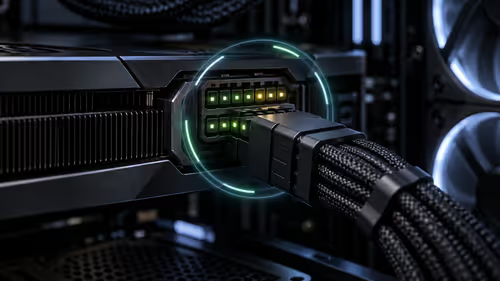
The Cooler Master GPU Shield Adapter monitors current on individual 12+4-pin contacts, adds visual and audible warnings, and can reduce system power during a severe abnormality. Local availability is unconfirmed.