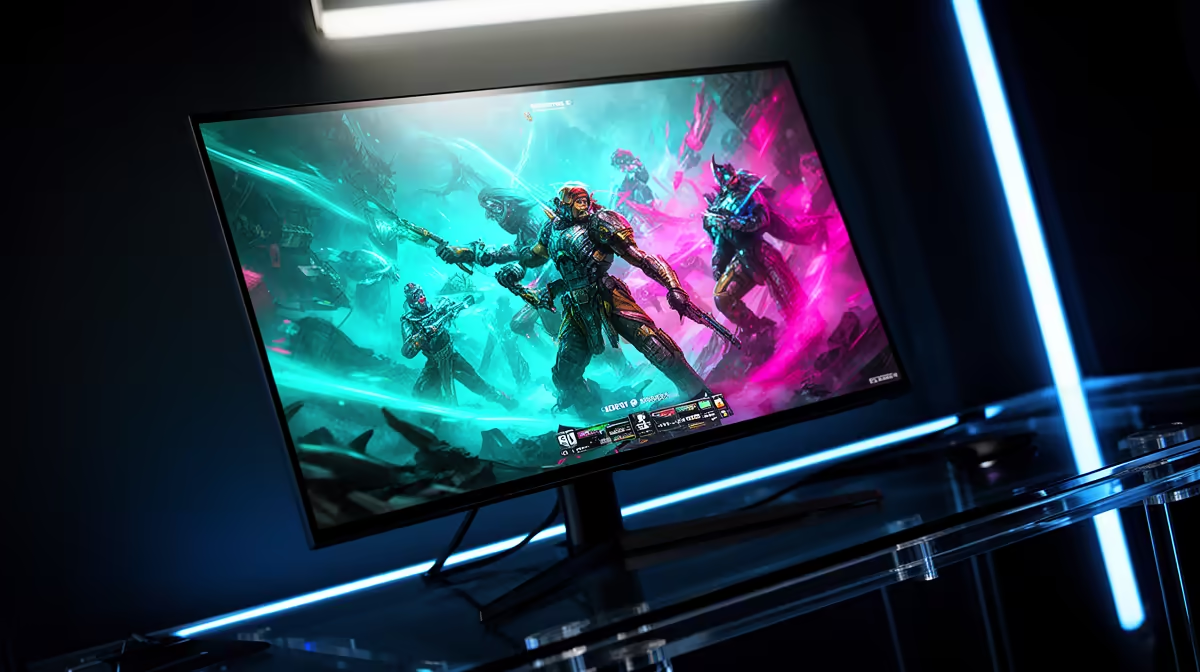
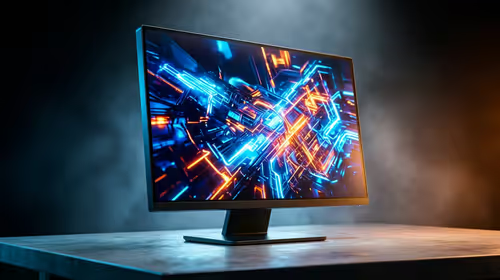
So, you’ve done it. You’ve brought home a brand-new OLED gaming monitor, unboxed it with the care of a bomb disposal expert, and plugged it in. You fire up your favourite game, ready for those legendary inky blacks and explosive colours… but something feels… off. The picture is a bit too bright, the colours seem unnatural, or the motion isn't quite right. Don't worry, you haven't made a mistake. You just need the perfect OLED gaming monitor setup.
Why Your OLED's Default Settings Need a Tweak
Monitor manufacturers calibrate their screens to look spectacular under the harsh fluorescent lights of a retail store, not your cosy gaming nook in Cape Town. These "out-of-the-box" settings often crank up the brightness and colour saturation to stand out on the shelf, which isn't ideal for accurate, immersive gaming.
A proper OLED gaming monitor setup ensures you're getting what you paid for: perfect blacks, incredible contrast, and lightning-fast pixel response times without crushed details or overblown highlights. It's the difference between a good picture and a truly breathtaking one. This is true across the board, from entry-level screens to the most premium PC monitors on the market. Getting this right is why these panels often top the charts for the best PC monitor deals when performance is key.
Your Step-by-Step Guide to the Perfect Picture 🚀
Let's get your screen looking its absolute best. Grab your monitor's remote or find the little joystick control, and let's dive into the on-screen display (OSD). While menus vary between brands like Alienware, LG, and ASUS, the core principles are the same.
Step 1: Choose the Right Picture Mode
Your first stop is the Picture Mode setting. You'll see options like "Vivid," "Standard," "Cinema," and "Game."
- Avoid: "Vivid" or "Dynamic." These are the showroom modes that oversaturate colours.
- Choose: "Game," "Gamer 1," or "Custom." These modes are designed to minimise input lag and usually provide a more neutral starting point for your OLED gaming monitor setup.
Step 2: Dial In Brightness and Colour
This is where the magic happens. OLEDs behave differently from traditional LCDs, so your approach needs to be slightly different.
- OLED Pixel Brightness: This is your main brightness control. For a room with controlled lighting, a setting between 60-80 is often the sweet spot. For HDR content, you'll want to max this out to give the panel its full dynamic range.
- Contrast: Leave this at its default, which is usually around 85-95. Pushing it too high can "clip" white details, meaning you lose information in the brightest parts of the image.
- Colour Temperature: "Standard" or "Normal" can often look a bit too blue (cool). For a more natural and eye-friendly picture, try "Warm1" or a setting close to 6500K. This is crucial for both flat and the most immersive curved monitors.
- Black Stabilizer / Shadow Boost: This feature brightens the darkest areas of the screen to reveal enemies lurking in the shadows. It's a great competitive advantage, but a setting that's too high will wash out those perfect OLED blacks. Start low and adjust it in-game until you find a balance you like.
Step 3: Enable HDR in Windows
If you have one of the many stunning 4K monitors with OLED technology, you need to configure HDR properly.
- Go to Settings > System > Display in Windows.
- Select your OLED monitor.
- Toggle on "Use HDR."
- Click "HDR" and run the "Windows HDR Calibration" tool. This free app from the Microsoft Store helps your PC understand your monitor's exact capabilities, resulting in a much more accurate and impactful HDR picture.
Protecting Your Investment: OLED Care and Burn-In Prevention 🔧
The spectre of "burn-in" still worries many potential OLED owners. While modern panels have excellent built-in mitigation features, a few simple habits can ensure your screen stays pristine for years. This is your primary display, not a secondary tool like the handy portable monitors you might use on the go, so it deserves a little extra care.
OLED Longevity Pro Tips ✨
1. Hide the Taskbar: Set your Windows taskbar to auto-hide. It's the most common source of static imagery. 2. Use a Black Blank Screensaver: Set a simple black screensaver to activate after 5-10 minutes of inactivity. 3. Vary Your Content: Avoid leaving a static image (like a game's HUD or a browser window) on screen for many hours at a time, day after day. 4. Trust the Tech: Enable built-in features like "Pixel Cleaning" or "Screen Move." They work automatically in the background to protect your panel.
A careful OLED gaming monitor setup is about more than just a pretty picture; it’s about unlocking the full potential of the technology you’ve invested in. By spending just 15 minutes in the settings, you can achieve a level of visual fidelity that truly transforms your gaming experience. If you're ever curious about what's new on the market, you can browse all our gaming monitors to see the latest tech.
Ready to Find Your Perfect Match?
A perfect picture makes all the difference. Whether you're after the inky blacks of OLED or the raw speed of a high-refresh-rate panel, your next upgrade is waiting. Explore our legendary custom-built gaming PCs to pair with your perfect screen.