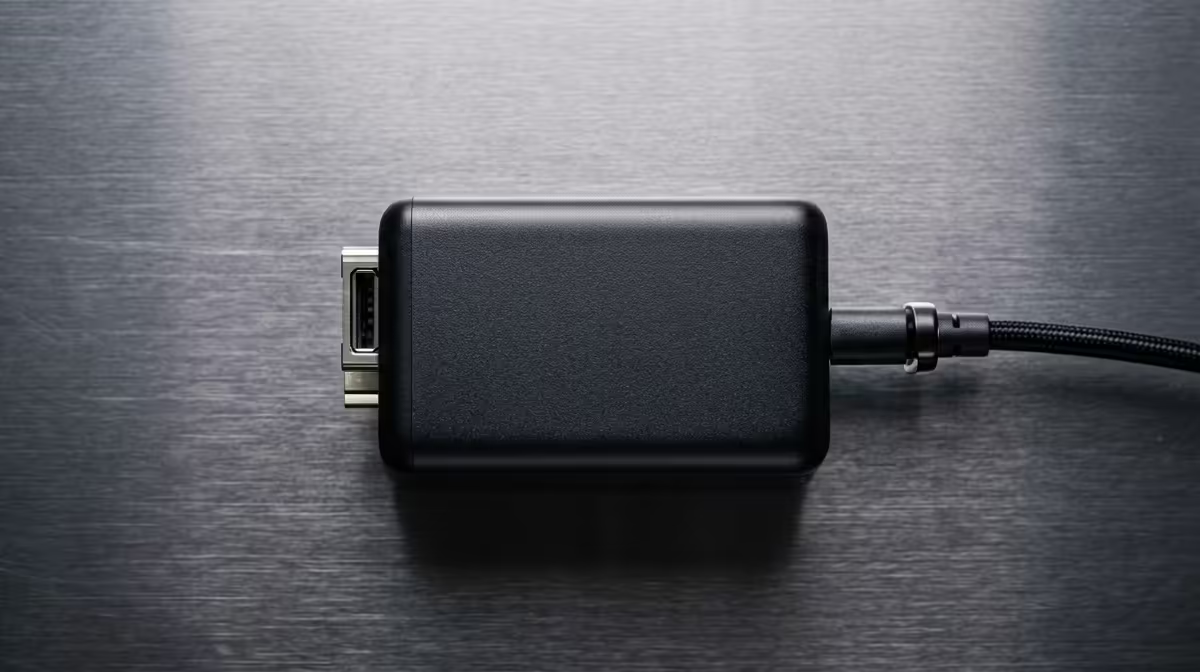
You bought a portable monitor, plugged it into your laptop's USB-C port, and got nothing but a black screen. The cause is almost always a missing video feature on that port, and the cure is a powered HDMI adapter for portable monitors. It splits the job in two: video travels over HDMI, power comes from a separate USB cable, and your second screen finally lights up regardless of what your laptop's USB-C can or cannot do.
Quick Answer
If your laptop's USB-C port lacks DisplayPort Alt Mode, a single USB-C cable cannot carry video to a portable monitor. A powered HDMI adapter solves this by sending the picture through an HDMI connection and drawing power through a separate USB cable, giving you a stable image on any portable monitor with an HDMI input.
Why a single USB-C cable sometimes fails
Not all USB-C ports are equal. To push a video signal down USB-C, the port must support DisplayPort Alt Mode, a feature that reroutes some of the connector's lanes to carry display data. Many budget laptops, work machines, and older models have USB-C ports that handle data and charging but not video. Plug a portable monitor into one of those and you get power negotiations but no picture.
This is why the same monitor works on a colleague's laptop and not yours. It is not a faulty screen or a broken cable. It is simply that one port supports video over USB-C and the other does not. Confirming this before you buy saves a lot of guesswork, and checking the portable monitor range at Evetech shows which models include an HDMI input that the adapter route depends on.
How the powered adapter solves it
The trick is to stop asking USB-C to do something it cannot. A powered HDMI adapter separates the two needs that a single cable was trying to combine.
Video takes the HDMI path
Your laptop almost certainly has an HDMI output, or a USB-C port that supports HDMI output even when it does not support the portable-monitor handshake. The adapter takes that HDMI signal and feeds the monitor's HDMI input directly. HDMI is a mature, predictable video standard, so the image is stable and the resolution is reliable.
Power comes from a separate USB cable
A portable monitor with no battery needs external power. The adapter draws that power through its own USB cable, plugged into a spare laptop port, a wall charger, or a power bank. Because power and video are no longer fighting over one connector, both jobs get done cleanly.
The result
You end up with a setup that works on practically any laptop: HDMI for the picture, USB for the juice. It sidesteps the entire DisplayPort Alt Mode question, which is exactly why it is the go-to fix for machines that lack the feature.
Setting it up step by step
- Check your monitor for an HDMI input. This method needs the portable screen to accept HDMI. Most do.
- Connect the HDMI side. Run the adapter's HDMI cable from your laptop's HDMI output to the monitor.
- Plug in power. Connect the USB power cable to a spare laptop port, a charger, or a power bank rated to supply the monitor.
- Select the input. On the monitor, switch the source to HDMI if it does not detect it automatically.
- Extend or mirror. In your operating system's display settings, choose extend for more workspace or mirror for presentations.
Choosing the right adapter and power source
Not every adapter is equal, so a little care at purchase saves frustration. Look for one that explicitly provides external power input rather than relying on the laptop's port alone, since that separate power feed is the whole point of this approach. Check that its HDMI output matches the resolution your monitor expects, so you are not capped below the screen's native sharpness.
Sizing the power source
A portable monitor's power draw depends on its size and brightness. A small screen runs happily off a spare laptop USB port, while a larger or brighter panel may want a dedicated wall charger or a power bank with enough output. If the screen flickers, dims, or refuses to wake, the usual cause is an underpowered source, so step up to a stronger charger before assuming the adapter is faulty.
Cable management on a desk
Because this method uses two cables, one for video and one for power, plan where they run. Routing the power cable to the same charger that feeds your laptop keeps the desk tidy and means one less thing to remember when you pack up. A short power bank tucked behind the monitor works well for a mobile setup.
Troubleshooting a blank screen
If the monitor stays dark after connecting, work through the obvious causes in order before blaming the hardware. First confirm the monitor is actually powered, since a portable screen with no battery shows nothing until the USB power cable is live. Next check the input source on the monitor, as many default to a different input and need switching to HDMI manually. Then open your display settings and make sure the system has detected a second screen and is set to extend or mirror rather than ignoring it. Only after those three checks is it worth suspecting a faulty cable or adapter.
A surprising number of black-screen complaints come down to power, not video. If the picture appears briefly and then drops, that is a classic sign the screen is not getting enough power, which points straight back to the source rather than the HDMI link.
When to use this versus a DP Alt Mode cable
If your laptop genuinely supports video over USB-C, a single cable is simpler and you do not need the adapter. The powered adapter is the answer specifically when that support is missing, or when you want to drive the monitor from a wall charger or power bank rather than draining the laptop. It is the reliable fallback that works no matter how limited the USB-C port turns out to be.
For comparing screen sizes and panel quality before you commit to a portable setup, the monitor best sellers at Evetech give a quick view of what is currently popular and well priced.
Frequently Asked Questions
How do I know if my laptop has DisplayPort Alt Mode?
Check the manufacturer's port specification. A small DisplayPort logo near the USB-C port is a strong hint, but the spec sheet is definitive. If video over USB-C is not listed, you need the HDMI adapter route.
Will the picture quality suffer using HDMI instead of USB-C?
No. HDMI is a full-quality video standard. For a portable monitor's typical resolution, an HDMI feed looks identical to a USB-C video feed.
Can I power the monitor from a power bank?
Yes. The separate USB power cable can draw from a power bank, a wall charger, or a spare laptop port, as long as the source supplies enough power for the screen.
Does this work with any portable monitor?
It works with any portable monitor that has an HDMI input, which is the large majority. A USB-C only monitor with no HDMI port would need a different approach.
Why not just buy a different USB-C cable?
A cable cannot add a feature the port lacks. If the USB-C port has no DisplayPort Alt Mode, no cable will carry video through it. The powered HDMI adapter bypasses the limitation entirely.